A SolidJS code app pairs familiar JSX with fine-grained reactivity, and it still ships as a Power Apps code app. A Power Apps code app is fundamentally a Vite app, so React is a default rather than a rule. As a result, you can scaffold Solid with TypeScript and add a single Vite plugin to publish to Power Platform.
This guide follows a build we actually tested. Moreover, it explains each command, so you can go from an empty folder to a live app with confidence.
Why a SolidJS code app works
The Power Apps glue lives in the Vite layer, not in framework code. Specifically, three pieces do the job. First, @microsoft/power-apps provides the SDK, and the separate @microsoft/power-apps-cli package provides the pa command-line tool. Second, the @microsoft/power-apps-vite plugin sets the base path, configures CORS, serves your config, and prints the Local Play URL. Third, power.config.json binds the app to your environment.
Because none of that is framework-specific, a SolidJS code app needs no special wiring. In fact, there is no provider and no init call to add. Therefore Solid drops straight in.
Build your SolidJS code app step by step
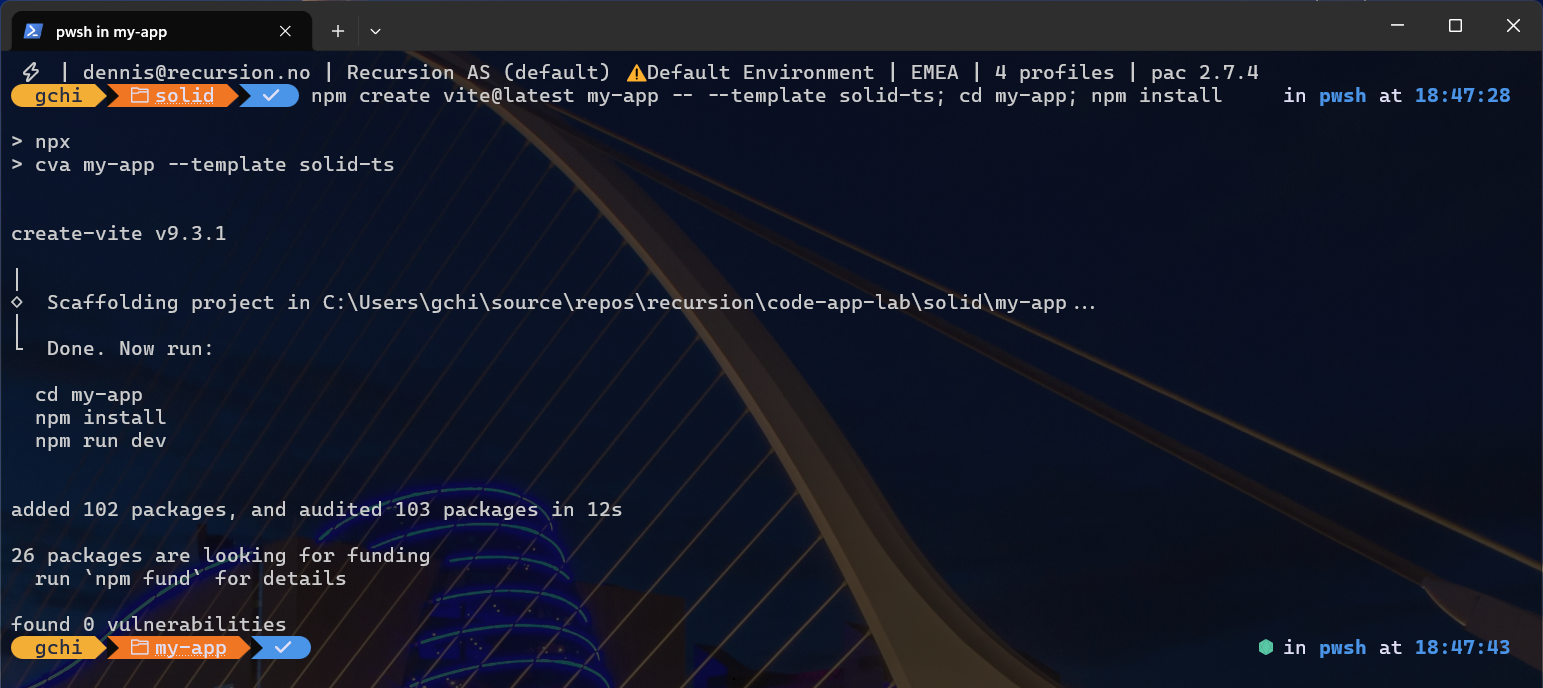
First, scaffold the Solid stack:
npm create vite@latest my-app -- --template solid-ts
cd my-app
npm install
If create-vite asks Install with npm and start now?, answer No and run the cd and npm install lines yourself. Saying Yes also starts the dev server, which you do not need yet. The commands are shown one per line on purpose: Windows PowerShell 5.1 rejects && between commands, while PowerShell 7, cmd and bash accept either form.
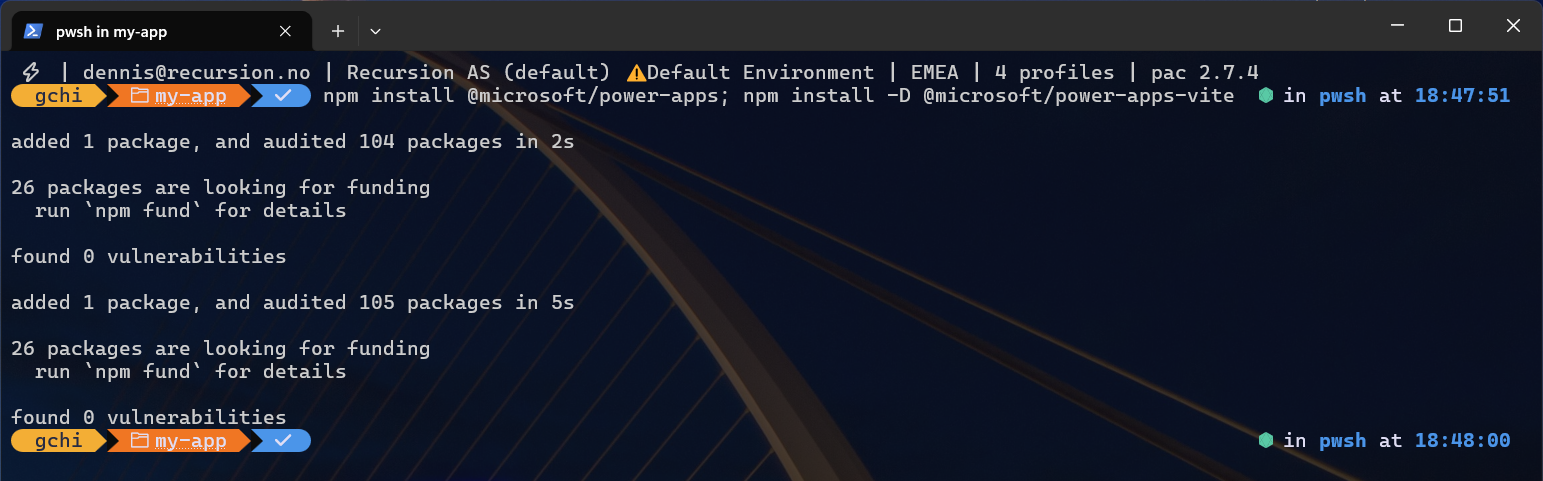
Next, add the Power Apps SDK and the Vite plugin:
npm install @microsoft/power-apps
npm install -D @microsoft/power-apps-vite
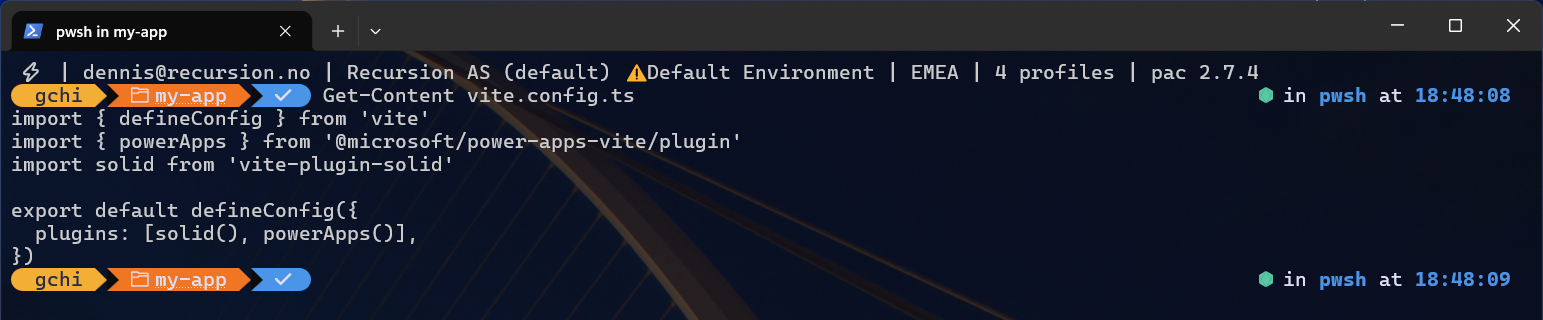
Then register the plugin in vite.config.ts:
import { defineConfig } from 'vite'
import { powerApps } from '@microsoft/power-apps-vite/plugin'   // added
import solid from 'vite-plugin-solid'

export default defineConfig({
  plugins: [solid(), powerApps()],   // powerApps() added
})
After that, install the Power Apps CLI once (it provides the pa command), then bind the app to your environment. The init command opens a browser sign-in if you are not signed in yet, adds the CLI to the project as a dev dependency, and writes power.config.json. Its output ends with a hint to run npm install again; that installs the project-local copy of the CLI and is optional, because the global pa command already works:
npm install --global @microsoft/power-apps-cli
pa app init -n "My Solid App" -e <environment-id>

Finally, run locally and publish:
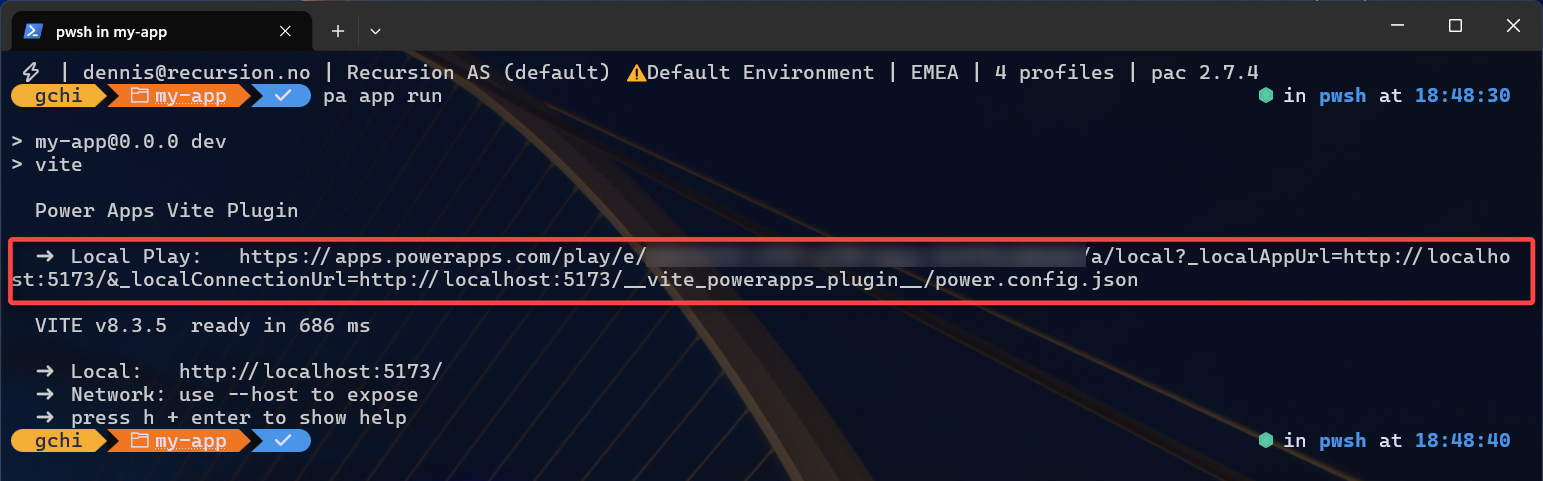
pa app run
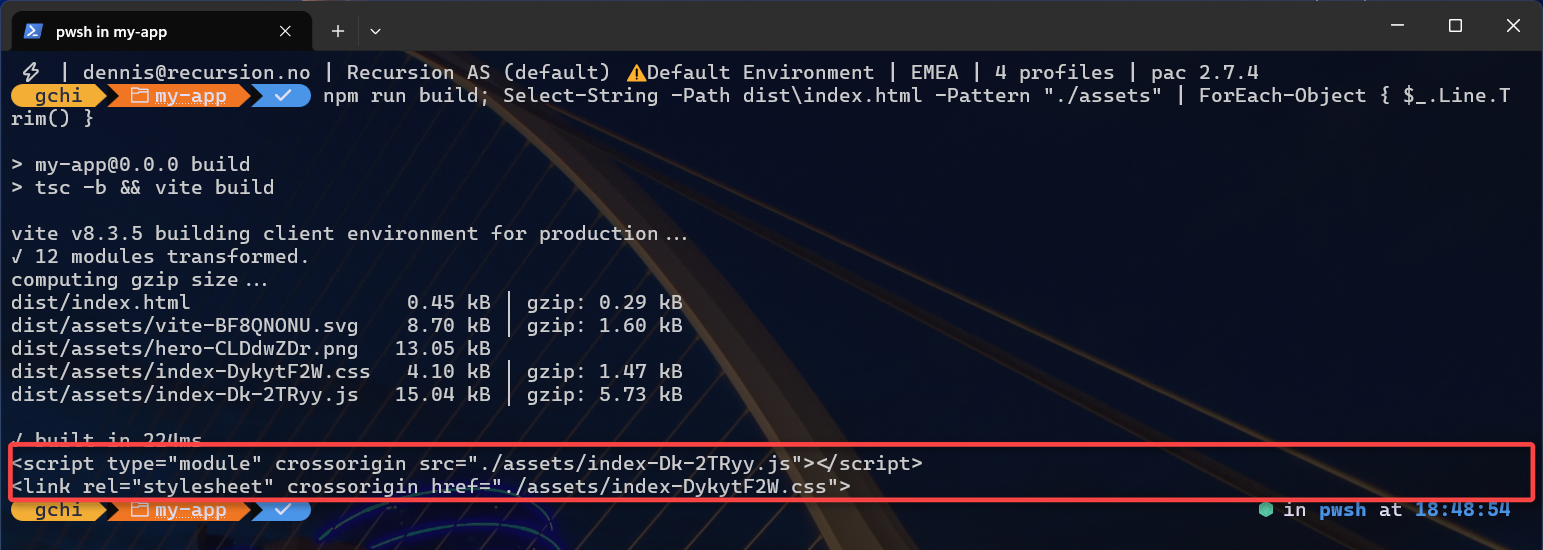
npm run build
pa app push
When pa app run starts the dev server, the plugin prints a Local Play URL. Open it in the same browser profile as your Power Platform tenant, and accept the browser’s Local Network Access prompt the first time: Chrome and Edge block calls from the player to localhost until you do. When you push, the CLI returns a live app URL.

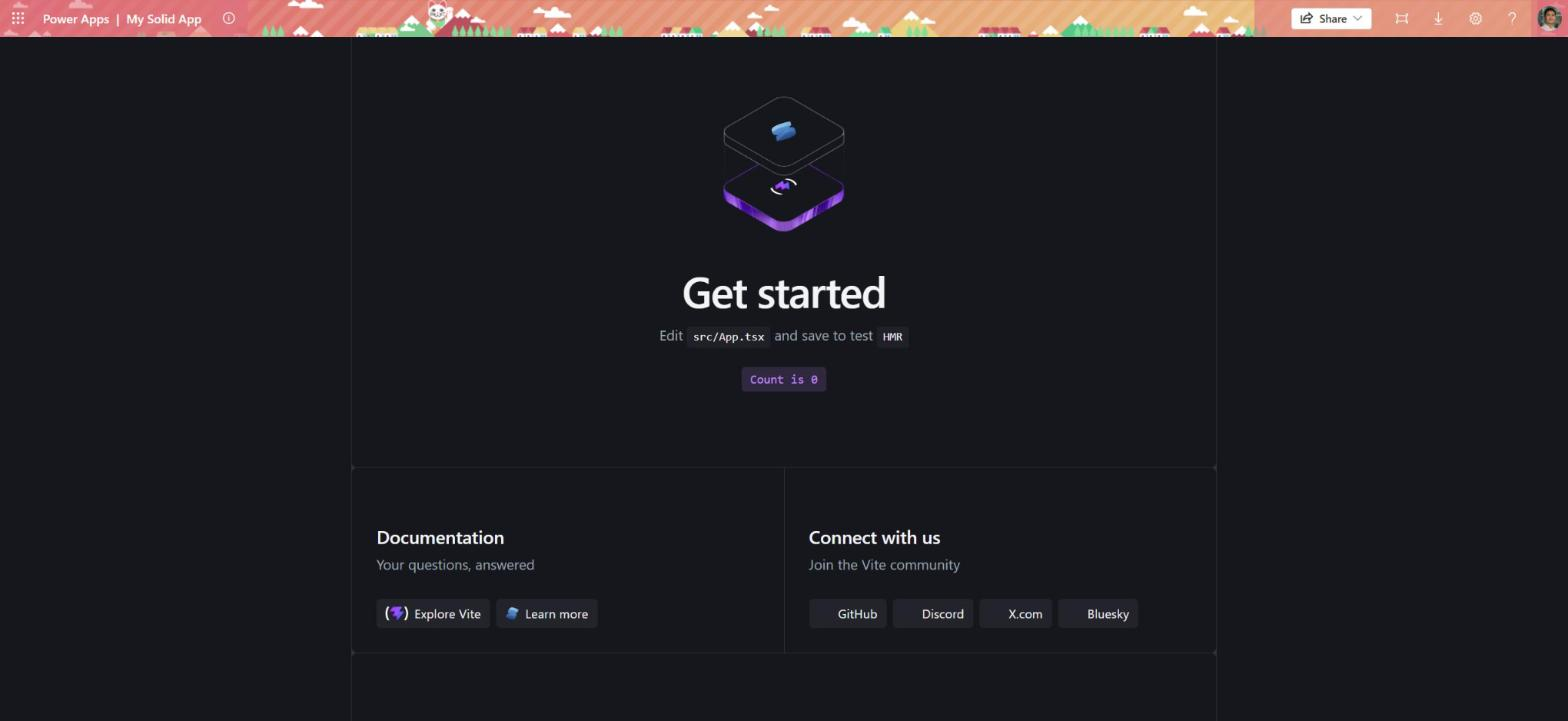
This is what you should see when you open the live app URL: the app running inside Power Apps after pa app push, with the name you gave pa app init in the header.
What to check as you go
Each step has an obvious verification, so you never guess. For example, the build should emit relative ./assets/... paths in dist/index.html. Indeed, that relative path proves the plugin is active. Our SolidJS code app build passed this check at roughly a 15 KB bundle, the smallest in the set.
SolidJS-specific notes
Solid looks like React but behaves differently. Because state uses fine-grained signals rather than a virtual DOM, components run once. However, none of that affects code app compatibility. To read context, import getContext from @microsoft/power-apps/app inside onMount. Data connectors, meanwhile, generate plain TypeScript services under src/generated/; you wire them with createResource(() => XxxService.getAll()).
Stress-test notes
Before publishing, we did more than build this SolidJS code app — we tested it the way a real project runs. We added the extras a normal app needs (page navigation and background data loading) and called the Power Apps SDK. Then we opened the running app in an automated browser (a tool called Playwright) and confirmed it worked with no errors.
Two things are worth knowing, even if you are new to code.
Don’t make the app wait for Power Apps before it shows anything. The SDK call that reads the signed-in user (getContext()) only finishes when the app runs inside Power Apps. On your laptop it never finishes, so if your code waits for it, you get a blank screen. Just let that call run in the background instead.
Pick the hash version of the router. Solid’s router offers two flavours; choose <HashRouter> (not the plain <Router>). In plain terms, that puts a # in the address bar, which keeps links and the refresh button working once the app is embedded in Power Apps. With that one choice, the SolidJS code app handled links and reloads cleanly.
Where to go next
This Solid walkthrough is one stack in a larger set. For the big picture, read the pillar guide on choosing any Vite framework for Power Apps code apps. From there you can compare React, Vue, Svelte, Preact, and Angular.
For the authoritative platform reference, see the Power Apps code apps documentation on Microsoft Learn.
Leave a Reply