Migrate a Power Apps code app to Copilot Managed Runtime
Microsoft does not have a function to convert a Power Apps code app to Copilot Managed Runtime yet, so as of now (Public Preview) – you need to migrate it manually over. In this blog I explain systematically what is involved when doing a migration, so that in the future you will understand the mechanism involved if such a button is implemented by Microsoft. Copilot Managed Runtime is also called Managed Apps. Below is the process I followed on a basic code app built with the React framework and with several connectors already included.
You replace the SDK, the CLI and the Vite plugin manually, and you repoint the imports of the generated connector code; the ms CLI creates the config file and the generated code for you. Your app code does not change: components, routes, styles and state stay as they are. The deploy step changes as well: for a code app you upload a local build with pa app push, while for a managed app you push a commit and the platform builds it.
Edited manually: Packages, plugin, imports. Swap the packages in package.json, swap the plugin in vite.config.ts and repoint the generated imports in App.tsx.
Untouched: The app code itself. Components, routes, styles and state. None of it changed; the only lines I edited in App.tsx are the import paths.
Generated by the Managed Runtime CLI: Everything else. The ms CLI writes the config file (when you run ms app init), the typed connector code (when you run ms app add data-source) and the hidden .ms/ runtime folder.
The npm packages, the config file, the generated code folder and the deploy command all have one name in a code app and another name in Copilot Managed Runtime. The table below lists the code app name and the Copilot Managed Runtime name for each of them, so you know what to remove and what to install in its place.
What it is
Code app
Copilot Managed Runtime
Packages you install
The SDK: The npm package your app imports to call a connector (for example the Office 365 Users service)
@microsoft/power-apps
@microsoft/managed-apps
The Vite plugin: The npm package that connects npm run dev on your machine to the platform, so your connectors work while you develop
@microsoft/power-apps-vite
@microsoft/managed-apps-vite-plugin
The CLI: The tool you run in the terminal to create the app, add data sources and deploy (for example pa app push or ms app deploy)
@microsoft/power-apps-cli (You type pa)
@microsoft/managed-apps-cli (You type ms)
Files on disk
The app config: Records which app and which connections this project belongs to
power.config.json
ms.config.json
The generated code: The TypeScript files the CLI creates for each connector (for example Office365UsersService.ts), plus a hidden folder the runtime needs
src/generated/ (plus hidden .power/)
generated/ (at the project root, plus hidden .ms/)
Build and deploy
Deploying: How the app gets from your machine to the platform
pa app push (You build locally and upload the result)
git push, then ms app deploy (You push a commit and the platform builds it)
Same generated API. The generated services and models keep their names in the Copilot Managed Runtime SDK: Office365UsersService.MyProfile_V2(), RSSService.ListFeedItems(), GraphUser_V1, FeedItem and the IOperationResult type with success, data and error. In App.tsx I changed the import paths and nothing else.
Before you start
A migrated app needs the following tool requirements as a Copilot Managed Runtime app:
node --version                     # v24.11.0 or newer
git --version                      # 2.27 or newer
git credential-manager --version   # any version. macOS/Linux: install it separately
npm install -g @microsoft/managed-apps-cli
ms --version
ms auth login
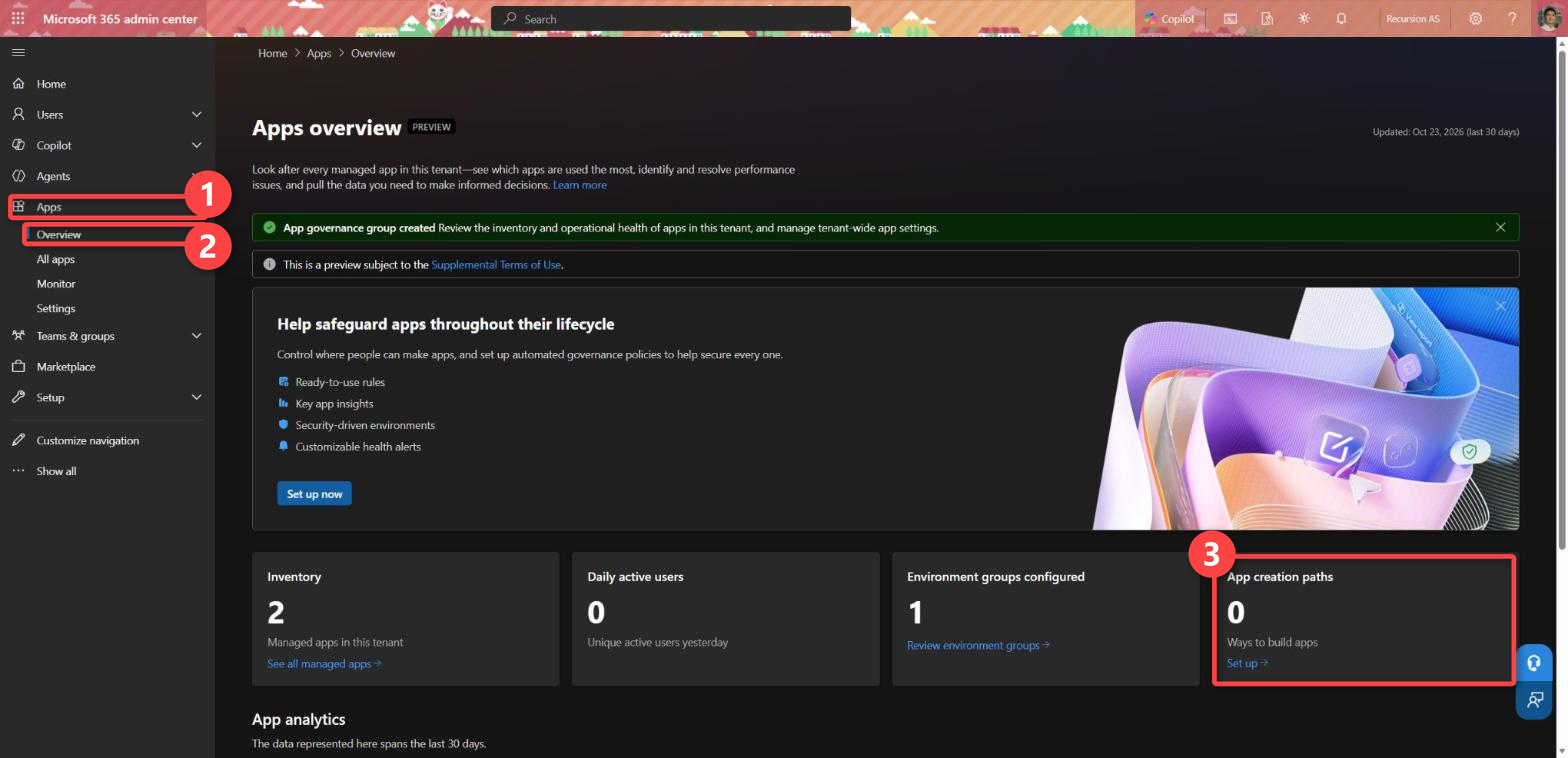
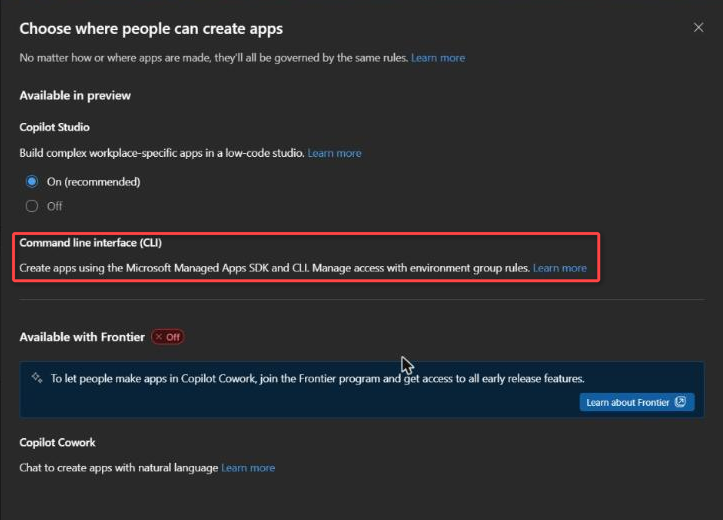
Admin side: an admin controls who can create apps from the CLI in Microsoft 365 admin center under Apps > Overview > the App creation paths card > Set up. In the panel “Choose where people can create apps” the Command line interface (CLI) path has no on/off switch; access is managed with environment group rules, as described in Limit Copilot Managed Runtime App Creation.
Licensing: running the app needs Power Apps Premium or Copilot Credits, and that includes running it on your own machine with ms app dev. Without a license you get a warning banner and then a block after 20 operations or five minutes.
Windows: if ms fails with “running scripts is disabled”, run Set-ExecutionPolicy -Scope CurrentUser RemoteSigned once.
The migration
Run every command from the root of the code app project.
Step 1: Snapshot the code app
Open power.config.json and note each connector under connectionReferences, then list the connections to find their IDs. The managed app binds to the same connections, so you reuse the IDs instead of creating new connections.
pa connection list --json
# note the "name" of each connection you use, e.g.# shared_office365users <office365users-connection-id>
# shared_rss <rss-connection-id>
Commit or copy the code app project. The old code app keeps running in Power Apps until you delete it, so there is no rush to .
Step 2: Remove the Power Apps packages and generated code
Easy to miss. Current code app templates include a Vite plugin as well, and the generated services import from a hidden .power/ folder. If the plugin or the .power/ folder stays in the code app project, the build fails with unresolved imports.
Step 3: Install the Copilot Managed Runtime SDK and Vite plugin
Pin the plugin. The install command above pins the Vite plugin to version 0.3.28 on purpose. If you run npm install @microsoft/managed-apps-vite-plugin without a version number, npm picks the newest version (0.4.0 at the time of writing) and the install fails with E404 @microsoft/[email protected], because that version depends on a package that is not published on npm. Version 0.3.28 is the version ms app create puts in a new Copilot Managed Runtime project, and it installs without errors. If you want to try a newer version later, npm view @microsoft/managed-apps-vite-plugin version prints the newest one published.
Step 4: Swap the Vite plugin
In vite.config.ts, replace the Power Apps plugin with the Copilot Managed Runtime plugin. Only the import line and the plugin call change:
Step 5: Register the code app project as a managed app
ms app init --display-name "My App" --repo native
printf '\n# Managed-Apps specific\n.ms/packed/\n' >> .gitignore
ms app init creates the managed app on the platform, writes the app config file ms.config.json, creates a platform-managed Git repository and adds it as origin; the platform builds the app from that repository on every deploy. The command works on a code app project that already has local Git history and no remote. Use --repo https://github.com/org/repo if the code app project is already in a GitHub repository, or --repo none if you want to build and upload the artifacts yourself.
The second command adds .ms/packed/ to .gitignore, the folder where ms app pack writes a local build of the app. adding an additional comment at the end of .gitignore:
“Managed-Apps specific .ms/packed/”
Step 6: Re-add the data sources
Run one command per connector with the connection ID from step 1. Tabular sources such as SharePoint and Dataverse also need --as table --dataset ... --table ....
ms app add data-source --connector shared_office365users --connection-id <office365users-connection-id>
ms app add data-source --connector shared_rss --connection-id <rss-connection-id>
The ms CLI (Managed Apps) writes the generated code to generated/ at the root of the code app project, not to src/generated where the pa CLI (Code Apps) wrote it.
Step 7: Fix the imports and build
Every import of ./generated or src/generated has to point to the new folder one level up; from inside src/ that is ../generated.
sed -i "s#from './generated#from '../generated#g" src/App.tsx   # repeat per file that imports generated code
npm run build
If TypeScript reports an error, look for a connector operation that has a different name in the generated service file (for example Office365UsersService.ts) than in your code.
Step 8: Get the branch and history in order
The platform builds from a main branch, and the repository that ms app init created already contains a seed commit with a README (the first commit the platform made in that repository). A local branch named master and a local history that does not contain that seed commit each make the first push or deploy fail, so rename the branch and merge the seed commit before you push.
If push says “Authentication failed”. Git Credential Manager opens a browser sign-in on the first push to the new remote, and the push fails when it cannot show that window. Run the push again from an interactive terminal (a terminal you type into yourself, not a script) and complete the sign-in.
If push says “rejected, fetch first”. The remote’s seed commit is not in your history yet, so run the git merge command above. -X ours keeps your README over the README in the seed commit.
Step 9: Deploy
ms app deploy
ms app deploy queues a platform build of the pushed commit, waits for it and prints the play URL (the link users open to run the app) when the app is live.
If deploy says ManagedAppBuildCommitNotFound. The commit is not on the remote yet, and the platform only builds commits it has. If that happens, run git push -u origin main first, wait until the push has finished, and then run ms app deploy again.
Step 10: Verify in the browser
Open the play URL. On the first launch each user sees a consent dialog listing every connector; allow it and the app loads. For a code app, an admin can skip this dialog with the Set-AdminPowerAppApisToBypassConsent cmdlet from the Microsoft.PowerApps.Administration.PowerShell module. For a managed app, Learn documents the dialog and no way to skip it, so skipping it is not possible as far as the documentation goes (checked on Learn 2026-10-17).
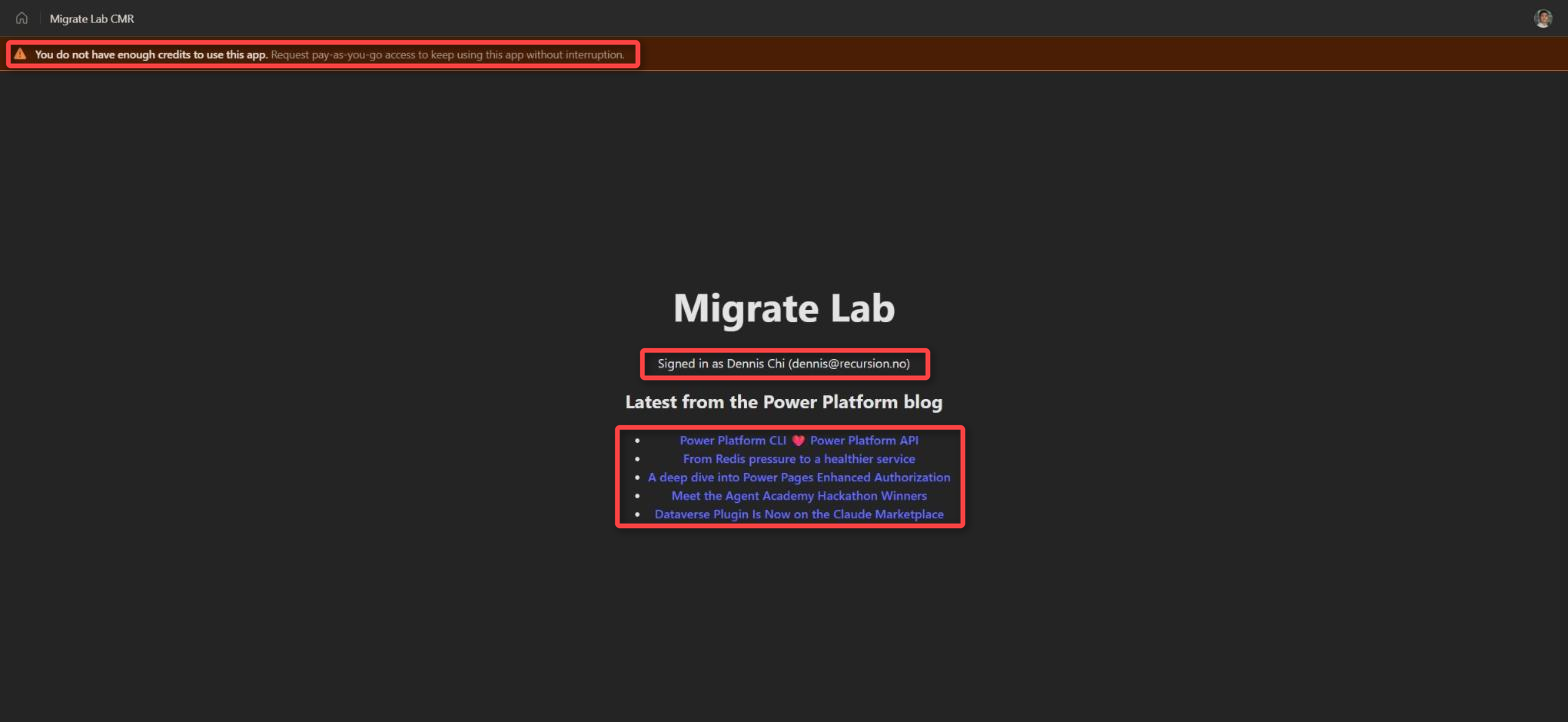
My result. The profile loaded through Office 365 Users and the feed items through RSS, against the same connections the code app used. The app behaved the same as before.
Step 11: Cut over
ms app share [email protected]
ms app share link create      # optional tenant-wide link
Share the app with every user and group again; the code app’s sharing is not copied to the managed app.
Update your links. The managed app has a new app ID, and its play URL is on managedapps.cloud.microsoft instead of apps.powerapps.com.
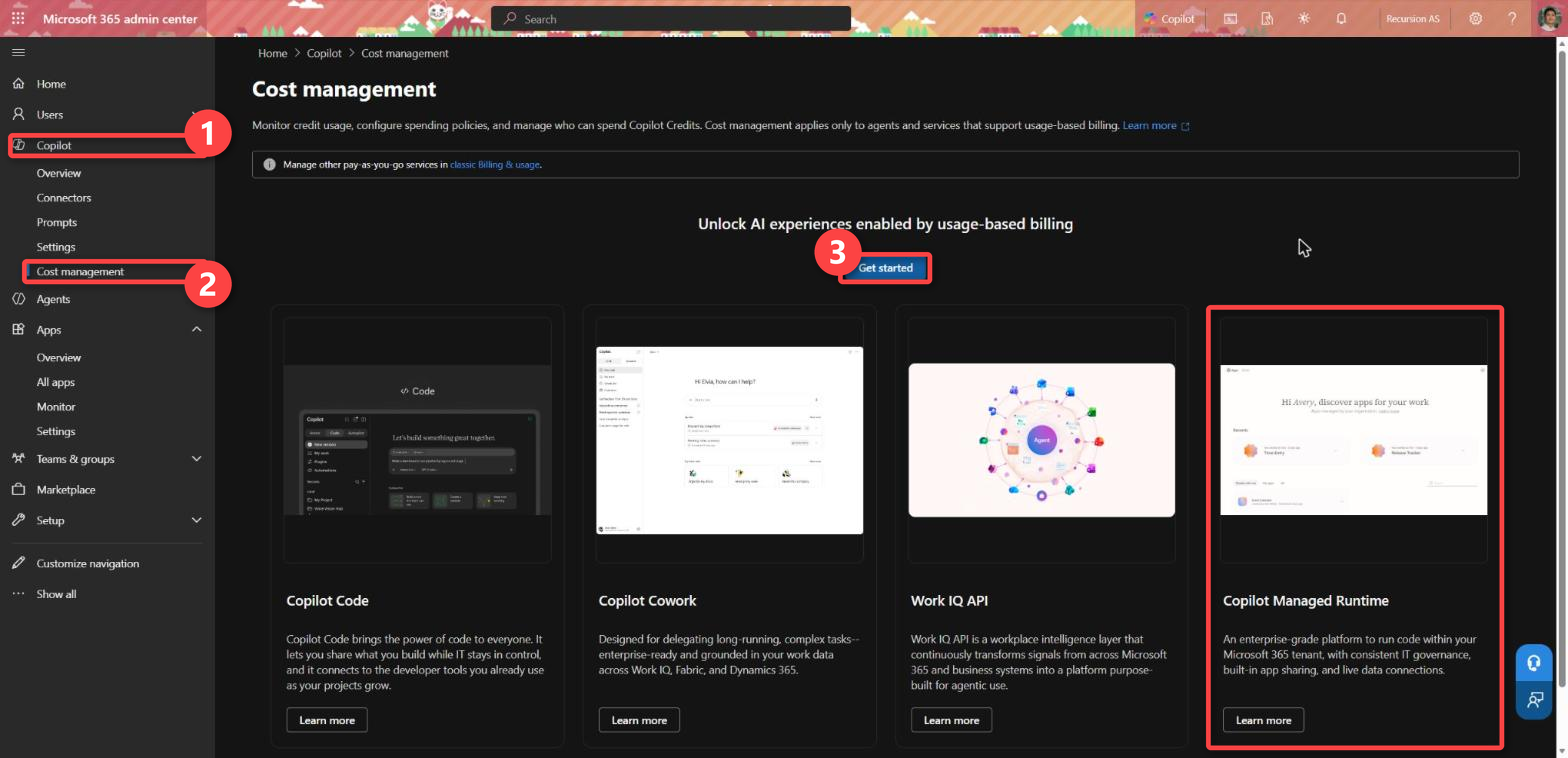
Check that every user has Power Apps Premium or is covered by a spending policy for the Copilot Managed Runtime service in Microsoft 365 admin center under Copilot > Cost management (set up with Get started under usage-based billing; it lets users without a Premium license run the app on Copilot Credits).
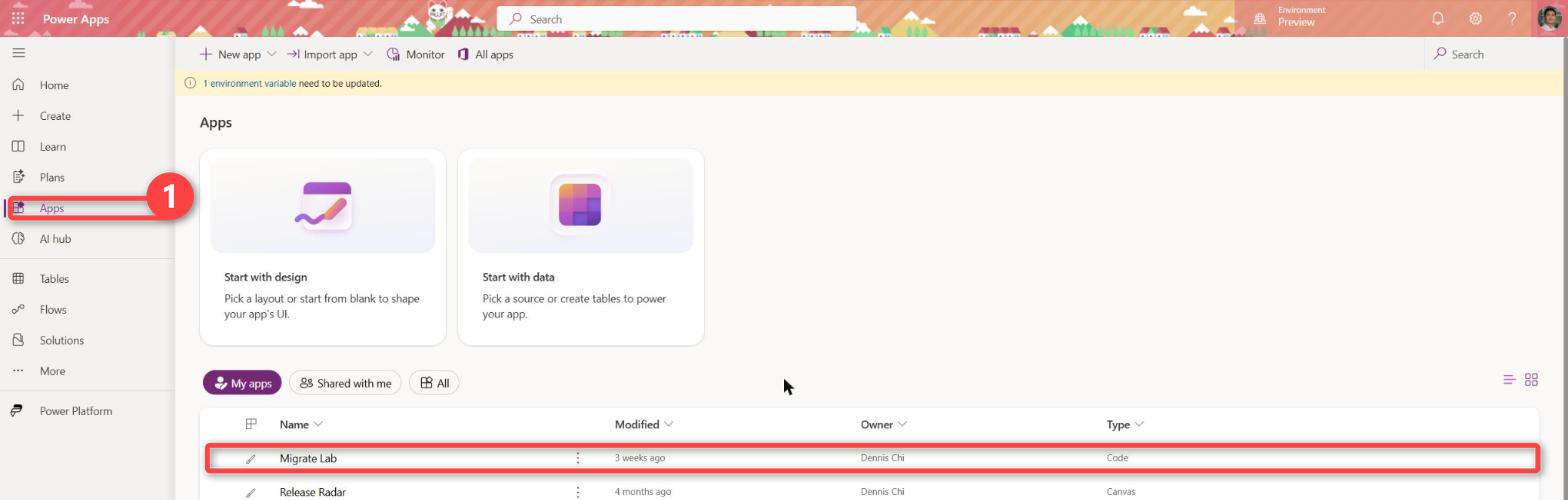
Delete the code app from Power Apps once nobody depends on it.
A file in the code app project still imports from src/generated, or .power/ is still on disk. Delete src/generated and .power/, then run ms app add data-source again.
Building
Cannot find module './generated'
The ms CLI writes generated code to the root of the code app project. Import ../generated from src/.
First push
fatal: Authentication failed for 'https://…powerplatform.com/…'
Git Credential Manager needs a browser sign-in on the first push. Run the push again from an interactive terminal.
First push
! [rejected] main -> main (fetch first)
Merge the seed commit: git merge origin/main --allow-unrelated-histories -X ours.
Deploy before push
ManagedAppBuildCommitNotFound
Push first. The platform only builds commits it has.
Deploy from master
Using branch 'master' …
Rename the branch with git branch -M main before you push; the platform builds from main.
First launch
You do not have enough credits to use this app
The user has no license. Assign Power Apps Premium or add the user to a “Managed applications” spending policy.
What does not migrate from the code app
Sharing. Share the app again with the same users and groups, and create any sharing link again.
Environment.ms app init creates the managed app in your personal developer environment. Dataverse tables can remain in the environment they are in; bind to them with --dataverse-environment-id.
Power Apps host features. A code app can import functions from @microsoft/power-apps/app that only work inside the Power Apps host. getContext() returns information about the app and the signed-in user (for example the app ID and the user principal name), and setConfig() registers a logger for the session and network metrics the host collects. The Copilot Managed Runtime SDK has no equivalent for either function, so if your code app uses them you rewrite that code or remove it.
The upload workflow. There is no ms app push; every deploy is a commit the platform builds, so uncommitted changes are never deployed.
The files I edited manually were App.tsx, vite.config.ts and package.json.

Leave a Reply