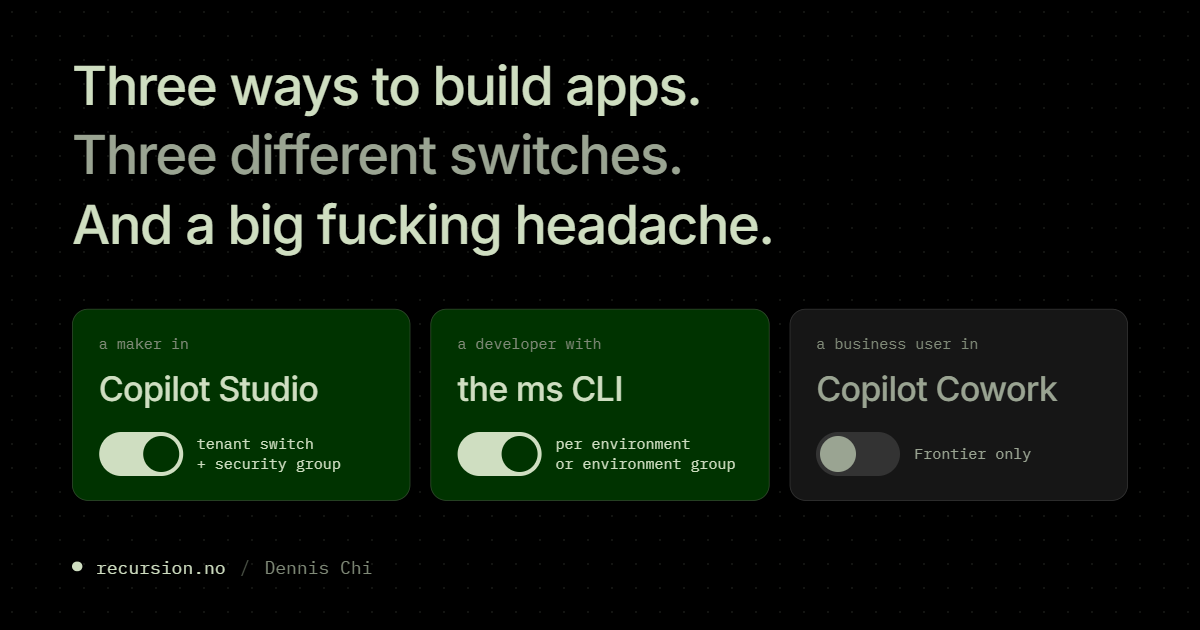
Copilot Managed Runtime (also called Managed Apps) is a way to build apps that comply with your organisation’s IT governance policies on their own, from the moment they are created. Every app shows up in the Microsoft 365 admin center, where admins track its usage and health. It is in public preview, and a maker builds in Copilot Studio, a developer builds from the command line, and a business user builds in Copilot Cowork. In the preview, app creation in Copilot Studio is switched on for the whole tenant, so anyone who can open Copilot Studio can start building an app today. Each of those apps can connect to company data, and your data loss prevention rules and connector policies for the new runtime may not be written yet. That is how a tenant ends up with apps with unwanted exposed data. This post shows how to either restrict or let a small pilot group build while gating everyone else.
The model: environments, routing and the switches
An environment is a container in Power Platform. It holds apps, data and connections, and an admin sets rules per environment. Every maker gets a personal developer environment (PDE) of their own. The Power Platform creates it the first time that person builds an app.
“Environment routing” is the first door into that personal developer environment. A routing rule says “people in this security group get their own personal developer environment”. For Copilot Managed Runtime, routing is always on, and an admin cannot turn it off. A routed personal developer environment is a managed environment, and the maker is environment admin of their own personal developer environment.
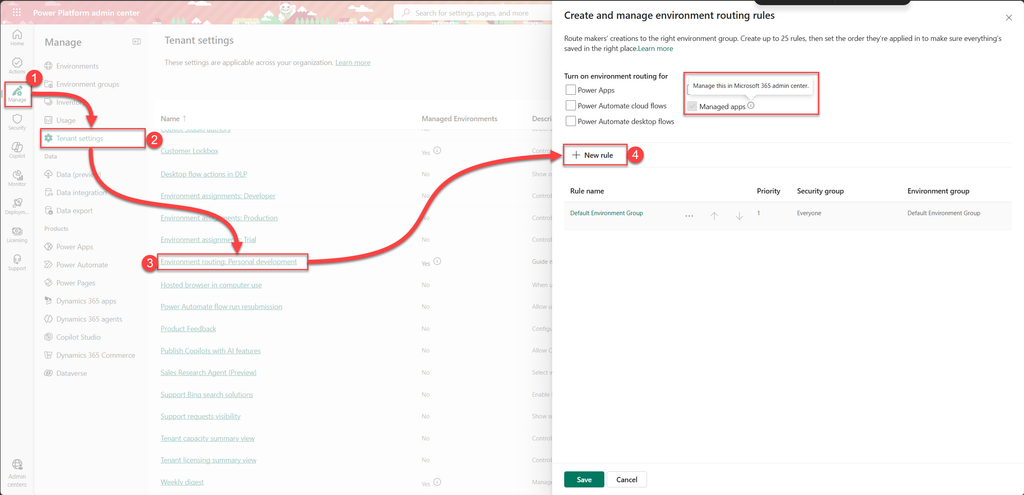
Routing rules go into environment groups. An environment group is a set of environments that share rules, such as which connectors are allowed. A routing rule cannot exist without an environment group (Learn). A tenant that had no routing rules gets an Everyone rule. It sends every person without a more specific rule to the default environment group.
Creation is switched on in three different places, because there are three ways of building Managed apps:
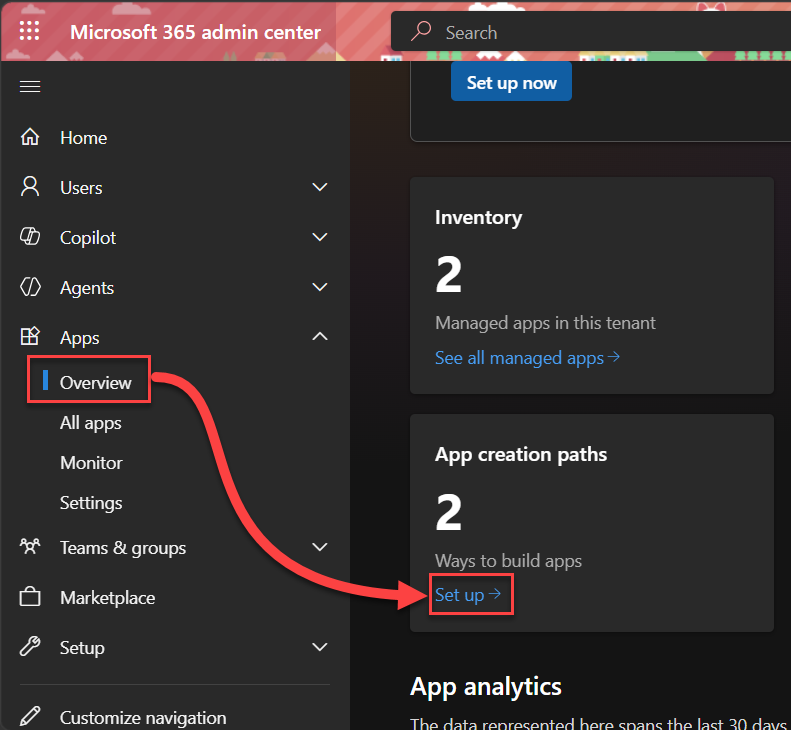
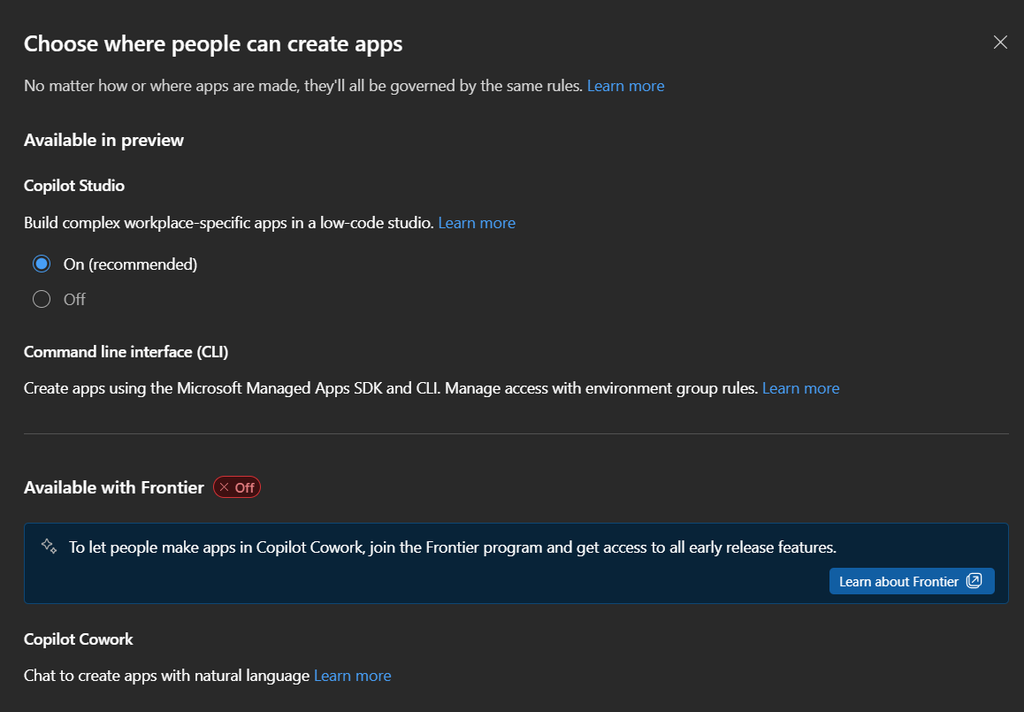
- A maker in Copilot Studio builds from the App (preview) tile. This path is On by default. The switch is tenant-wide in the Microsoft 365 admin center (MAC) under Apps > Overview > App creation paths. On top of it there is a security-group scope, which you can set with the Power Platform CLI (
pac). - A developer with the
msCLI runsms app createin a terminal. Learn lists this path as off by default. The setting is per environment or per environment group in the Power Platform admin center (PPAC). Strategy 2 explains what “off by default” means in practice. - A business user in Copilot Cowork builds through the Cowork app-building skill. This path is not available outside the Frontier program. Frontier onboarding and Cowork access govern it, not the Copilot Studio switch.
To change any of these switches you need the Global Administrator or Power Platform Administrator role.
Global Reader, AI Administrator and AI Reader can only see the settings, but cannot change them.
The strategies side by side overview
| Strategy | What it blocks | Who should use it | Effort | Reversible? |
|---|---|---|---|---|
| 1. Scope the Copilot Studio path to a security group | The App (preview) tile in Copilot Studio for everyone outside the group | Every tenant; the recommended lever for the Copilot Studio path | One Entra security group and one pac command | Yes, with a settings file that sets the value to an empty string |
| 2. Control the CLI path per environment or environment group | ms app create in every environment where the setting is Off | Tenants where developers use the ms CLI | Two environment groups and two routing rules; existing PDEs are moved manually | Yes, set the setting back to On |
| 3. Security-group routing without an Everyone rule | A PDE, and so any app, for everyone outside the routing groups, on every path | Tenants that have not initialised Copilot Managed Runtime governance yet | Routing rules set up before anyone opens Apps > Overview or creates the first app | One way: an admin can open up later by adding an Everyone rule, but after initialisation this state cannot be recreated |
| 4. No Copilot Credits | The first build prompt in Copilot Studio; agent and workflow building too | Tenants with no credit pool yet, as a stopgap | None until credits are set up; environment groups to make it selective | Yes, allocate credits or link a billing plan |
| 5. Shut the door to Copilot Studio itself | All of Copilot Studio, agents included | Only tenants with no Microsoft 365 Copilot licenses and no Copilot Studio licenses | The “Copilot Studio authors” group plus a license check per user | Yes, add the user to the authors group |
Strategy 1: scope the Copilot Studio path to a security group (recommended)
Choose this if you want the Copilot Studio path to stay open for a named group and closed for everyone else.
The path stays On for the tenant. Only members of one or more Microsoft Entra security groups see the App (preview) tile and the Apps (Preview) entry in Copilot Studio. Everyone else keeps Copilot Studio for agents and sees no app builder.
- Create an Entra security group for the pilot makers and copy its object id.
- Leave the Copilot Studio path On in MAC (Apps > Overview > the App creation paths card > Set up > the panel “Choose where people can create apps“).
- As Global Administrator or Power Platform Administrator, run:
pac admin update-tenant-settings --setting-name powerPlatform.powerapps.enabledGroupsManagedAppsMcsPreview --setting-value '<security-group-object-id>'
Several groups go in as comma-separated object ids.
'<security-group-object-id-1>','<security-group-object-id-2>','<security-group-object-id-3>'What to watch out for:
- The Microsoft Admin Center panel has no group picker. It keeps showing On after a group is set (seen in preview).
- An open Copilot Studio tab can cache the old settings for up to 15 minutes. The change applies on the next page load, and admins are not exempt from the group scope.
- Existing apps are untouched and stay listed in MAC under Apps > All apps.
- Verify the scope with
pac admin list-tenant-settings --settings-file <file>and look underpowerPlatform.powerAppsin the file. - Removing the restriction means setting the value to an empty string, and
pacrefuses an empty value on the command line, so use--settings-filewith the JSON below. An empty string means no restriction, not “nobody”.
{"powerPlatform":{"powerApps":{"enabledGroupsManagedAppsMcsPreview":""}}}
- The tenant switch itself,
powerPlatform.powerapps.enableManagedAppsMcsPreview, accepts On and Off. A fresh tenant will go DefaultOn, and once you have set the switch you can only set it to On or Off, where On behaves the same as DefaultOn.
Strategy 2: control the CLI path per environment or environment group
Choose this if your developers build with the ms CLI and you want to decide per person who may run ms app create.
The CLI setting decides whether ms app create is allowed in a given environment. Every maker’s PDE is its own environment. So a per-environment setting is a per-person setting in practice.
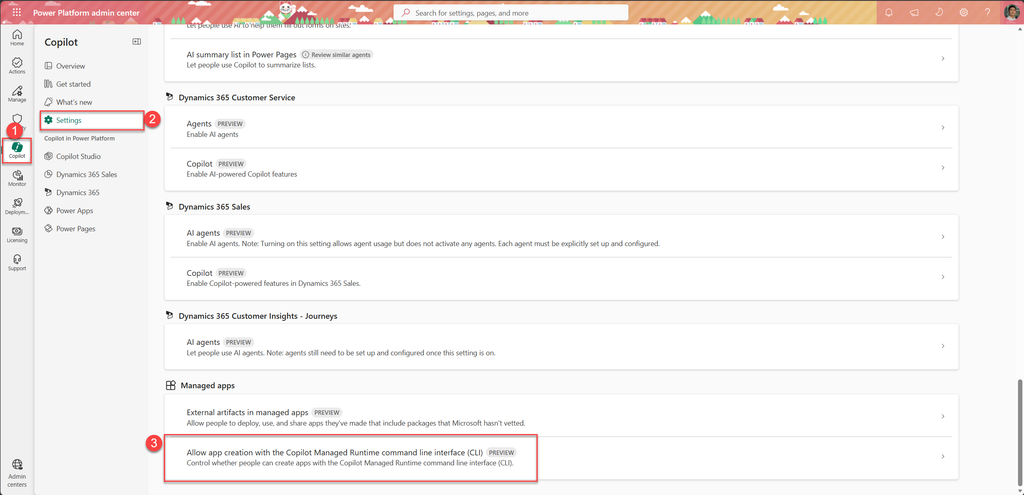
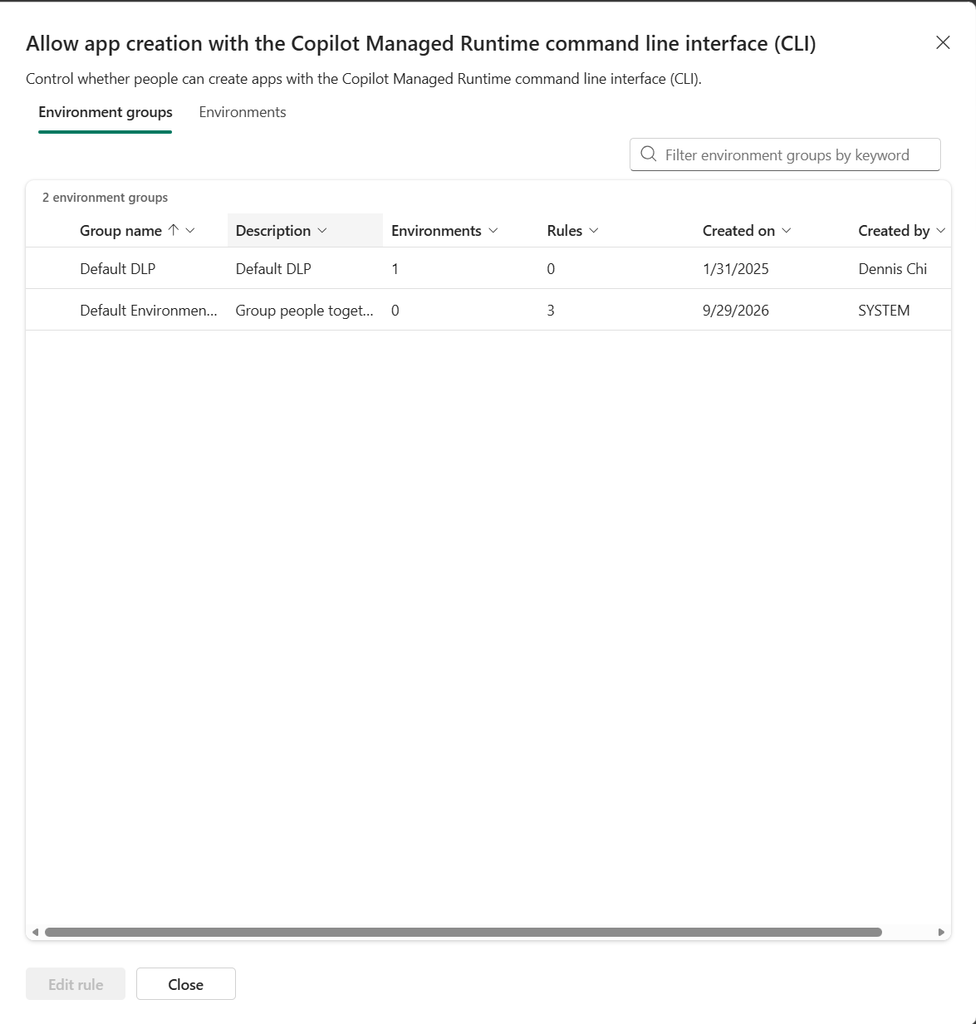
The setting is in PPAC under Copilot > Settings > Managed apps > “Allow app creation with the Copilot Managed Runtime command line interface (CLI)“. It has tabs for Environment groups and Environments. The same rule is in PPAC under Manage > Environment groups > the group > Rules. In that rule catalogue it still carries the older product name, “Allow app creation with Microsoft Managed Apps“, so search for “Managed Apps” there, not “CLI“.

For per-person control you need two environment groups:
- The Everyone routing rule targets the default group. Set CLI creation Off there.
- Create a pilot environment group and set CLI creation On.
- Add a routing rule for the pilot security group that sends them to the pilot group. Place it above Everyone in priority. Routing rules cannot be created without an environment group, and the Everyone rule must be last in priority.
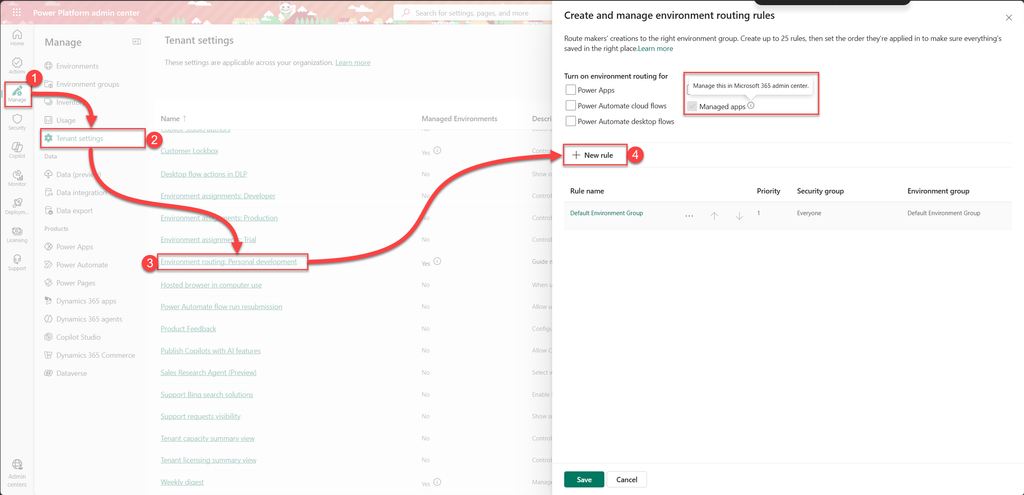
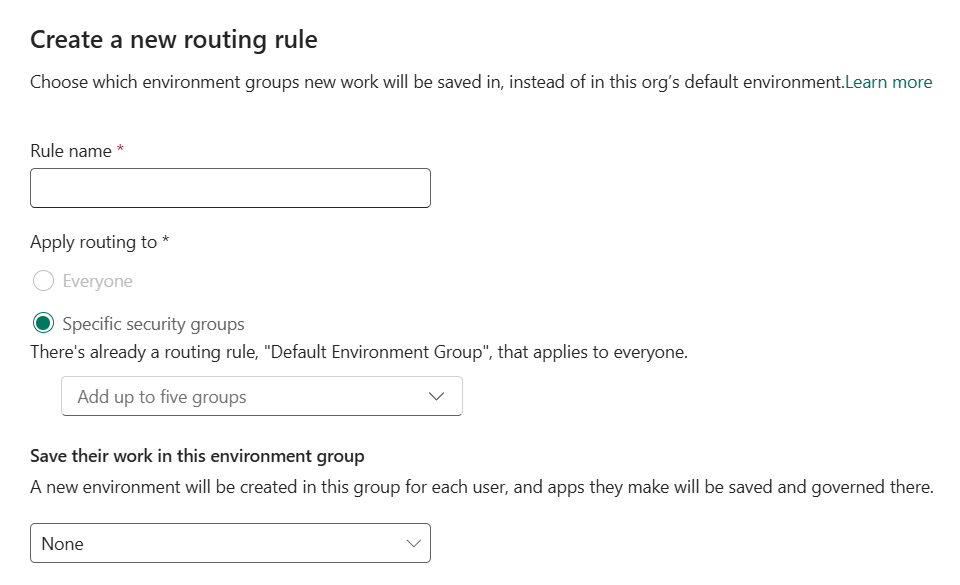
- An existing PDE stays in the group it is already in. Move a pilot maker’s existing PDE into the pilot group manually (PPAC > Environment groups > Add environments).
What to watch out for:
- The environment-group rule is a single On checkbox. A published group rule locks the setting for every environment in the group. You cannot make an exception for one environment inside the group (yet).
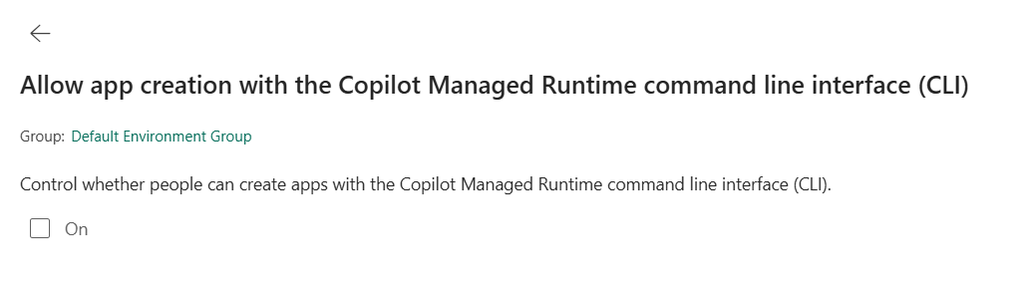
- The per-environment setting has three values: “Microsoft default“, “On for everyone” and “Off“. Microsoft default means environment admins can create apps. Learn lists the CLI path as off by default, and in practice that default is environment admins only. Routing makes every maker admin of their own PDE, so with Microsoft default the CLI path is open to every routed maker until an admin sets Off.
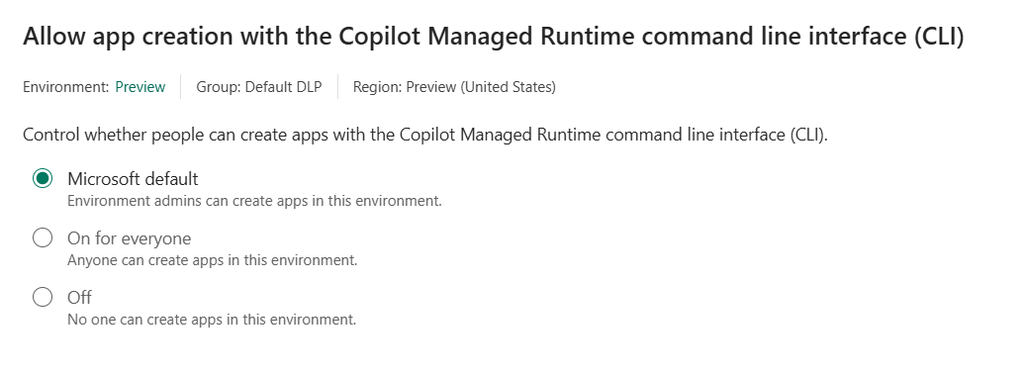
- With Off,
ms app createcommand will fail, with the message “Managed App creation from CLI is not enabled for environment… Ask the environment administrator to enable the ‘ManagedApps_AppCreationFromCLI‘ environment setting.
Strategy 3: security-group routing without an Everyone rule (only before initialisation)
Choose this if nobody in your tenant has built a Copilot Managed Runtime app yet and no admin has opened the app governance pages.
Governance is initialized when the first app is created, or when an admin opens the app governance experience in MAC or PPAC. At that moment the platform looks at your routing rules. If the tenant has no routing rules, an Everyone rule and a default environment group are created for you. If the tenant already has routing rules scoped to security groups and no Everyone rule, those rules are kept. Then only members of those groups can build. Everyone else cannot get a PDE and cannot create an app on any path.
After that, the Everyone rule cannot be deleted or modified (Learn).
What to watch out for:
- Configure routing with security groups before anyone opens Apps > Overview in MAC and before the first app is created. One click on that page initializes governance.
- Once governance is initialized, this strategy is gone. Strategy 1 is then the only per-person lever on the Copilot Studio path.
- The tenant setting “Environment creation: Developer” only applies when someone creates a developer environment manually. It does not block routed PDE creation (Learn).
Strategy 4: no Copilot Credits, no building (dirty fix)
Choose this if you have not set up a Copilot Credits pool yet and you need a stop today, with the side effects below.
Building an app in Copilot Studio is billed per environment in Copilot Credits through the GitHub Copilot harness. Billing starts at the first prompt. When an environment has no credits, makers cannot use natural-language authoring.
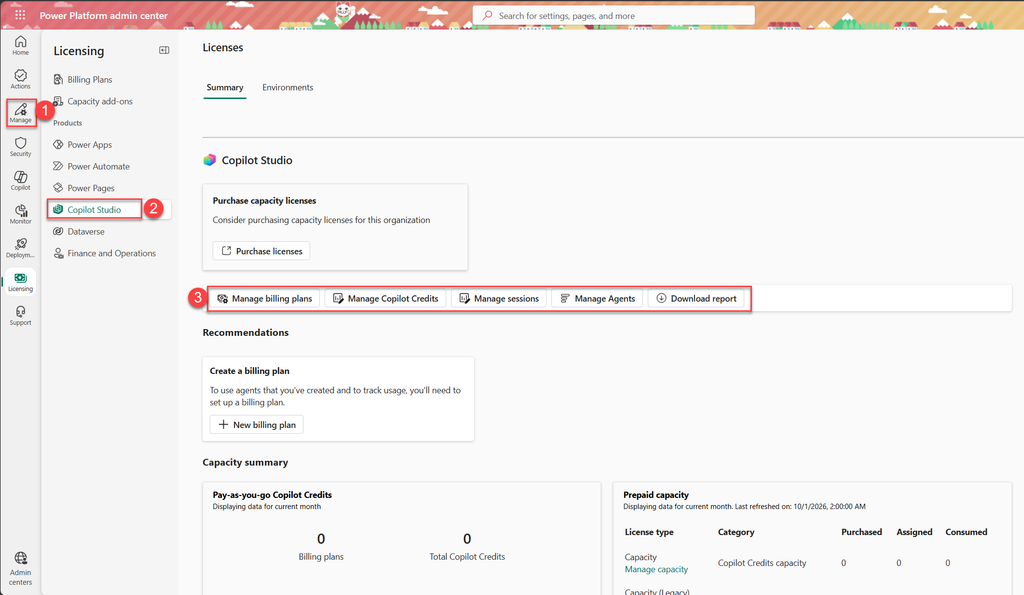
In public preview (October 2026) a tenant with no credit pool and no billing plan behaves like this: the App (preview) tile and the builder chat still open. The first prompt is refused with “No usage quota is available for your account, so this request couldn’t be completed“, together with a card saying “Your organization hasn’t set up a pool of credits yet“. Nothing is created.
What to watch out for:
- It also stops agent and workflow building in the same environments. The maker sees an error after the first prompt instead of a missing tile.
- A pay-as-you-go billing plan linked to the environment bypasses it (Learn).
- The CLI path does not use Power Platform credits. It checks the environment setting from strategy 2.
- It is selective only through environment groups. Turn the rule “Cost controls – Draw from tenant credit pool” off and give the Everyone group no allocation. Give the pilot group an allocation, or turn draw on for it.

Strategy 5: shut the door to Copilot Studio itself (usually not available)
Choose this only if nobody outside the pilot holds a Microsoft 365 Copilot license or a Copilot Studio license.
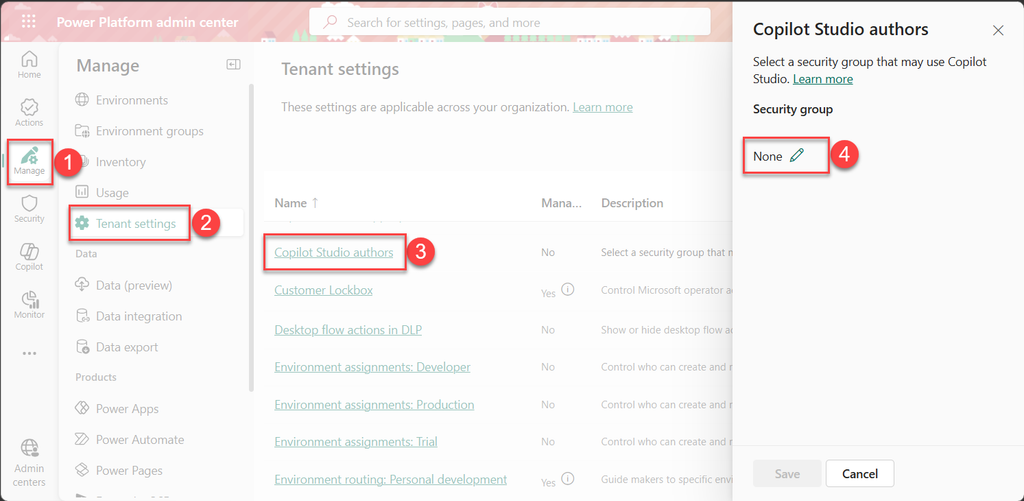
A user is locked out of Copilot Studio only when all of the following hold (Learn, the troubleshooting article on the authors setting):
- The user is not in the “Copilot Studio authors” security group (PPAC > Manage > Tenant settings).
- The user has no Copilot Studio per-user or trial license.
- The user has no Microsoft 365 Copilot license.
What to watch out for:
- An organisation that has rolled out Microsoft 365 Copilot broadly cannot use this. The Microsoft 365 Copilot license alone grants Copilot Studio access.
- It removes agent authoring too!
- The Entra variant, “User assignment required” on the Copilot Studio enterprise application, has the same scope and the same bluntness.
What does not control creation
- DLP and advanced connector policies govern what an app can connect to, not whether it can be created. The default environment group for Copilot Managed Runtime comes with a Microsoft-curated connector policy. It allows 18 first-party connectors that sign in through Entra only. Open-ended HTTP and script actions are blocked. So a new app is not ungoverned on day one.
- A security group on an environment governs who can run apps there, not who can create them.
- “Environment creation: Developer” only applies when someone creates a developer environment manually. It does not govern routing.
Detect first, restrict second
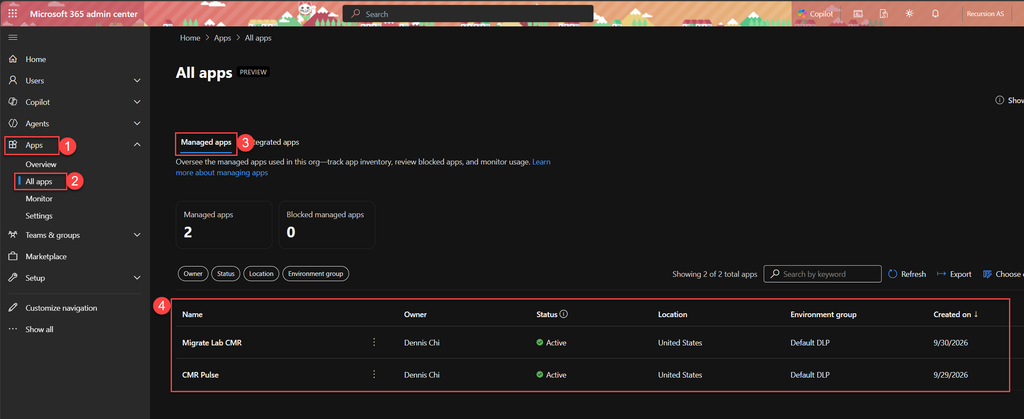
While the security is being set up, Microsoft Admin Center > Apps > All apps is a live inventory of every app with its owner and environment group.
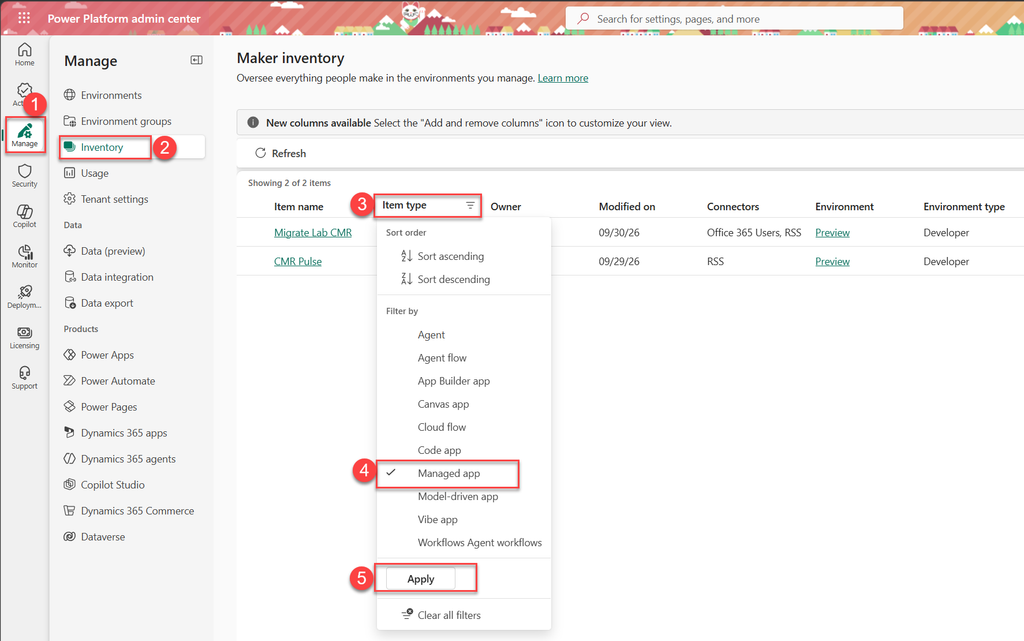
PPAC > Manage > Inventory shows the hosting environment for each app once you set Item type to Managed app; add the Environment group column with the Add and remove columns icon.
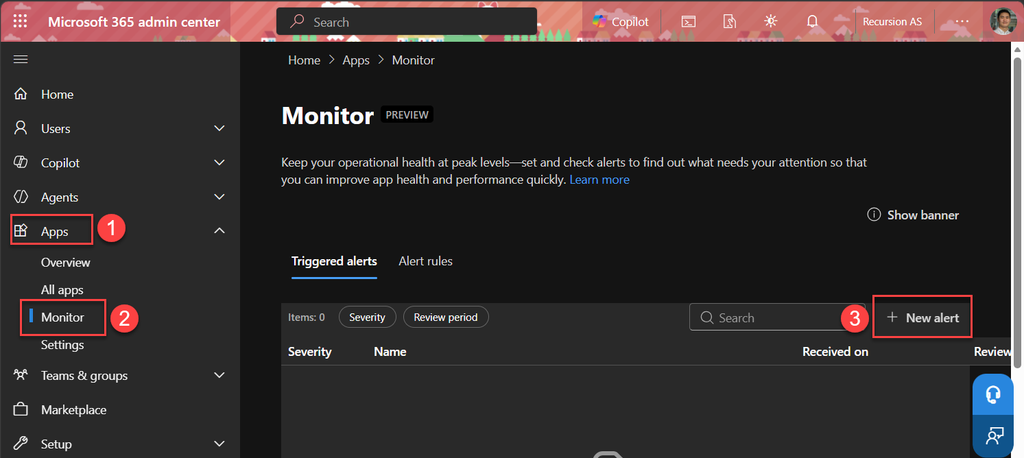
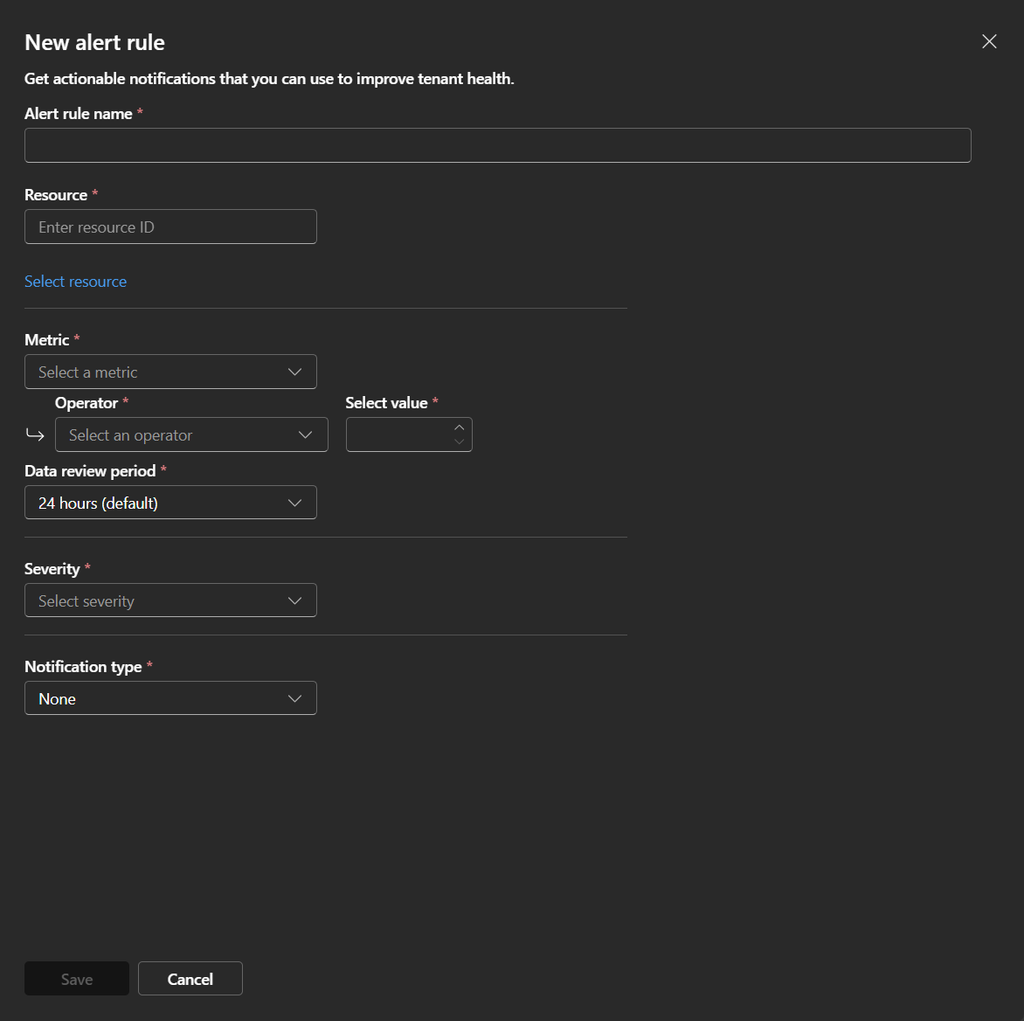
MAC > Apps > Monitor also supports health alerts.
The combination I would recommend
Put the pilot in one Entra security group. Use strategy 1 for the Copilot Studio path, so only the group sees the App (preview) tile. Use strategy 2 with two environment groups for the CLI path: CLI creation Off in the default group and On in the pilot group. Allocate Copilot Credits only to the pilot group’s environment group. Keep the tenant switch On so the pilot keeps working, and review the inventory weekly.
If your tenant has not initialised Copilot Managed Runtime governance yet, decide on strategy 3 before anyone opens Apps > Overview. That option is gone after the first click.
Where to go next
- Copilot Managed Runtime overview and key concepts for admins (creation paths, roles, the
pacsettings). - Copilot Managed Runtime default governance settings (the CLI setting, environment groups, routing for existing customers).
- Environment routing for Copilot Managed Runtime (routing rules and the Everyone rule).
- FAQ about Copilot Managed Runtime (initialisation, inventory, unmatched makers).
- Enforcement policy for agents consuming Copilot Credits.
- Users outside the Copilot Studio authors security group can access Copilot Studio.
If a setting on your tenant behaves differently from what this blog says, or you found a lever I missed, do let me know! The preview features can change names, menu location etc. over time, so I try to update this on best effort.
Leave a Reply