A project team is building a Power Apps code app for a department. The department gets its own environments, and the app is planned with its own custom Dataverse tables. During development, only the team should be able to build and see those tables, as several other projects in the future will co-exist on the same environment. In test and production, users should reach the app and the tables behind it, and nothing else.
Below is the recommended setup I usually have in mind when advising customers, but demonstrated in my own personal tenant. First, let me explain the whole picture, then the steps in details, then how two or more developers work together day to day over time.
The whole picture
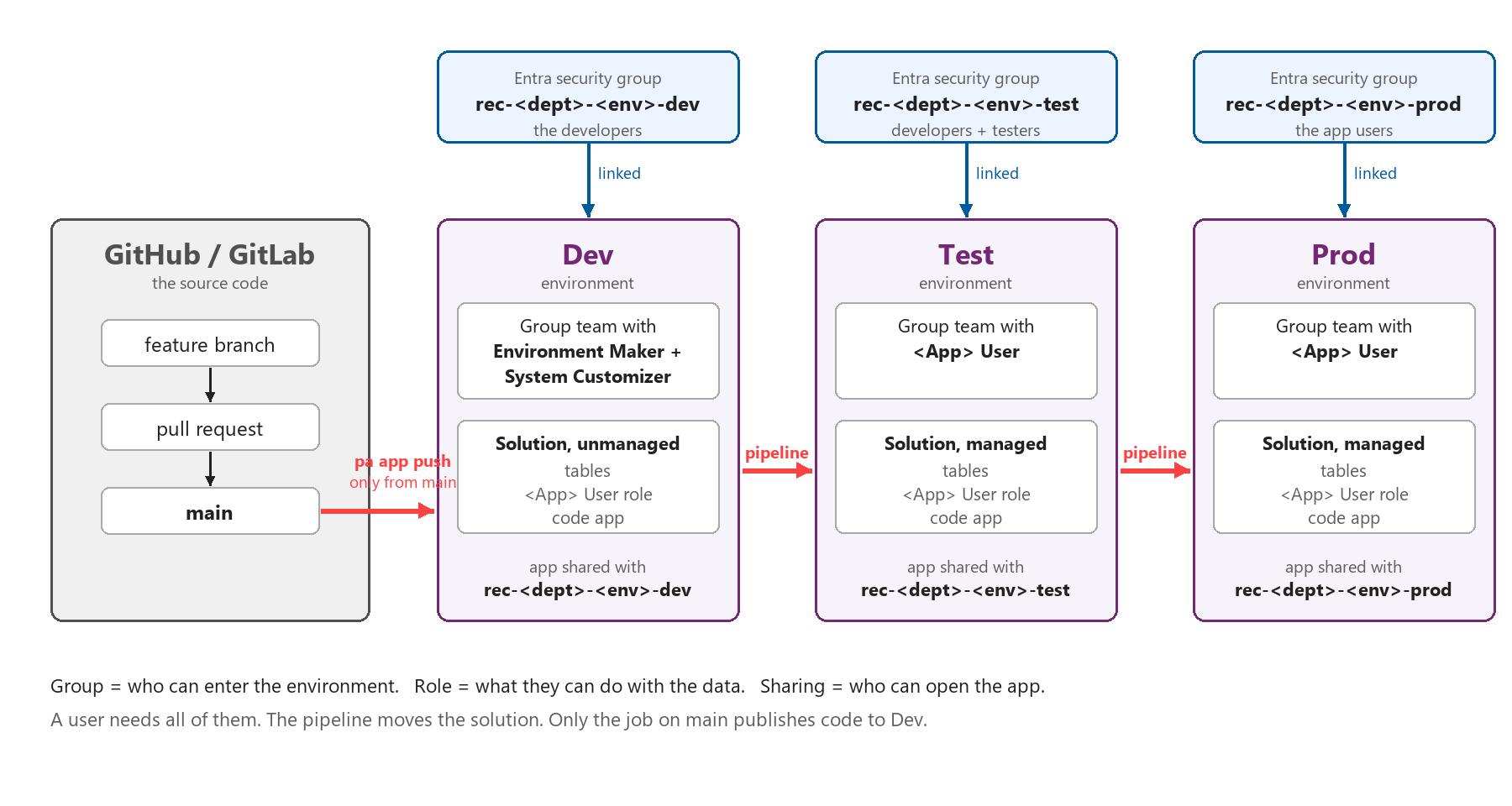
By following best practice setup; users needs a secured way into the environment, a security role access on the data, and access to the app before the app works for them. Each comes from different settings, and most access problems come from mixing them up, this is why I feel it is important for readers to grasp the concept of this setup below:
- Who can enter the environment? A Microsoft Entra security group linked to the environment.
- What can they do with the data? A Dataverse security role, given to that group through a group team (defined from environment settings).
- Who can open the app? Sharing the app with the same group from Code Apps CLI.
Dev, Test and Prod each get all of this, with a different group in each. The developers’ group gets maker roles in Dev. The testers’ group and the users’ group get the app’s own custom role in Test and Prod.
The code goes from a Git branch through a pull request to main, and from main into Dev with pa app push. The tables, the app role and the app itself go from Dev to Test to Prod in one solution, deployed by a Power Platform pipeline. Nobody edits anything in Test or Prod by hand.
Setting it up
Step 1. Create Dev, Test and Prod
Give the department a Dev, a Test and a Prod environment. Dev is where the team builds and changes tables. Test is where testers run the managed solution with the same security role as the end users. Prod is where the department works.
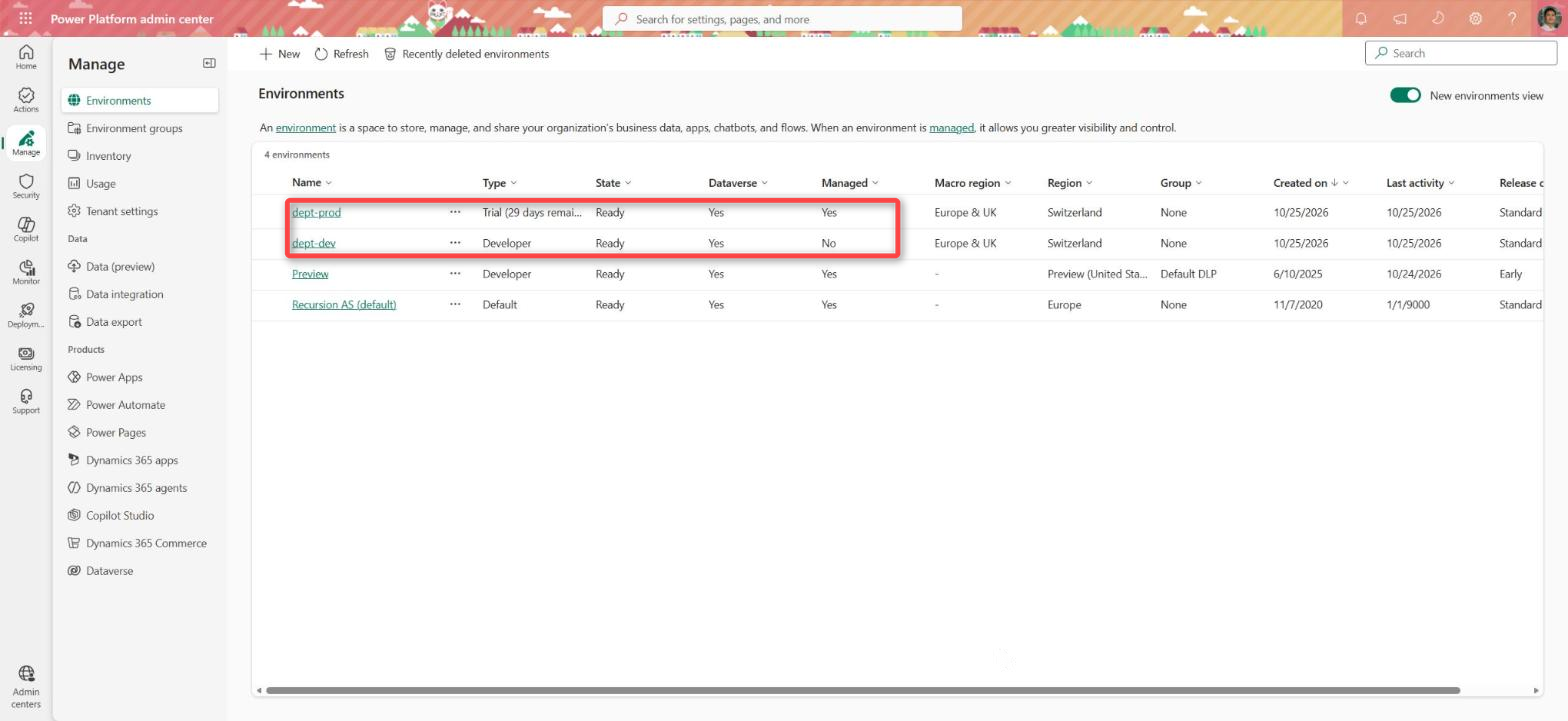
An environment is the security boundary in Power Platform. A license alone does not give anyone access to an environment that is not the default environment, so each environment is closed until you open it.
I just want to note that in my tenant; Dev is a developer environment and Prod is a trial, because the tenant has no paid Dataverse capacity. The screenshots in this post come from those two, and I point out where they behave differently from a sandbox or a production environment.
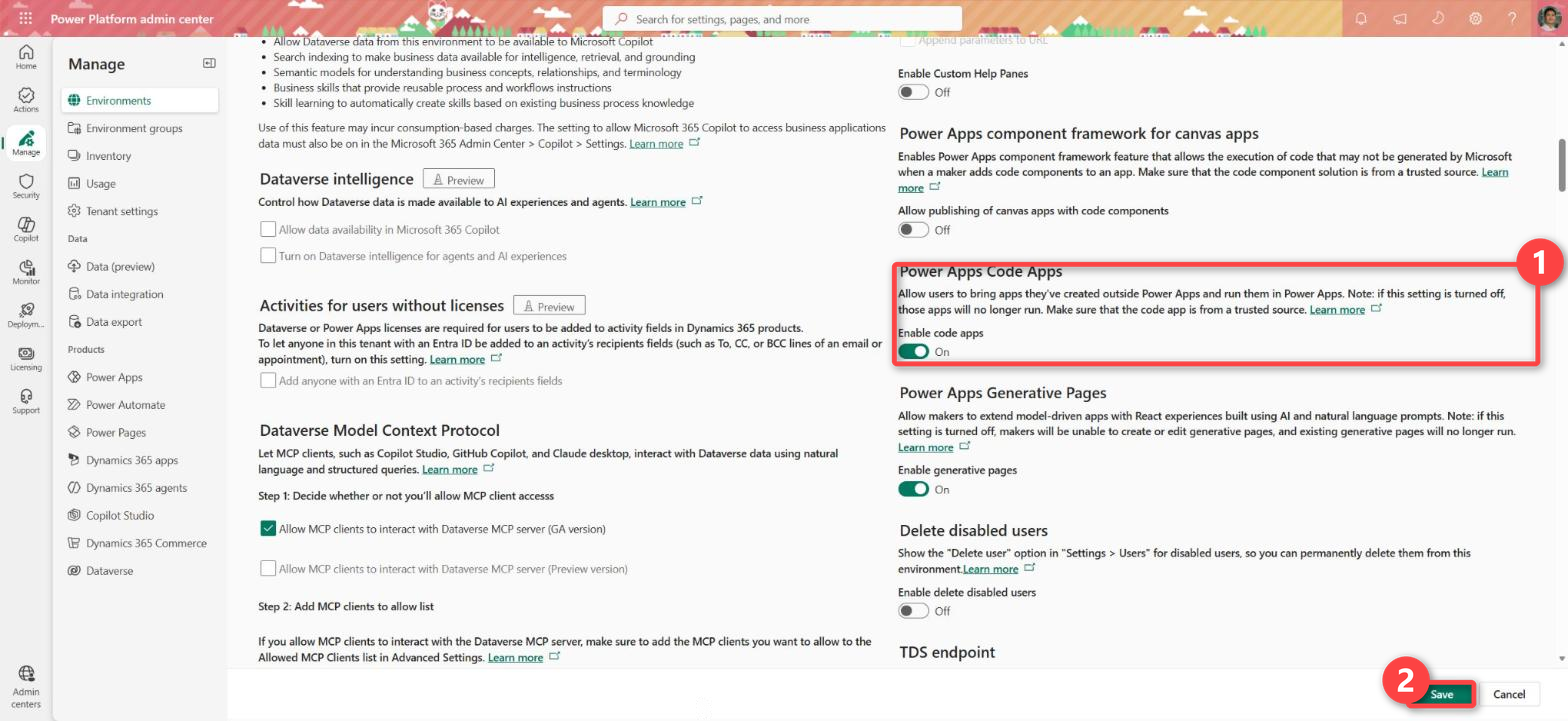
Before developing any code app, check these pre-requisited settings in the Power Platform admin center (PPAC) for Dev, Test and Prod:
- Code apps are turned on under Settings > Product > Features > Power Apps code apps.
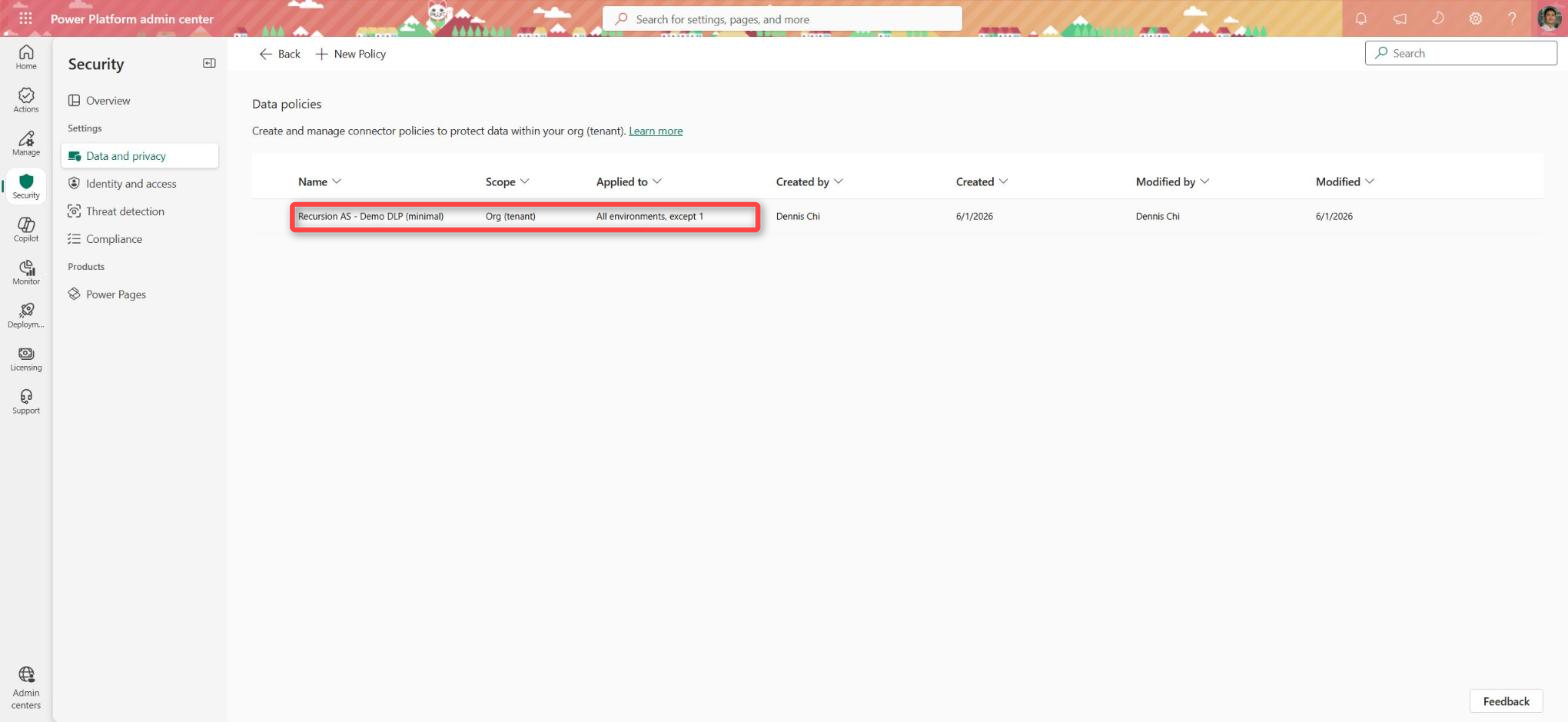
- The Dataverse connector is allowed by the data loss prevention (DLP) policy that covers the environment.
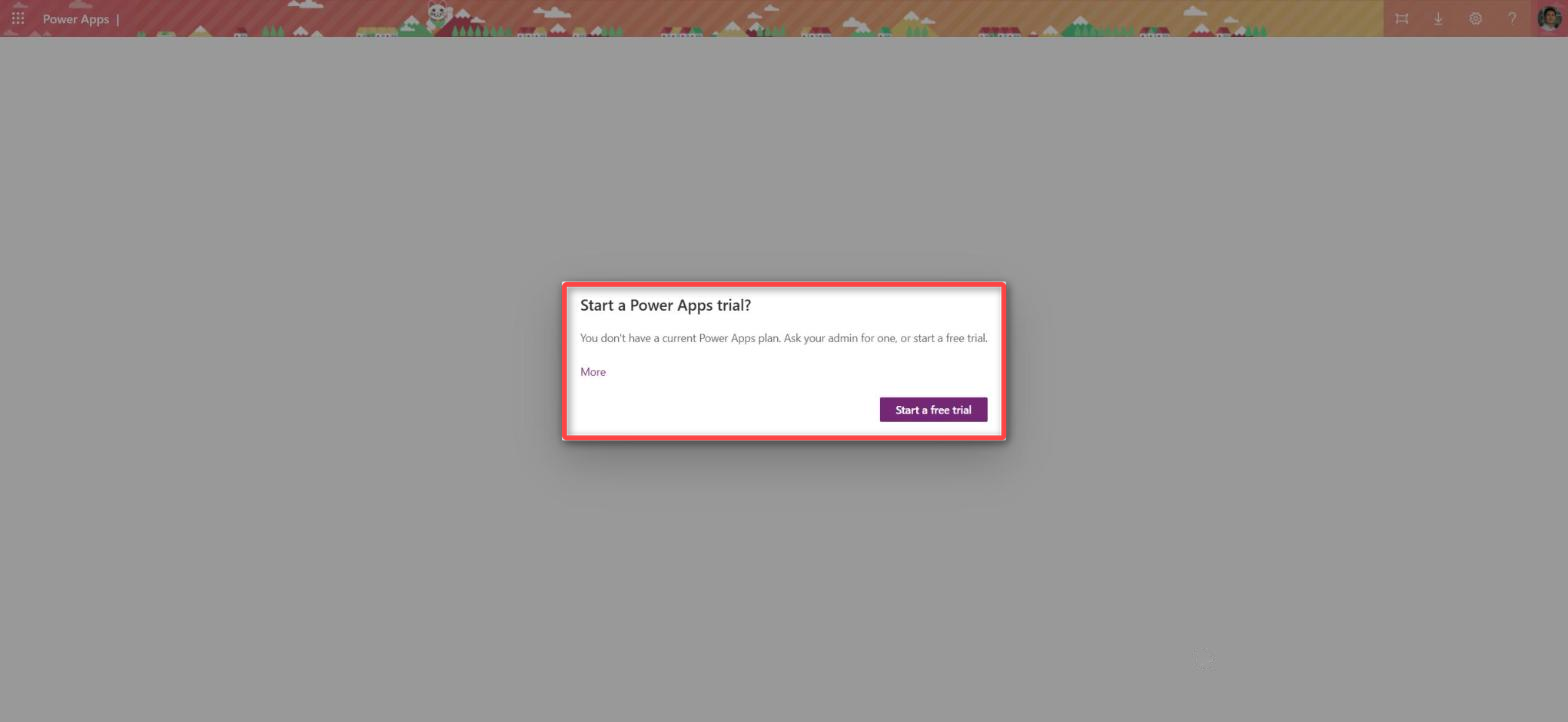
- Code App users have a Power Apps Premium license, an App Pass or pay-as-you-go. Dataverse makes the app premium, and the documentation lists one of these as a requirement for anyone who runs a code app. Without one of these, the player shows “Start a Power Apps trial?” instead of the app.
Step 2. Create a security group per environment and link it
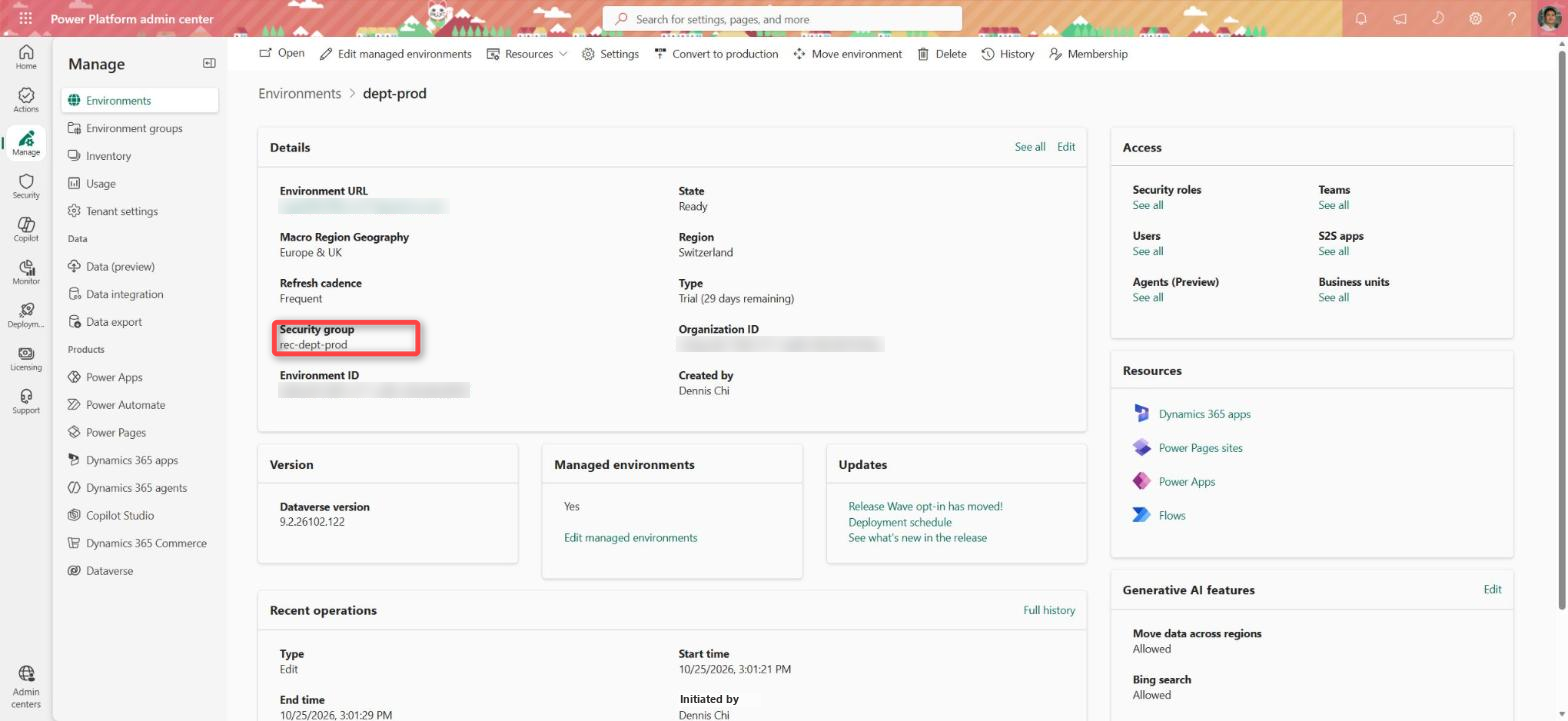
The groups decides who can enter the environment. Link a Microsoft Entra security group to each environment. Only members of the group can be added as users in that environment. Power Platform administrators keep access to every environment regardless of the group.
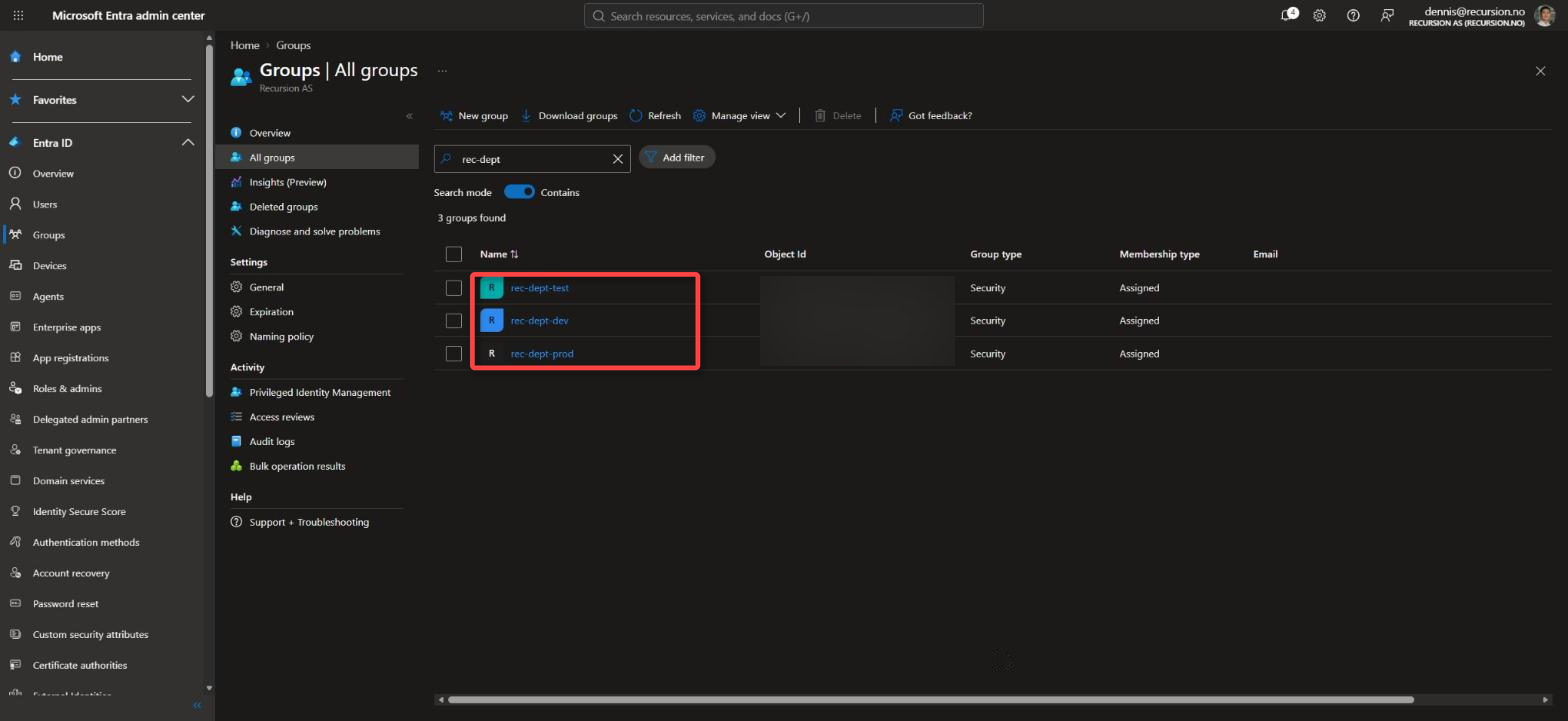
| Environment | Security group | Members |
|---|---|---|
| Dev | rec-<dept>-<env>-dev | The developers |
| Test | rec-<dept>-<env>-test | The developers and the testers or super-users |
| Prod | rec-<dept>-<env>-prod | The app users |
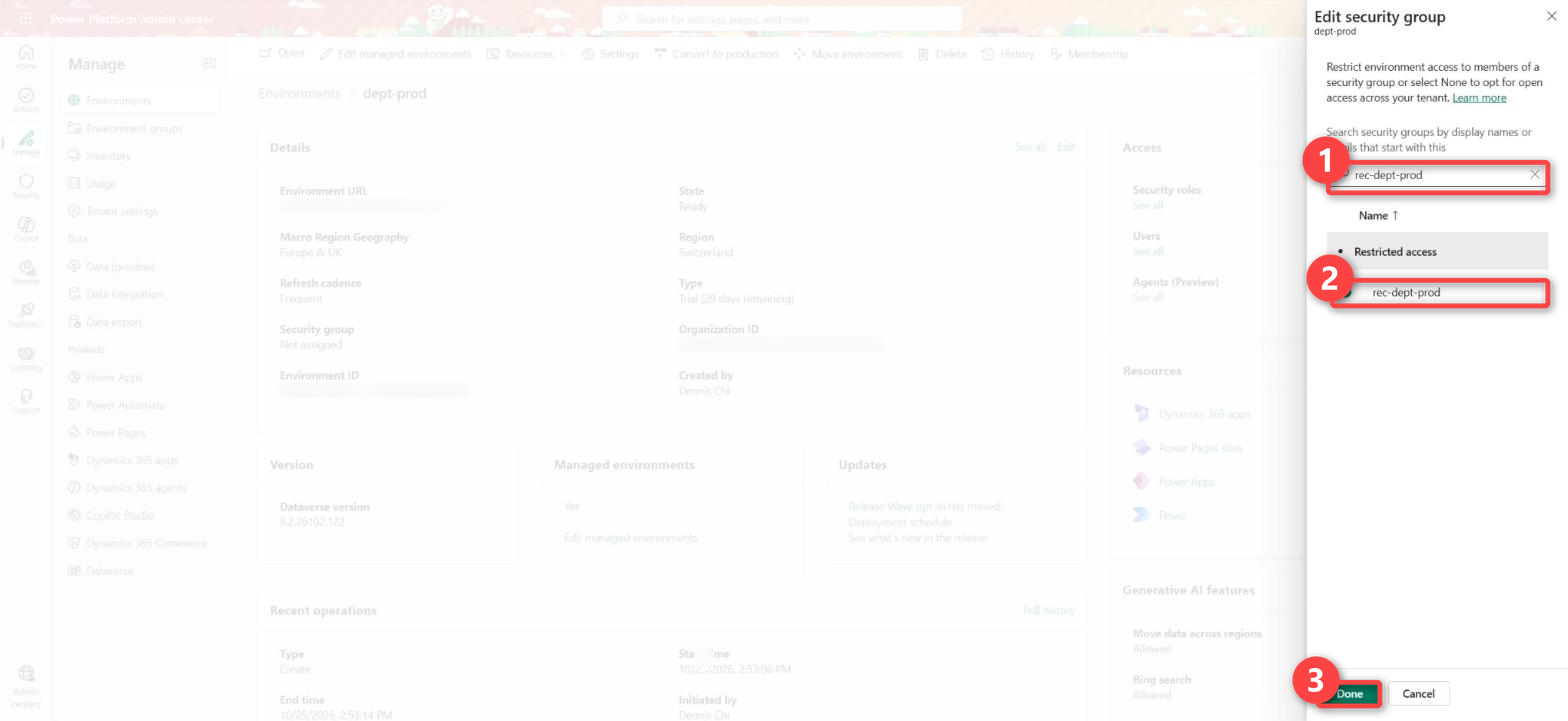
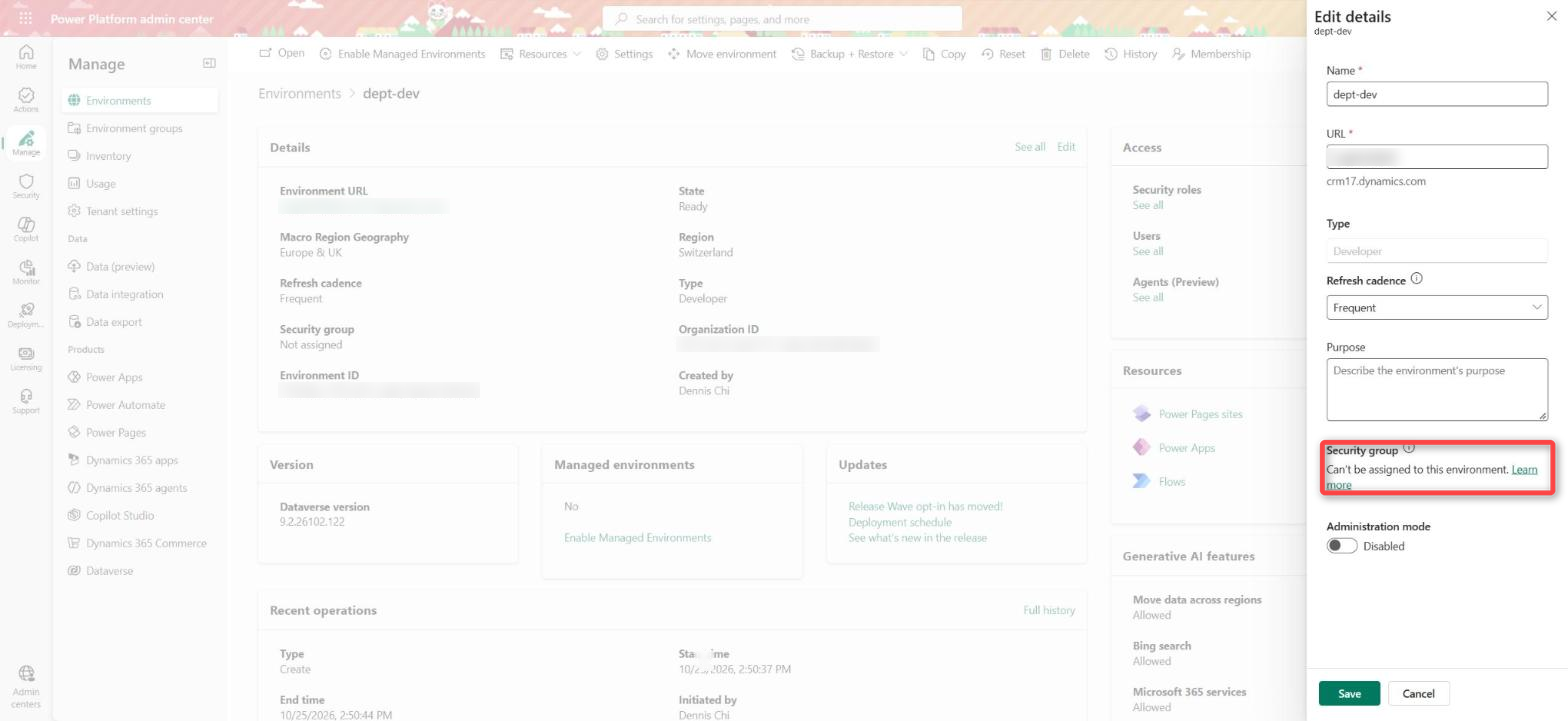
A developer environment cannot have a security group. The Power Platform admin center shows “Can’t be assigned to this environment” when you try. If your Dev is a developer environment, control access there with the group team and its roles in the next step, and link the groups to Test and Prod.
Step 3. Give the developers maker roles in Dev
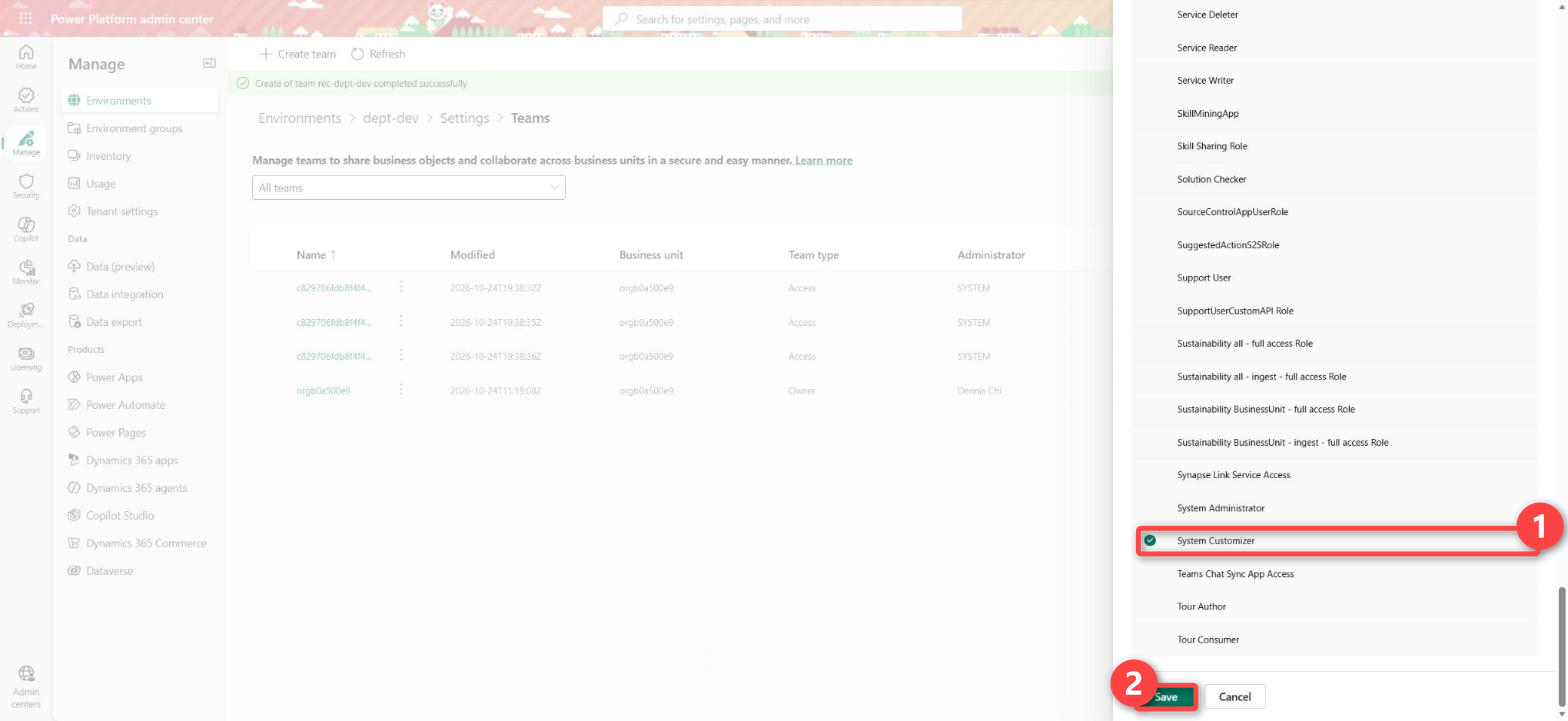
The roles decide what a developer can build. A developer needs Environment Maker and System Customizer in Dev. Environment Maker lets them create apps and connections. System Customizer lets them create and change tables. Environment Maker has no privileges on the environment’s data, so a developer with only that role can publish a code app that cannot read its own tables.
System Customizer gives full access to all custom tables by default. Full access is fine in Dev, where the data is test data and the developers own the schema. Do not give developers System Administrator. They do not need it to build, and it gives them read access to most records in the environment.
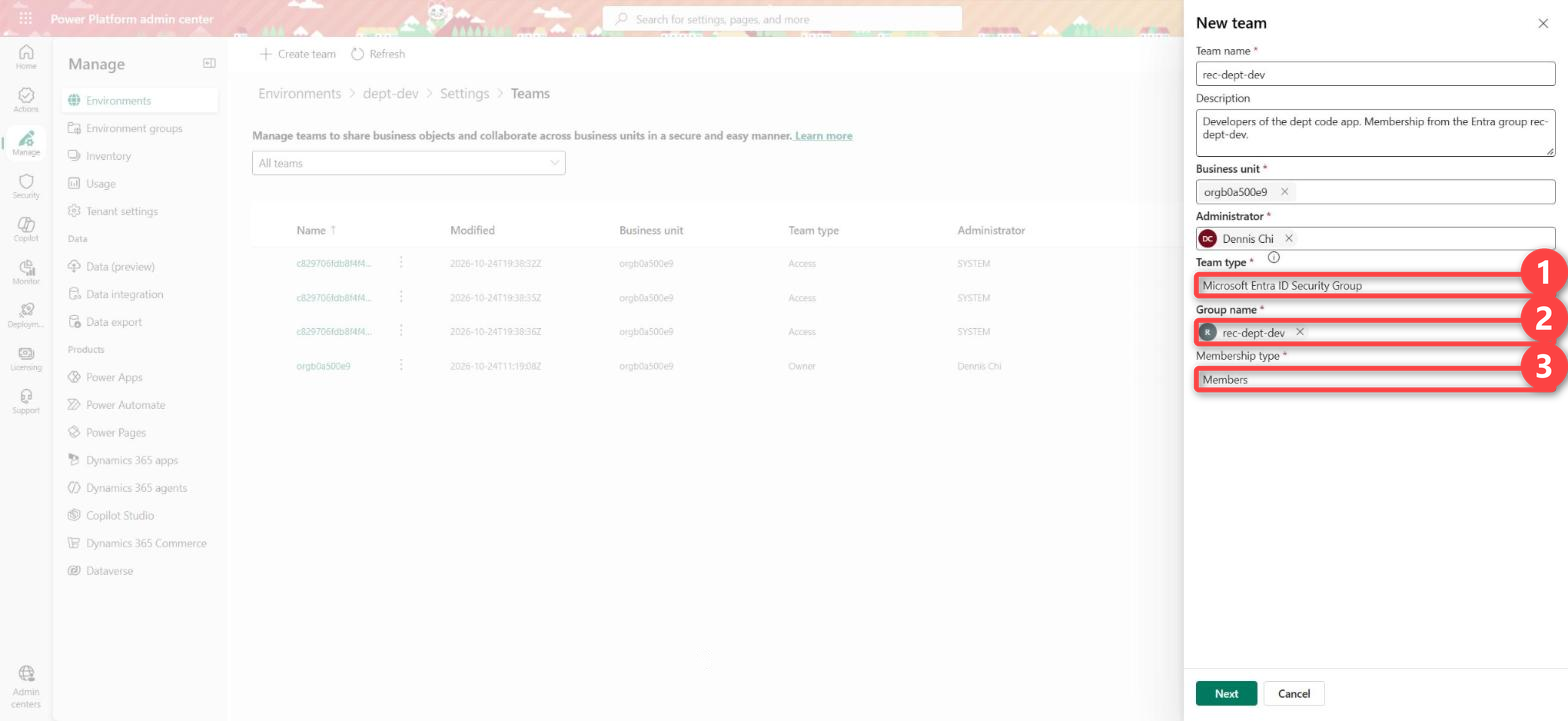
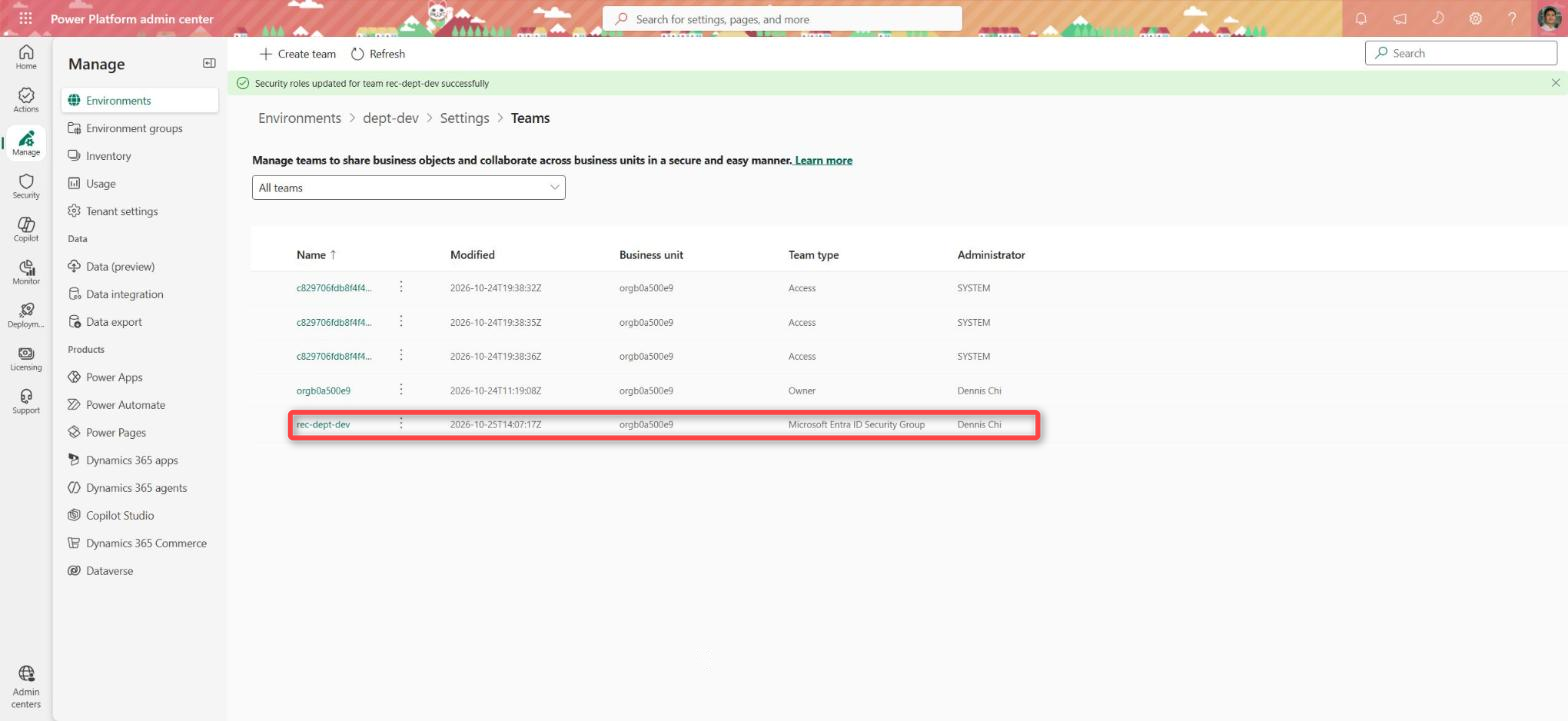
Assign the roles to a Dataverse group team linked to rec-<dept>-<env>-dev, not to each developer. When someone joins or leaves the team, you change the Entra group, and the group team updates its members in Dataverse.
Step 4. Create the solution
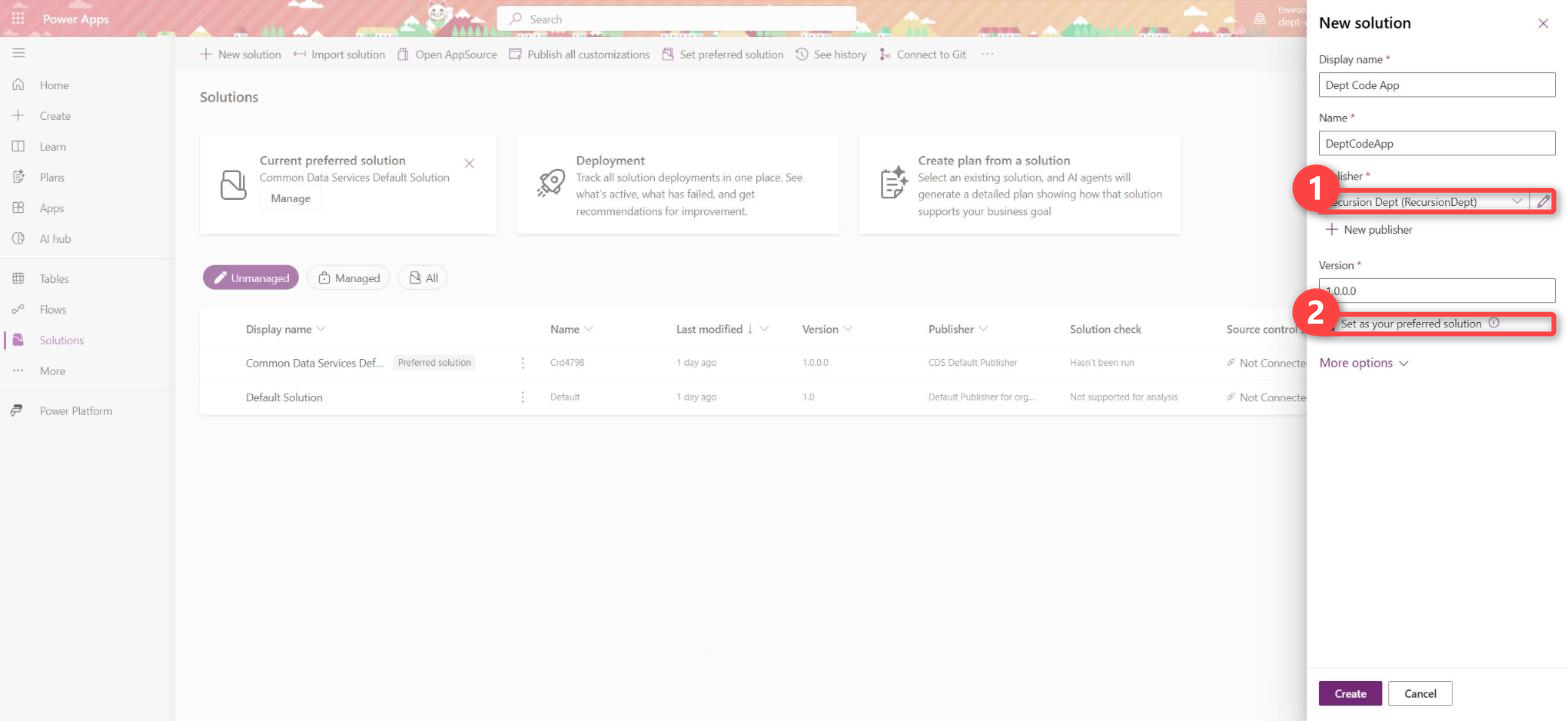
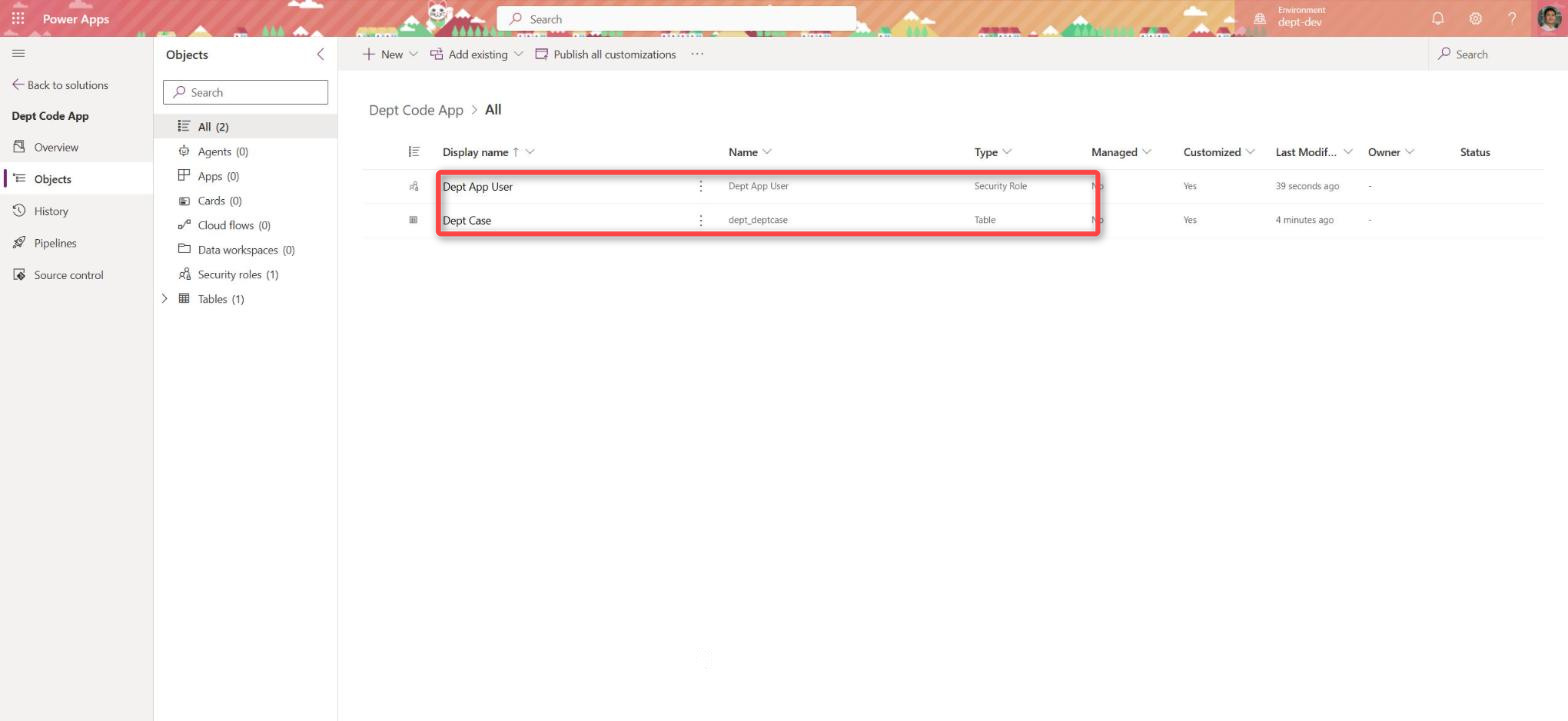
The solution is the box that the pipeline moves from Dev to Test to Prod. Create one solution for the app with its own publisher prefix, and set it as the preferred solution in Dev. Everything the app needs goes in it: the tables, the app role, the environment variables, the connection references and the code app itself.
Step 5. Build the tables and the app role in the solution
The app role is what users get in Test and Prod. Create a custom security role for the app, for example <App> User. Copy it from App Opener, which Learn describes as the role with the minimum privileges to run an app. Then add privileges on the app’s custom tables only, at the level each table needs:
- Organization when everyone in the department should see every record.
- User when people should only see the records they own.
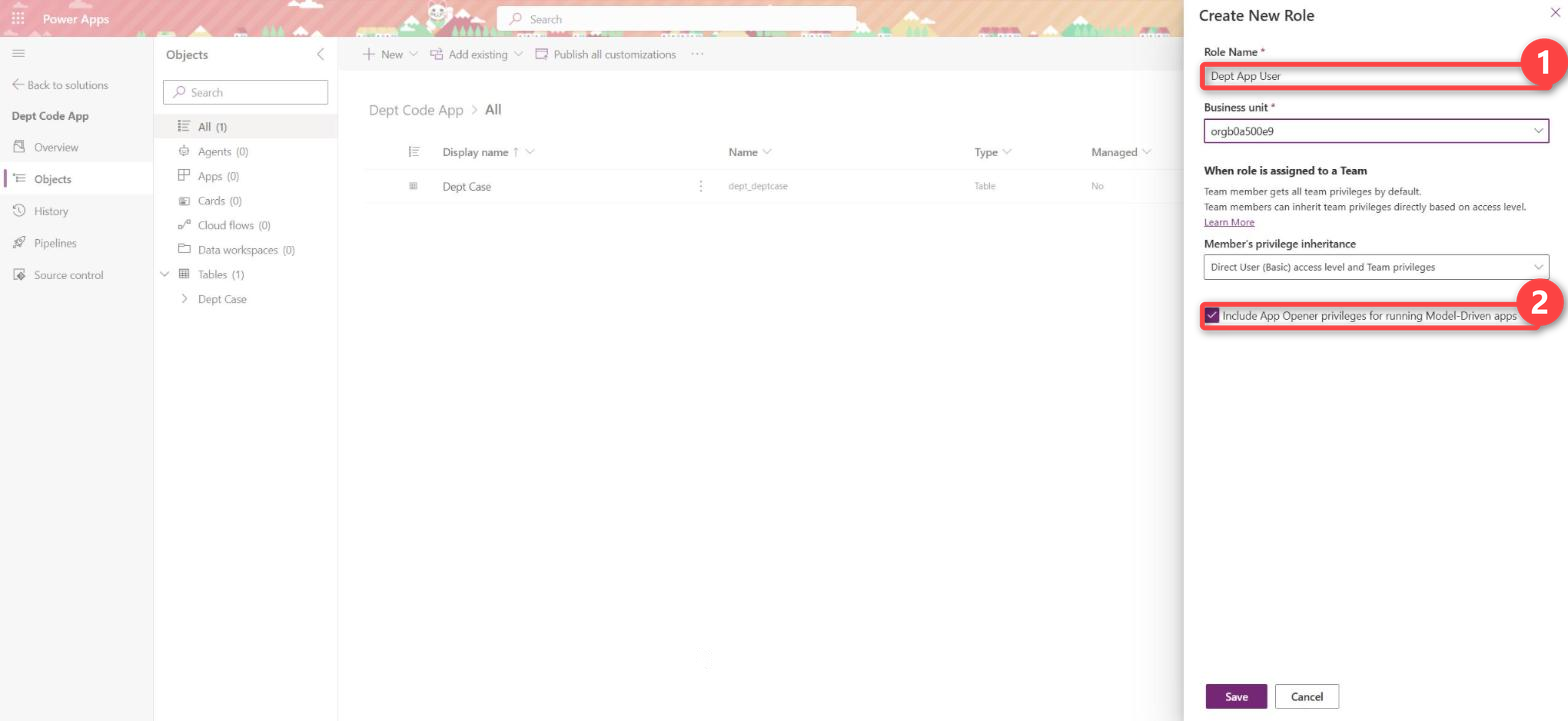
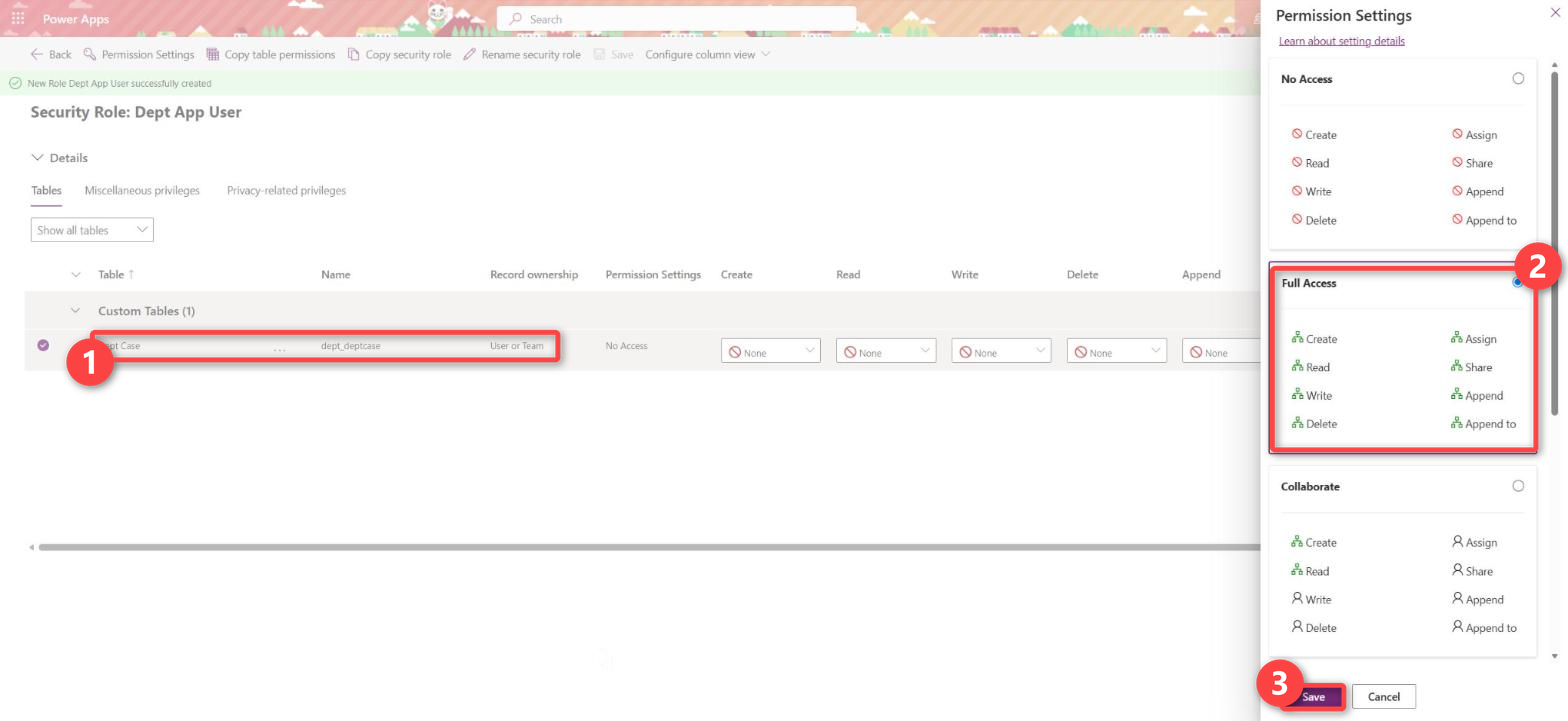
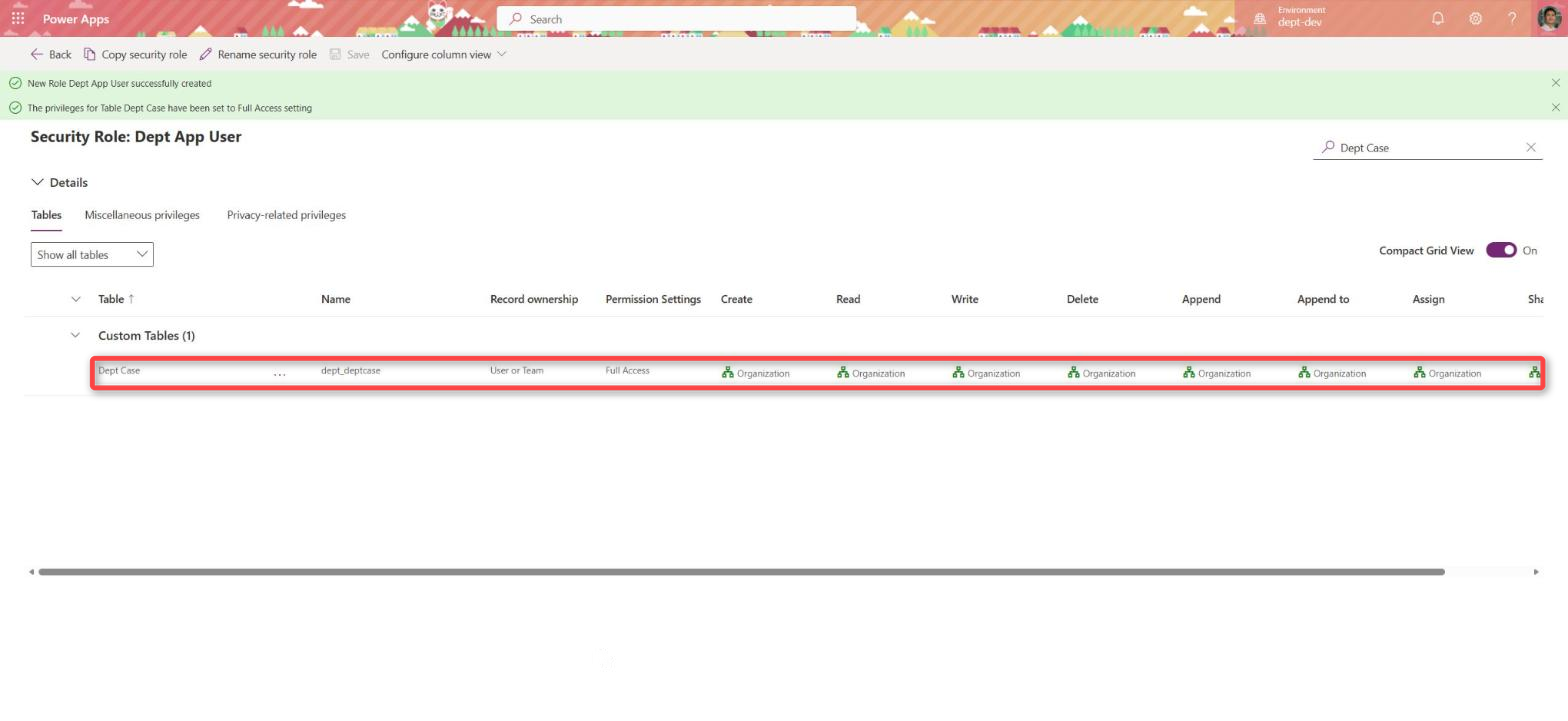
Build the role in Dev inside the solution. The pipeline deploys it to Test and Prod together with the tables, so the privileges are identical in every environment.
Step 6. Push the app into the solution
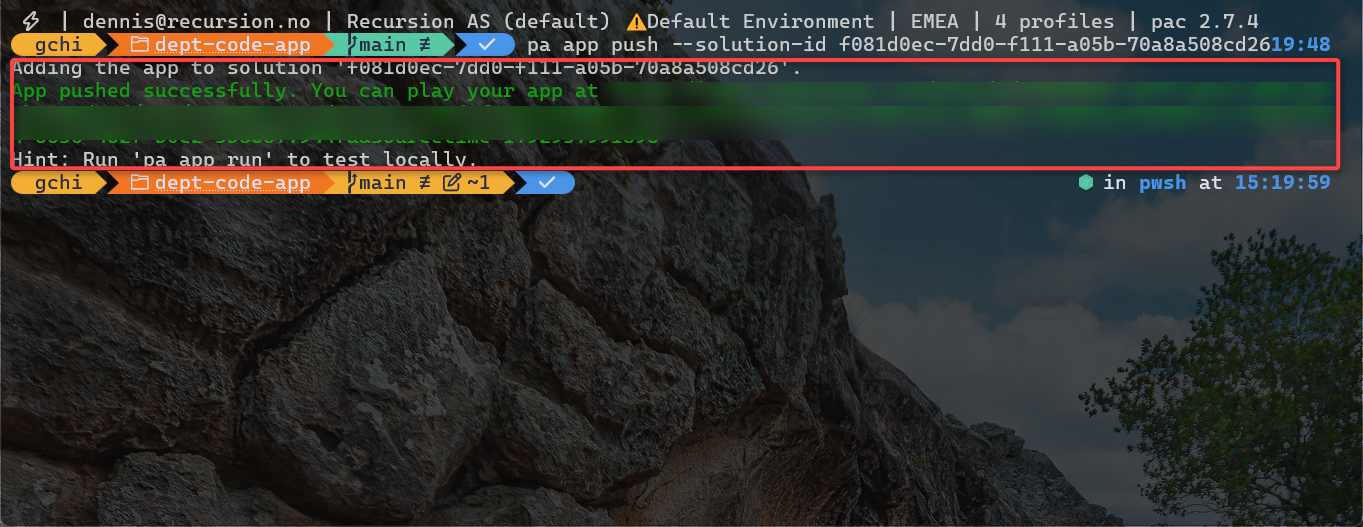
Set the app up and build it locally first, with the front-end framework your organisation already uses. A code app is a Vite app, so React, Vue, Svelte, Solid and Preact all work, and I showed the recipe for each of them in Power Apps Code App: Pick Any Vite Framework. When the app runs locally against the tables in Dev, publish it:
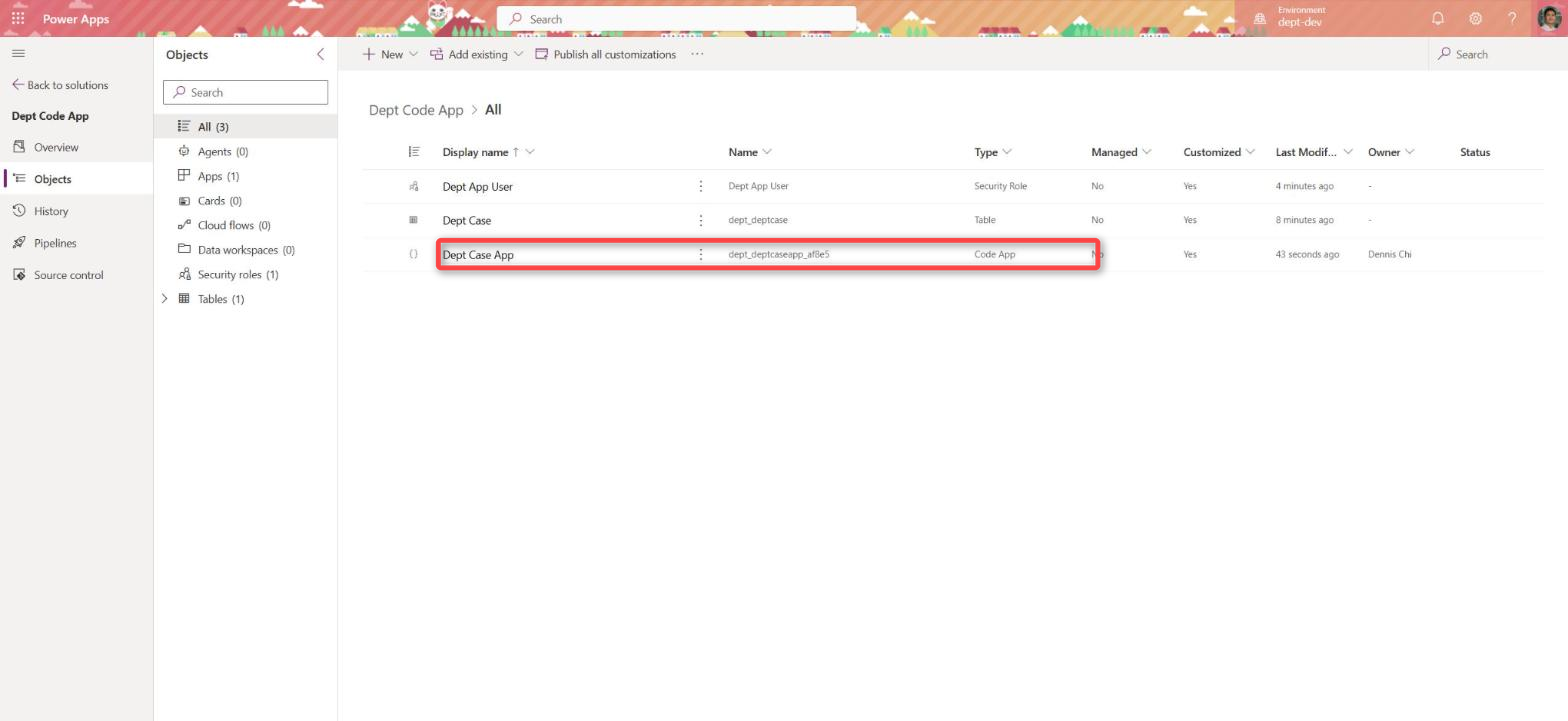
pa app push publishes the app to Dev and adds it to the preferred solution. The first push needs no solution ID when the preferred solution is set. After the push, the solution holds the tables, the role and the app, and that is the unit the pipeline deploys.
Step 7. Deploy with a pipeline
Use Power Platform Pipelines to deploy the solution from Dev to Test and from Test to Prod. Pipelines import it as a managed solution, so nobody can edit the tables or the role in Test or Prod. Developers do not need a maker role in Test or Prod.
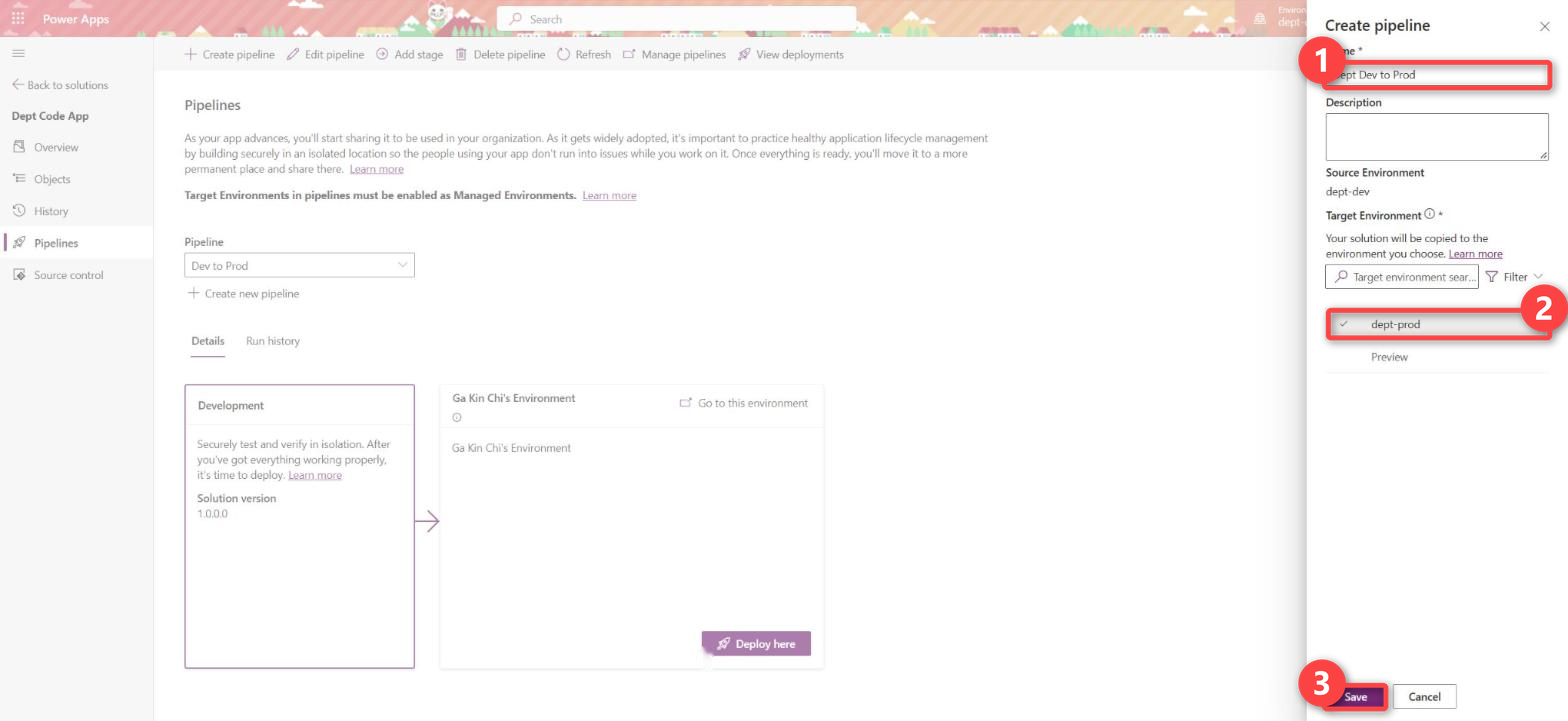
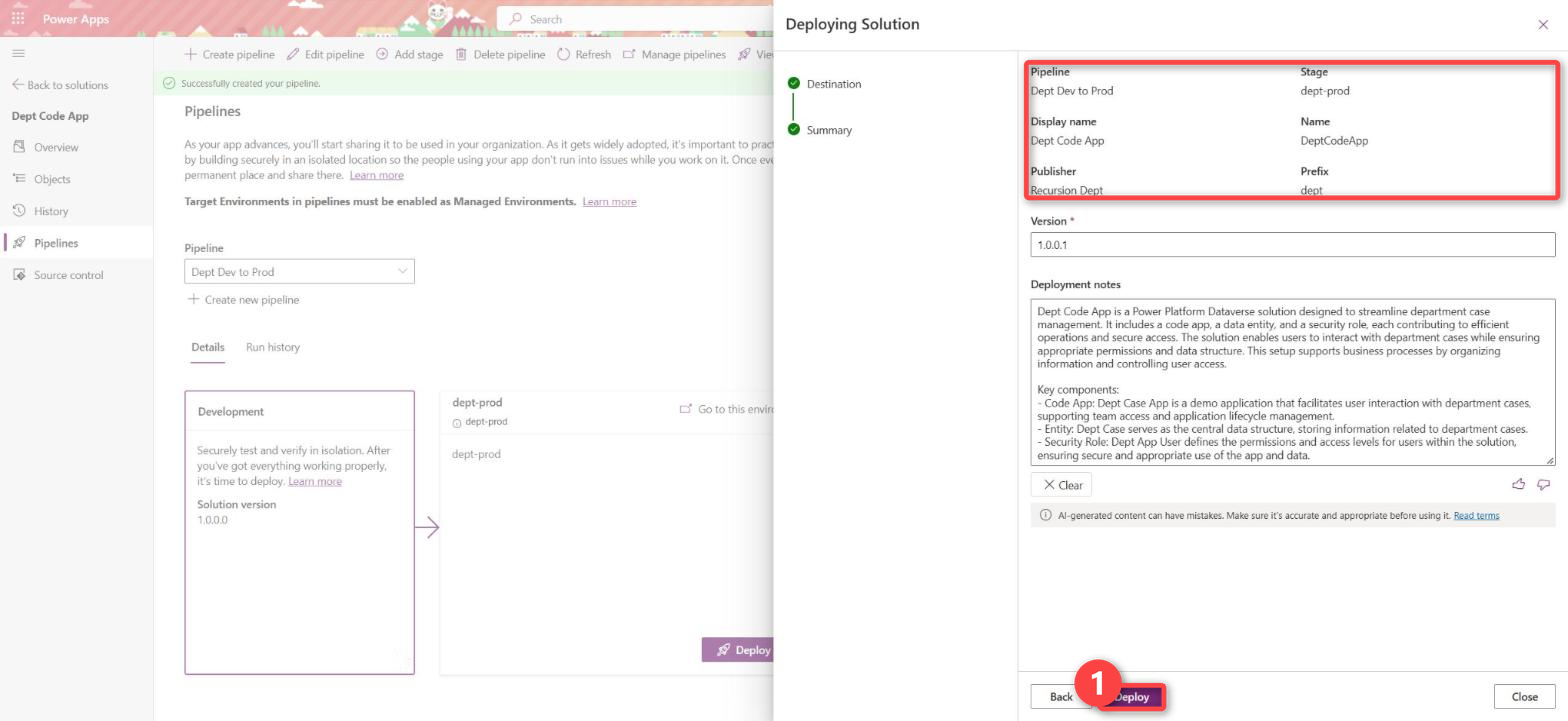
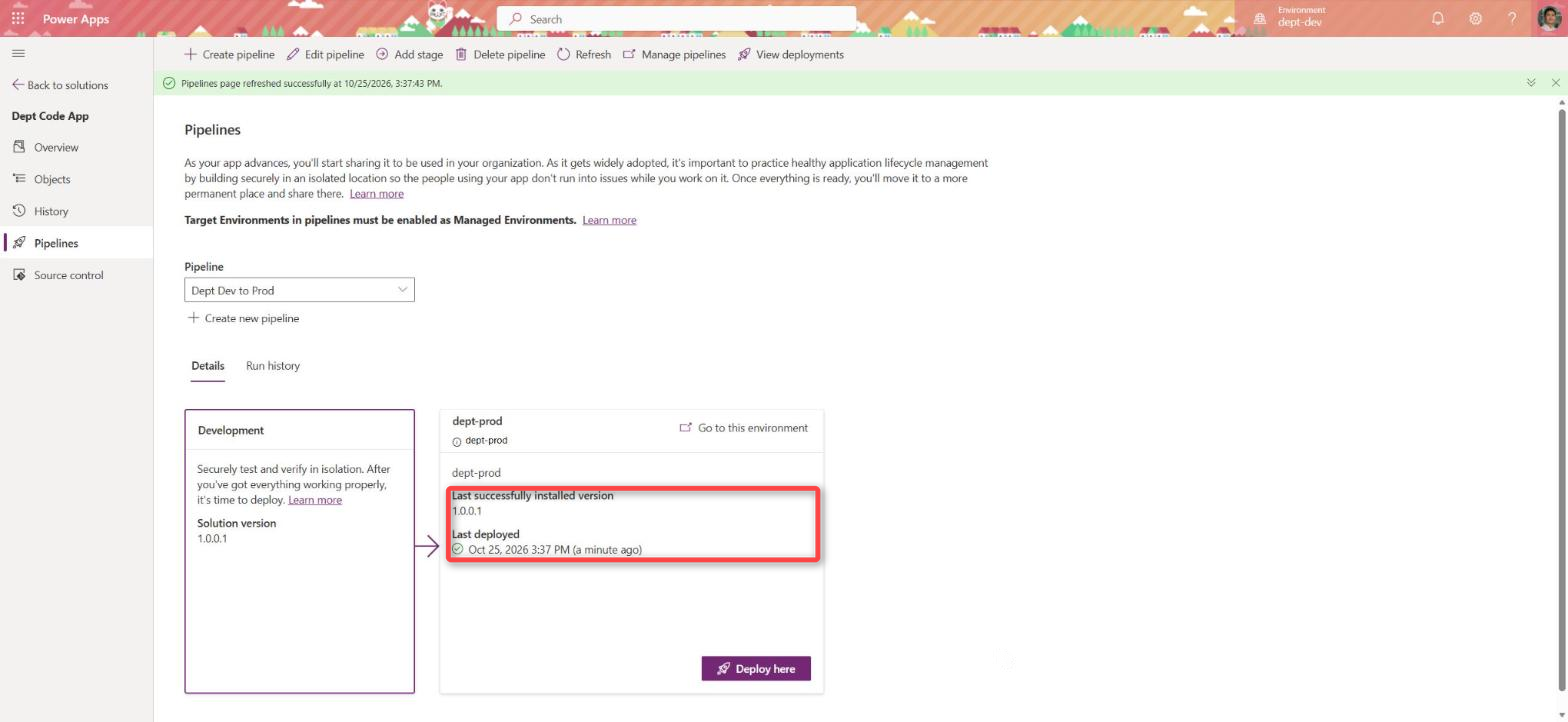
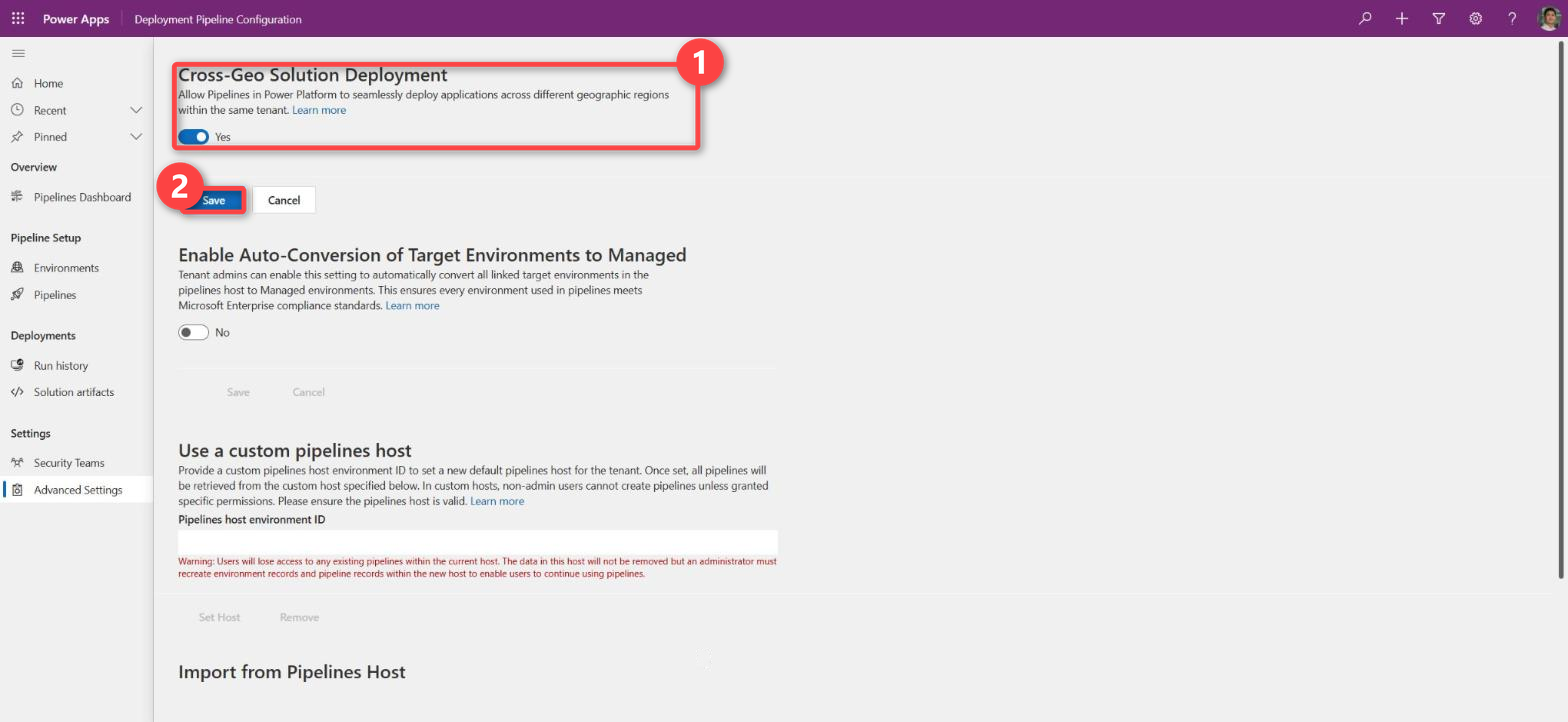
Pipelines only list target environments in the same geography as the pipelines host, unless Cross-Geo Solution Deployment is on. The admin center places a new environment by available capacity, so it can end up in another region than the host. In my tenant the new environments were placed in Switzerland while the host is in Norway, and dept-prod only appeared as a target after I turned the setting on under Manage pipelines and Advanced Settings.
If the app reads a SharePoint list or anything else that differs per environment, add the data source with an @envvar: reference. The value comes from the target environment on import, and the code stays the same:
pa app add data-source --connector shared_sharepointonline \
  --connection-id <connection-id> \
  --dataset "@envvar:<prefix>_SiteUrl" --table "@envvar:<prefix>_ListName"
Step 8. Give the users the role and the app in Test and Prod
The group team and the role assignment are not solution components, so this step is done by hand once per environment. Create a Dataverse group team for rec-<dept>-<env>-test in Test and one for rec-<dept>-<env>-prod in Prod, and assign <App> User to each.
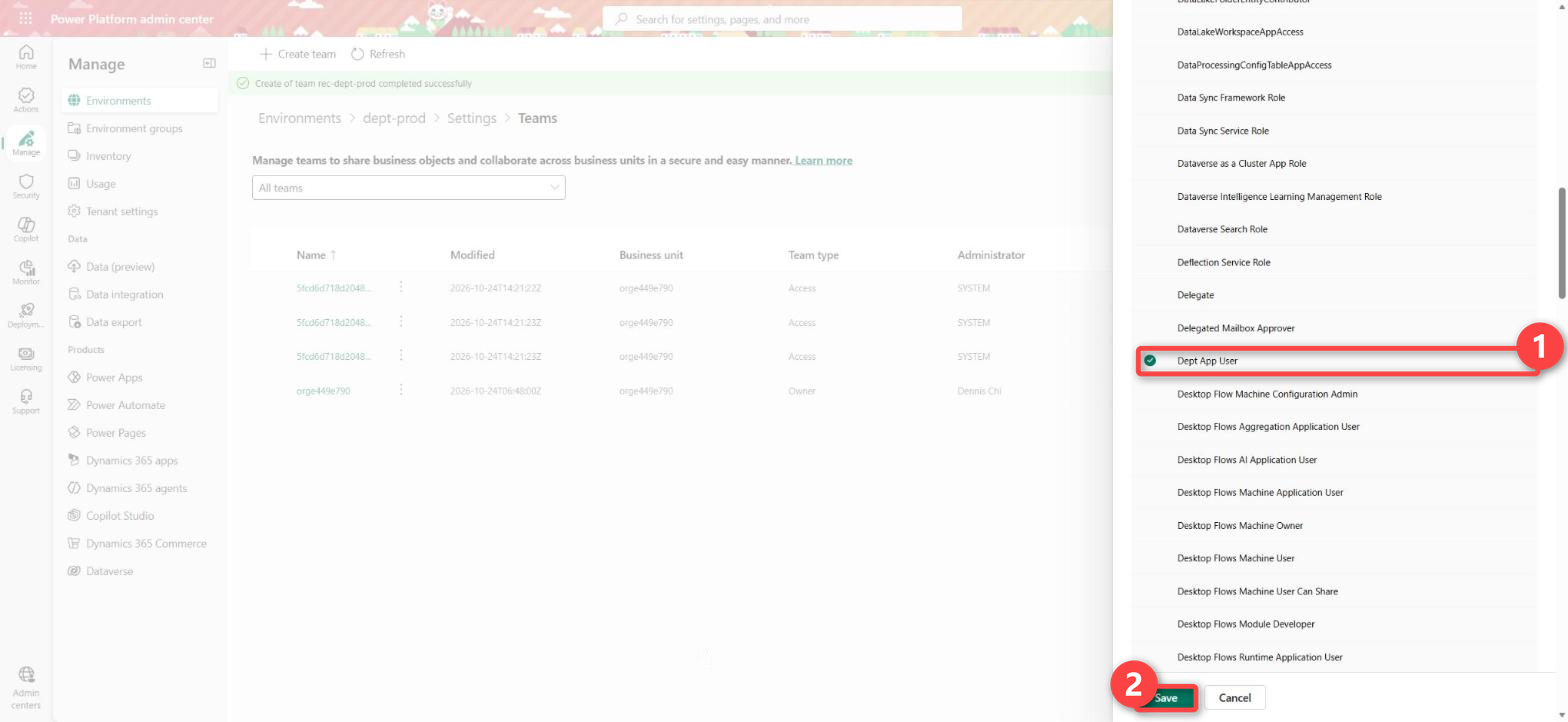
Then share the app in Power Apps with the same group. The Share dialog for a code app has the same options as for a canvas app: User, Co-owner and More security roles, where <App> User is listed. I use the group team instead, so the role follows the group membership and not the sharing.
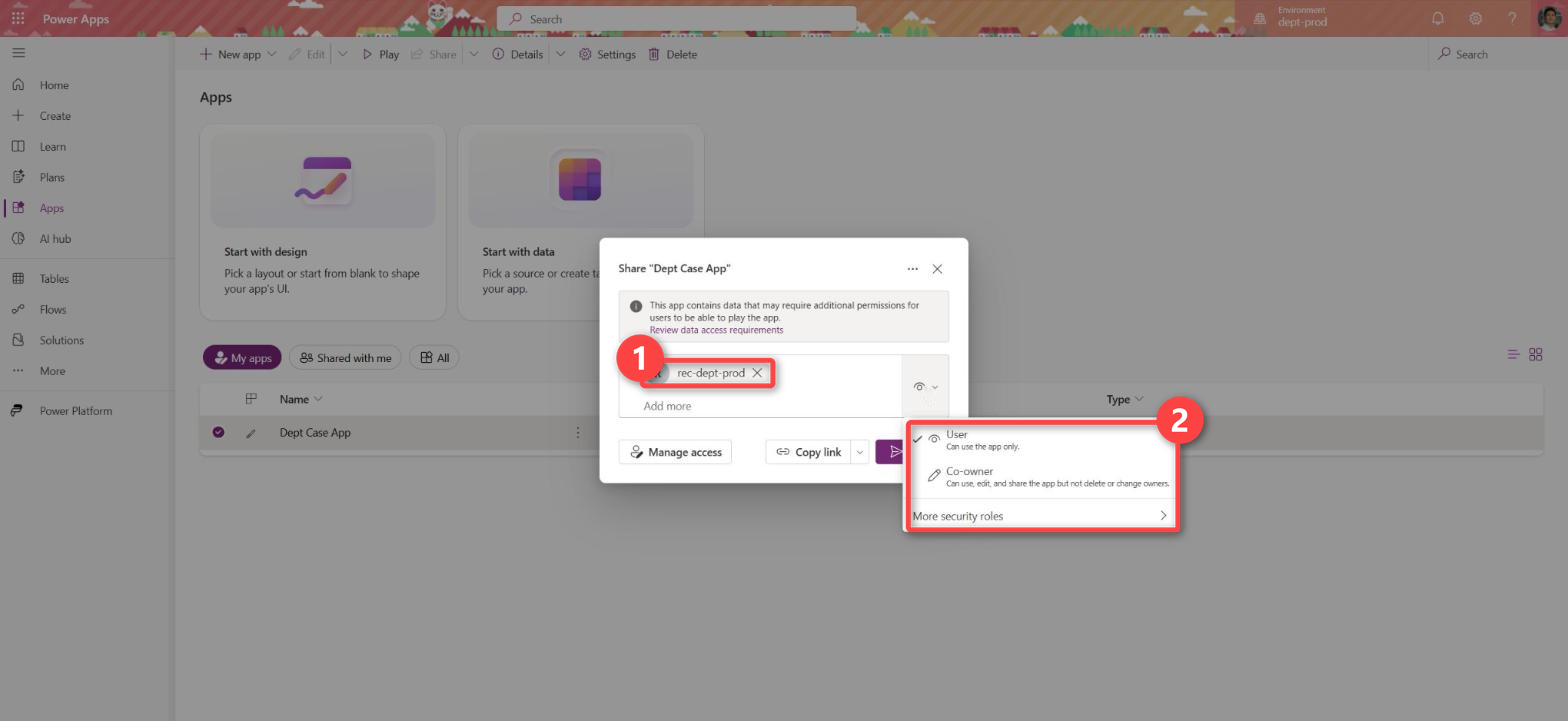
Sharing gives access to the app, the security role gives access to the data, and a user needs both. After this step, adding a person to the Entra group opens the environment, gives them the app role through the group team, and gives them the app. Removing them takes all of it away.
When the environment gets a second app with other users, create a group per app, for example rec-<dept>-<app>-users. Link it to a group team with that app’s role and share the app with it. The environment group then only opens the environment. For one app, one group per environment is enough.
Step 9. Test the role with a test user
A code app runs under the signed-in user’s own permissions. A user without <App> User can open the app and gets an error on the first call to Dataverse. Test the role before go-live:
- Sign in as a test user who is only a member of
rec-<dept>-<env>-test. - Open the app and create, read, update and delete a record in each table.
- Open a table that is not part of the app in the same environment. The user should get no access.
Day to day for the developers
Only ‘main’ branch publishes to Dev
Code apps do not support Dataverse Git integration (as Managed Apps do). The source code is stored in your own GitHub or GitLab repository. The tables, the role and the solution are stored in the Dev environment. A pull request covers the code. It does not cover a column that someone added in Dev.
pa app push replaces the published version of the app in the environment. If two developers push from two branches to the same app in Dev, the last push wins, and the other person’s work disappears from the app until they push again. So I recommend that only one job publishes to Dev: the GitHub Actions or GitLab CI job that runs when a pull request is merged to main.
Each developer runs the app on their own machine with pa app run against the tables in Dev, so they work with real data without publishing anything.
That job has no person who can sign in through a browser, so it needs its own identity in Microsoft Entra. Register an application for it in Entra. The CLI calls this identity a service principal. Access to the environment alone does not let it update an existing app, and it cannot share the app with itself. So before the first push, the maker who owns the app shares it with the service principal once, with edit access, from the app folder. Use the Object ID from Enterprise applications in Entra, not the one from App registrations:
pa app share --principal <enterprise-application-object-id> --access edit
After that, the job on main builds and publishes without a browser:
# GitHub Actions job on push to main (GitLab CI uses the same variables)
env:
  PA_CLI_USE_SP_AUTH: "true"
  PA_CLI_SP_CLIENT_ID: ${{ secrets.PA_CLIENT_ID }}
  PA_CLI_SP_CLIENT_SECRET: ${{ secrets.PA_CLIENT_SECRET }}
  PA_CLI_SP_TENANT_ID: ${{ secrets.PA_TENANT_ID }}
steps:
  - run: npm ci && npm run build
  - run: npx pa app push --non-interactive
# .gitlab-ci.yml: the same job on the main branch
publish:
  stage: deploy
  rules:
    - if: $CI_COMMIT_BRANCH == "main"
  variables:
    PA_CLI_USE_SP_AUTH: "true"
    PA_CLI_SP_CLIENT_ID: $PA_CLIENT_ID
    PA_CLI_SP_CLIENT_SECRET: $PA_CLIENT_SECRET
    PA_CLI_SP_TENANT_ID: $PA_TENANT_ID
  script:
    - npm ci && npm run build
    - npx pa app push --non-interactive
Store the client secret as an Actions secret in GitHub or as a masked and protected CI/CD variable in GitLab, never in the repository.
A feature from branch to merge
Below is what a developer types for the feature “register a new case” on the existing app, in this order. pa auth login opens the browser once, and the CLI keeps the account signed in for the commands that follow.
git switch main
git pull
npm ci
pa auth login --account <[email protected]>
pa auth status
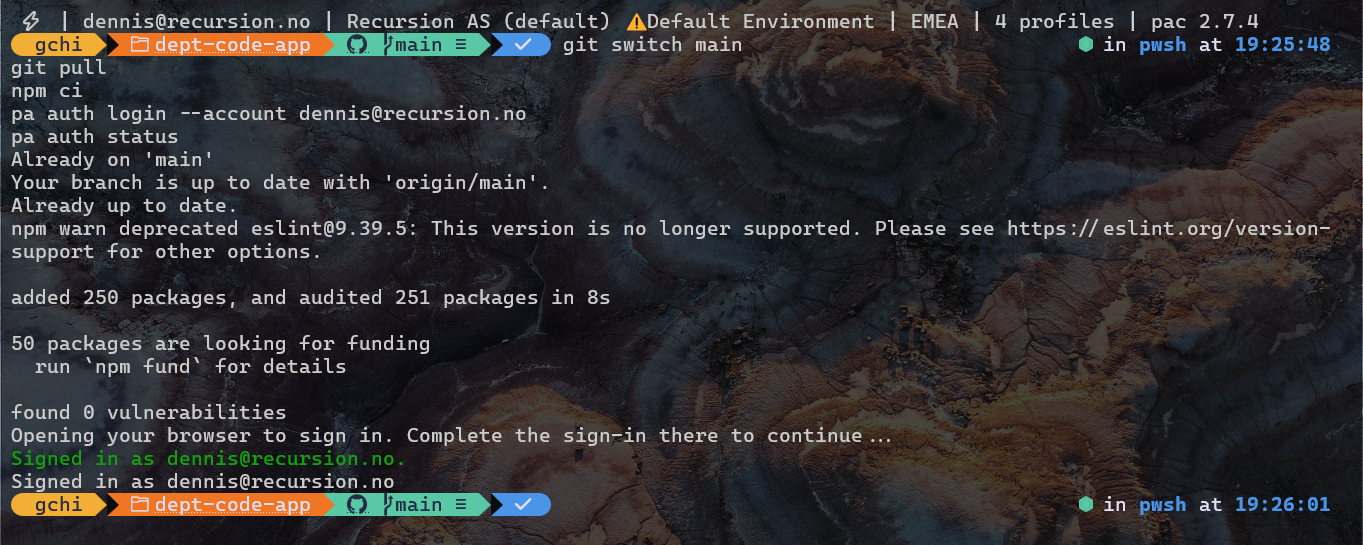
Create the branch from main and start the app against the tables in Dev. The URL labelled Local Play opens the app in the browser with your own account:
git switch -c feature/register-case
pa app run
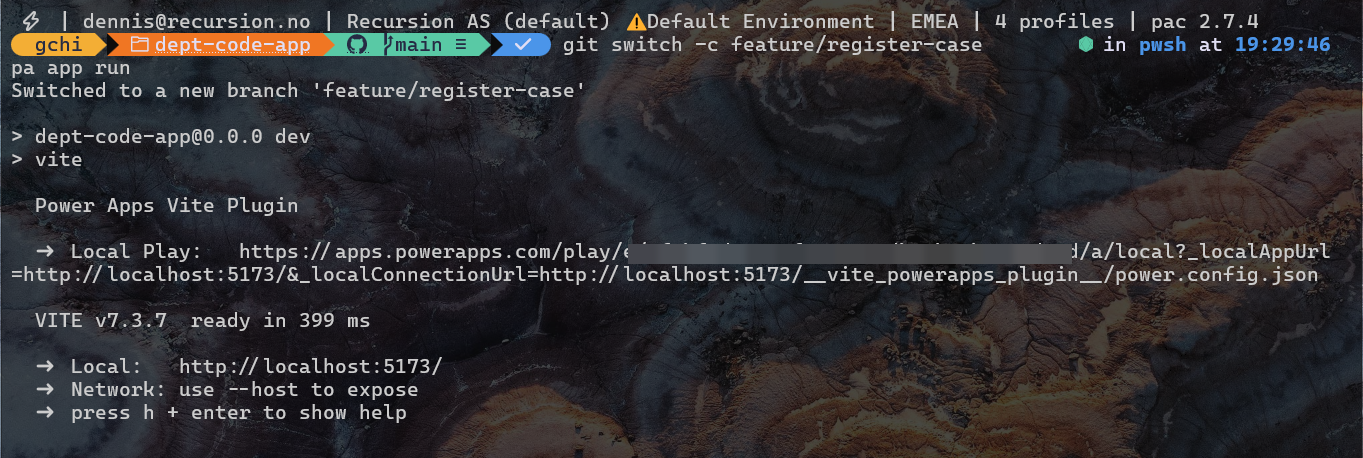
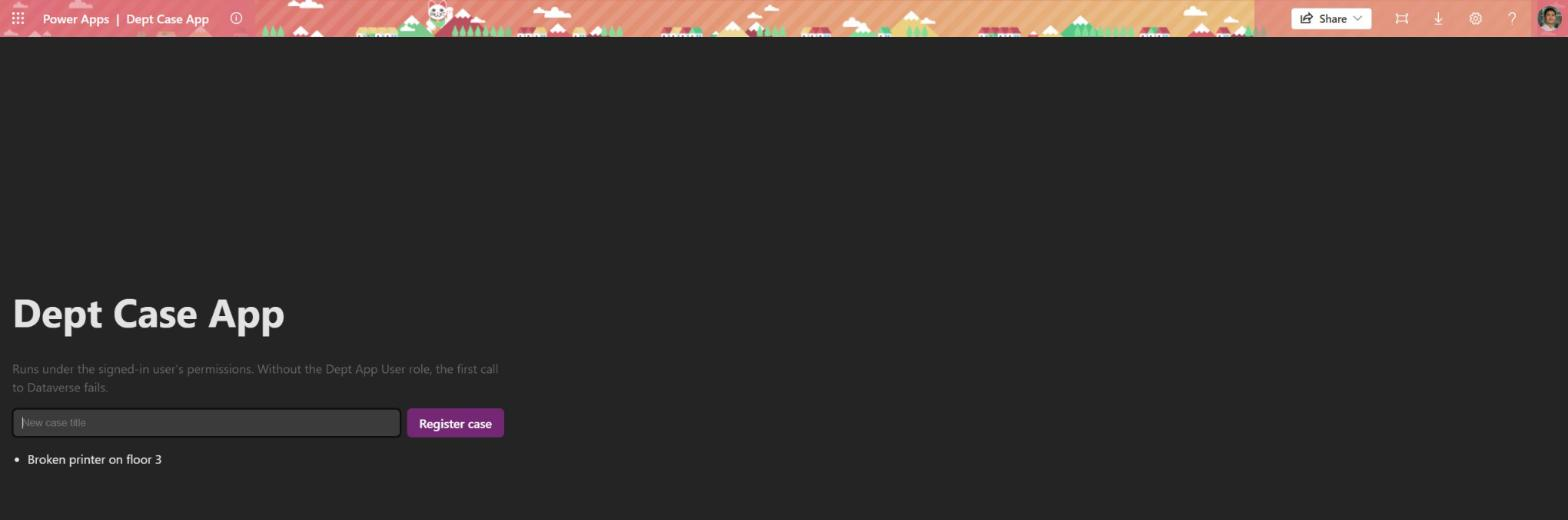
The feature needs a Location on each case, and the Dept Case table has no such column yet. This is the app before the change, running locally against Dev:
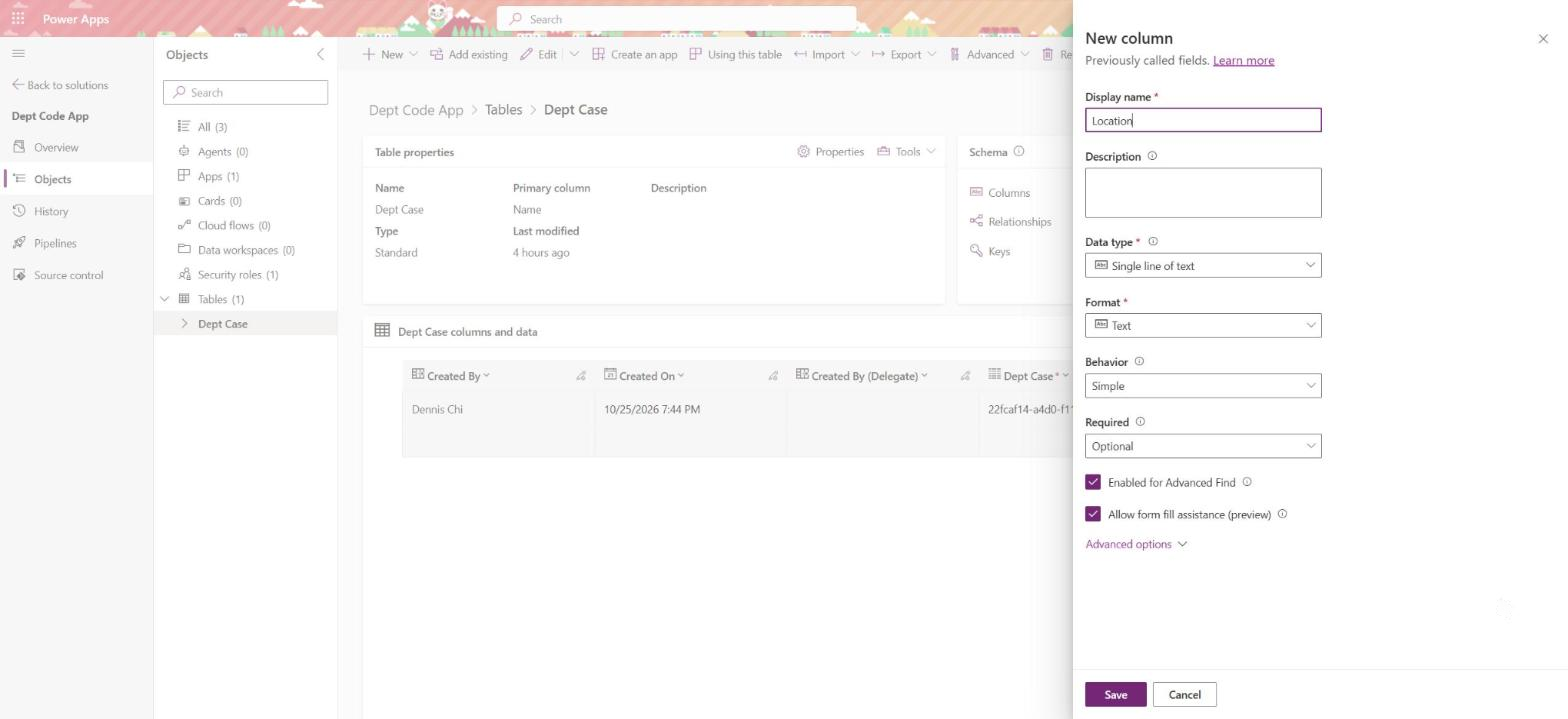
The person who owns the table adds the column Location to Dept Case in Dev, in the maker portal:
Then regenerate the model and the service so the code sees the column:
pa app refresh data-source --name deptcases

A new table is added with pa app add data-source --connector dataverse --table <table-logical-name>. Both commands change power.config.json and the files under src/generated, and both belong in the commit.
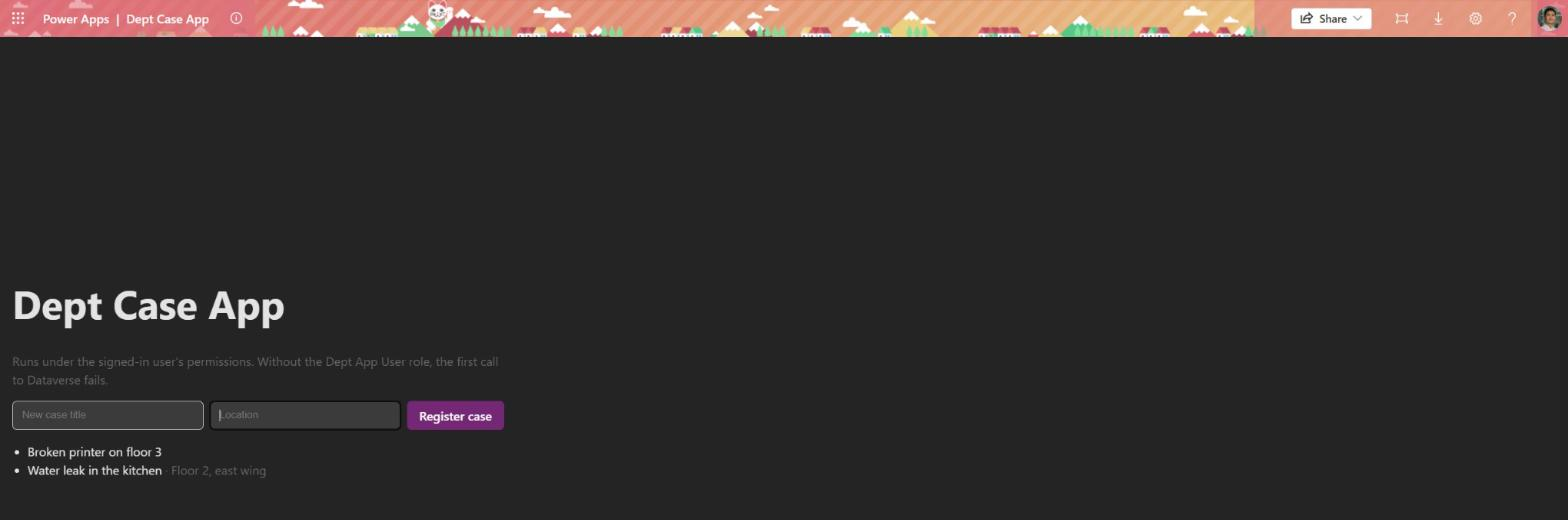
Add the field to the form and to the list. Vite reloads the app in the browser while pa app run is running, so the result shows up at once:
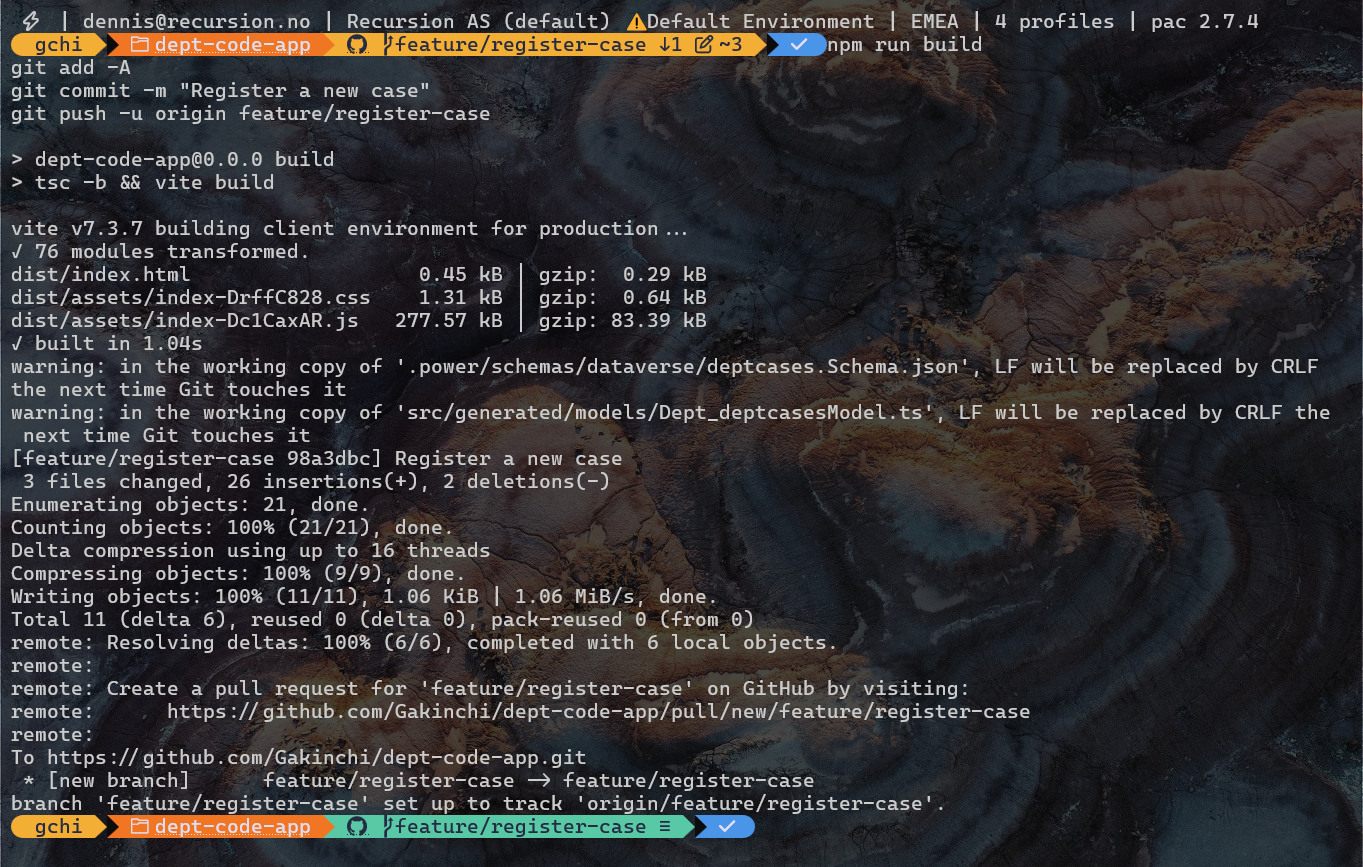
Build before you push so you see the same errors as the pull request check does:
npm run build
git add -A
git commit -m "Register a new case"
git push -u origin feature/register-case
Open the pull request from the terminal or in the browser. Say in the description which columns the code expects in Dev. On GitLab the command is glab mr create --fill:
gh pr create --fill

After the review and the green build, merge. The job on main publishes to Dev. Then clean up on your machine:
git switch main
git pull
git branch -d feature/register-case
Nobody runs pa app push on their own machine.
Branches and pull requests
Short feature branches from main work well for a small team. A branch exists for a few days, ends in a pull request and is deleted after the merge. Protect main so a merge needs one approved review and a green build. GitLab calls the pull request a merge request, and a protected main with an approval rule gives the same result.
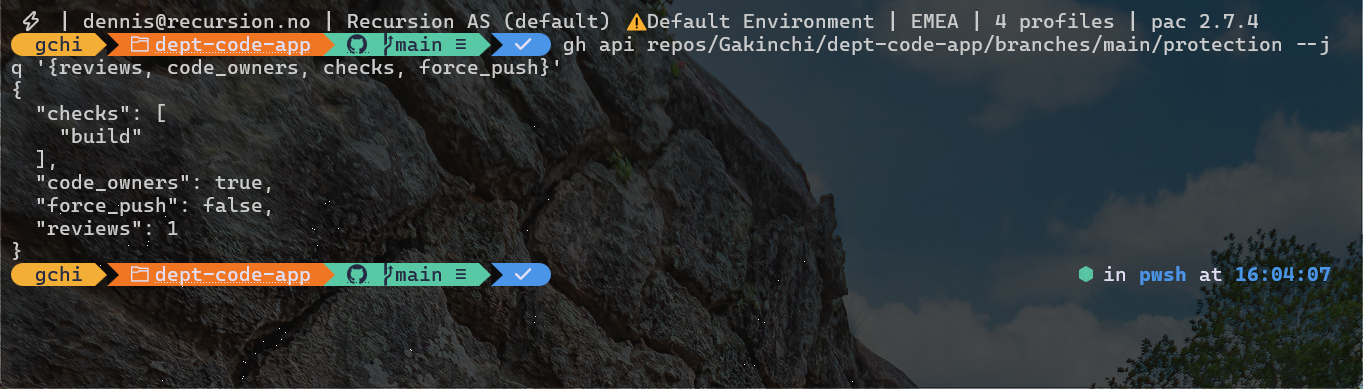
Split the work by feature, not by layer. One developer takes “register a new case” from table to screen, and the other takes “case overview”. Two people who share the same screen and the same service file get merge conflicts often.
Give these parts of the project extra care:
power.config.jsonbinds the repository to the app and its data sources. Commit it, and letpa app add data-sourcechange it rather than editing it manually. Add it toCODEOWNERSso one person reviews every change. (On GitLab the same file only enforces a review in the paid Premium and Ultimate tiers. On Free, require one approval on every merge request instead.)- The generated services and models come from the CLI. When two branches add data sources, do not resolve the conflict line by line. Merge one branch, then run
pa app add data-sourceorpa app refresh data-sourceagain on the other. - Table changes happen in Dev, outside Git. Let one person own schema changes in each sprint, and say in the pull request which columns the code expects. A reviewer can then check that the column exists in Dev before approving.
Pair programming fits best where the code and the schema change together. One developer adds the column in Dev while the other writes the code that uses it, and both review the pull request against the same environment.
When the shared Dev environment is not enough
If two developers often change tables at the same time, give each of them a developer environment. Each one imports the solution as unmanaged and builds there. When a change is ready, the developer exports the solution from their environment and imports it into the shared Dev environment. The pipeline deploys from shared Dev as before. Each schema change then costs an extra export and import, so I would only do it when collisions in Dev become a regular problem.
If you want the table definitions in Git as well, export the unmanaged solution from Dev with pac solution export and unpack it with pac solution unpack into a folder in the same repository. You then get a history of the schema next to the code, but you still deploy with the pipeline from Dev.
Status today
The recommendation to publish only from main is my own conclusion from how pa app push behaves. The rest is documented on Microsoft Learn as of October 2026. Check the code apps ALM page before you set this up, because Microsoft changes the CLI and the ALM support often.
Got a setup that works better for your team? I’d love to hear about it. Drop a comment or find me on LinkedIn.
Leave a Reply