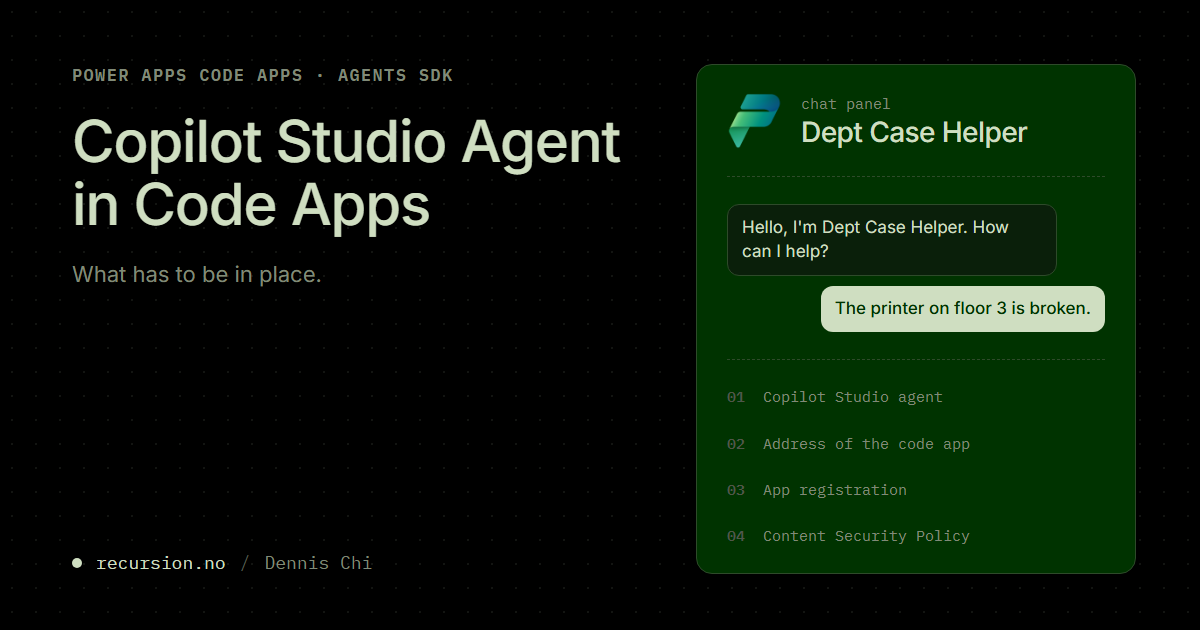
Code Apps do not have the Copilot sidecar feature that model-driven apps have and canvas apps have in preview. In a model-driven app the user opens the pane with the Copilot button in the upper-right corner and can pick an agent in it (Learn documentation). The product team informed that it plans a variation of the sidecar for code apps around End of December 2026. A user of a code app has no chat with an agent today.
The team also informed that the Microsoft 365 Agents SDK is the recommended way to connect to Copilot Studio. So I tested this out and built a chat panel in my own demo code app, and I can tell you that it works: the Copilot Studio agent greeted me inside the published code app and answered my question.
Microsoft has not officially confirmed this setup as supported for code apps as it is still under development. The setup the Microsoft documentation describes for code apps is the Microsoft Copilot Studio connector, which sends one message and returns one answer.
The connector or the Agents SDK
| Copilot Studio connector | Agents SDK (this post) | |
|---|---|---|
| Shape | One request, one answer | A conversation (the client keeps the conversation ID) |
| Sign-in | None extra, the connection signs in | A sign-in window and an app registration (step 10 removes the window) |
| Environment change | None | The Content Security Policy has to let two addresses through (three with step 10) |
| Governance | Data loss prevention (DLP) policies and Advanced Connector Policies apply to it | A network call from the browser that DLP policies do not apply to |
| Status | Documented for code apps | Not officially confirmed as supported for code apps, still under development |
I have not tested the connector.
What has to be in place
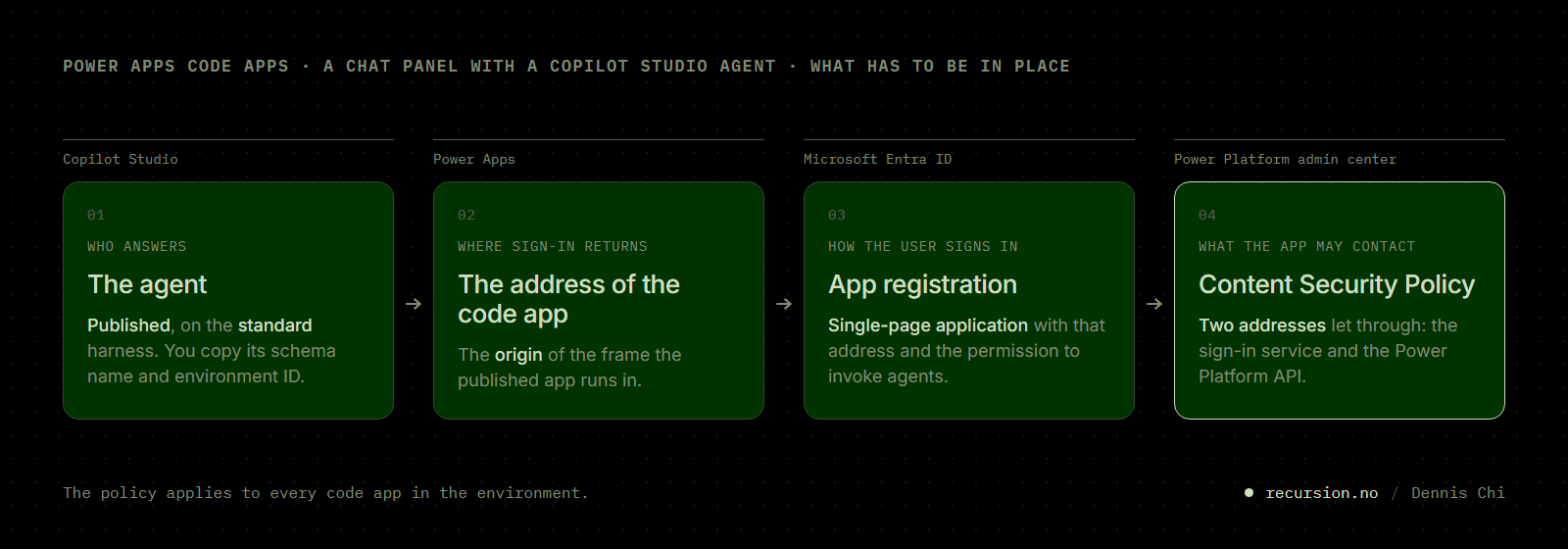
The panel can talk to the agent once these are in place. The steps set them up in this order:
- A published Copilot Studio agent.
- The address of the published code app.
- An app registration in Microsoft Entra ID with that address, which the user signs in through.
- Two addresses let through the Content Security Policy of the environment.
Setting it up
Step 1. Create and publish the agent
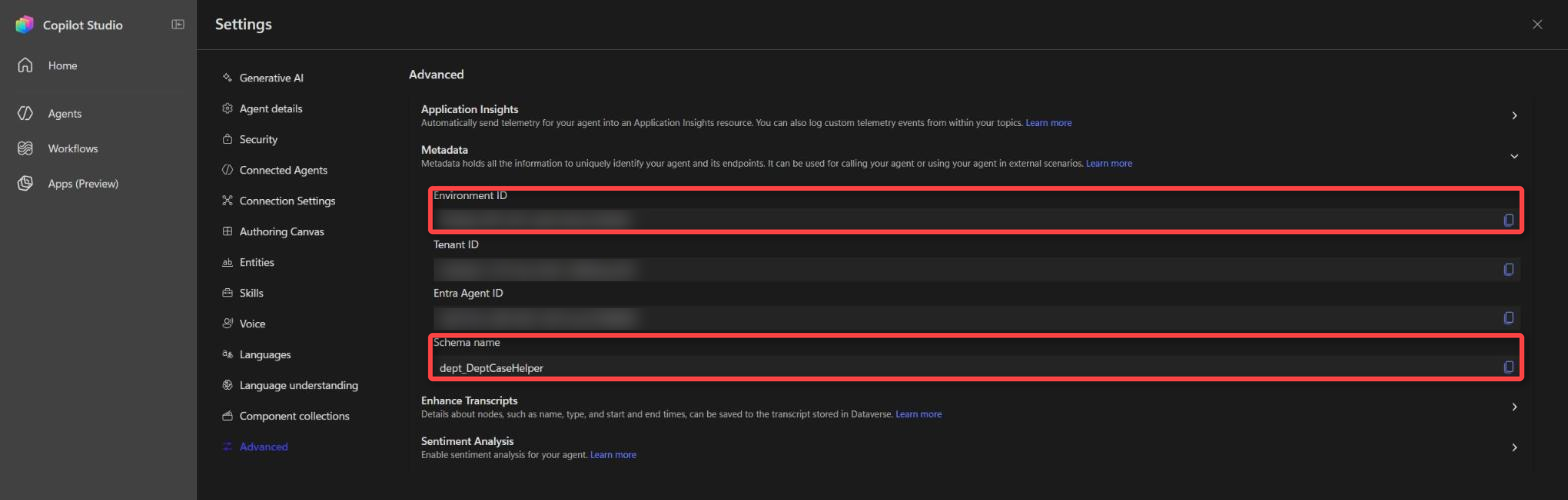
The panel needs an agent to talk to, and the client library finds it by two values: its schema name and the ID of its environment. Create the agent in Copilot Studio and select Publish. Then open Settings > Advanced > Metadata and copy Schema name and Environment ID.
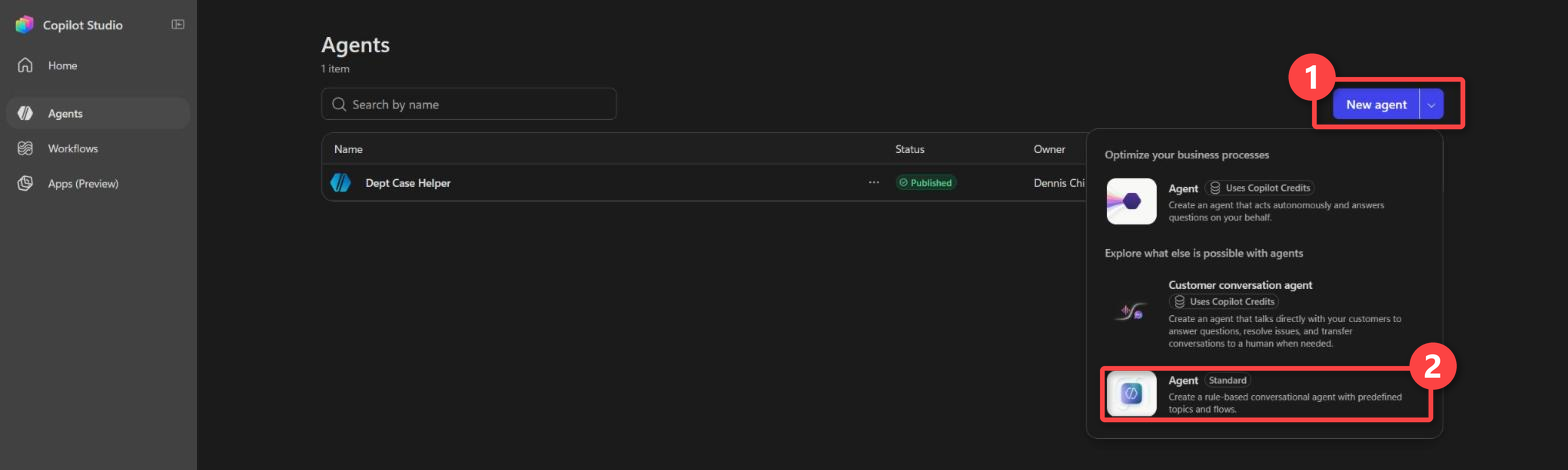
I created the agent in the code app’s environment (dept-dev) and chose New agent > Agent, Standard. The Microsoft documentation says the Copilot Studio client library only supports agents on the standard harness, and the Agents list shows Standard in the column Agent harness for this agent.
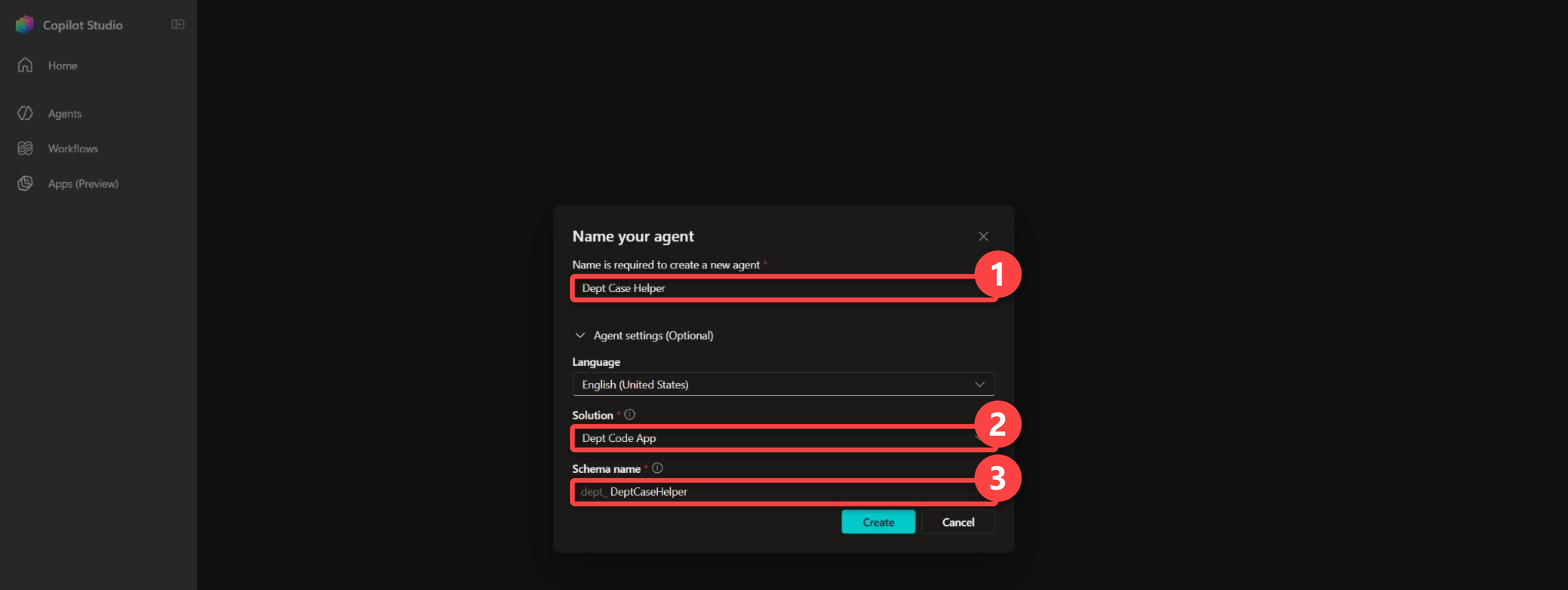
I named the agent Dept Case Helper and put it in my solution Dept Code App under Agent settings. The solution’s publisher prefix is dept, so the schema name became dept_DeptCaseHelper.

Step 2. Find the address of the code app
The sign-in window has to come back to the code app after the user has signed in, and Microsoft only sends it to an address you have registered. So you need the address of the published code app. If the code app is new, publish it once first.
Power Apps shows a code app in a frame inside its own page, and the frame has an address of its own. Open the published code app, open the browser’s developer tools and find the frame (the iframe element) and its src. It has this shape:
https://<code-app-origin>/powerapps/appruntime/<app-id>/t/<tenant-id>/runtimeproxy/<app-id><timestamp><hash>/index.htmlEverything after the host name changes every time you run pa app push, and a registered address has to match character for character. The start of the address, https:// and the host name, stays the same. That start is called the origin, and the origin is what you register.
In my tenant the origin is the environment ID without dashes and with a dot before its last two characters, followed by .environment.api.powerplatformusercontent.com.
Step 3. Create the app registration in Microsoft Entra ID
The user signs in through an app registration, and the agent accepts the token the user gets from it. I created it with the Azure CLI in PowerShell. You need the right to create app registrations in the tenant.
Create the app registration for users in your own tenant only:
az ad app create --display-name "Dept Case App agent chat" --sign-in-audience AzureADMyOrgCopy appId (the client ID) and id (the object ID) from the answer. You also need the tenant ID, which is Directory (tenant) ID on the app registration’s Overview page.
A sign-in from a browser needs the address registered as the type single-page application (SPA). I set that type through Microsoft Graph. Save the addresses in a file called spa.json in the folder you run the commands from. The first is the origin from step 2. The second is for pa app run on your own machine, and Entra ignores the port in a localhost address:
{
  "spa": {
    "redirectUris": [
      "https://<code-app-origin>",
      "http://localhost:5173"
    ]
  }
}
Then send the file to the app registration:
az rest --method PATCH --uri "https://graph.microsoft.com/v1.0/applications/<app-object-id>" --headers "Content-Type=application/json" --body "@spa.json"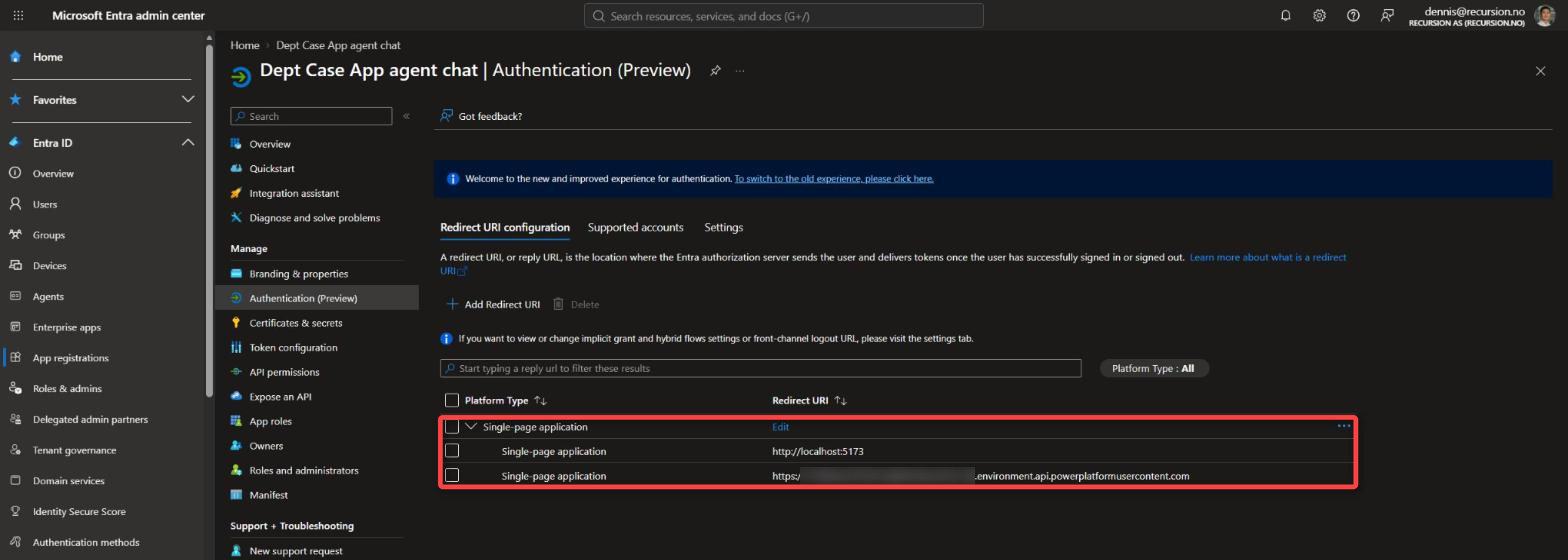
Give the app registration the delegated permission CopilotStudio.Copilots.Invoke on the Power Platform API:
az ad app permission add --id <app-client-id> --api 8578e004-a5c6-46e7-913e-12f58912df43 --api-permissions 204440d3-c1d0-4826-b570-99eb6f5e2aeb=ScopeThe first ID is the Power Platform API (Learn documentation), and the second is the permission. Read the second in your own tenant with az ad sp show --id 8578e004-a5c6-46e7-913e-12f58912df43, under oauth2PermissionScopes.
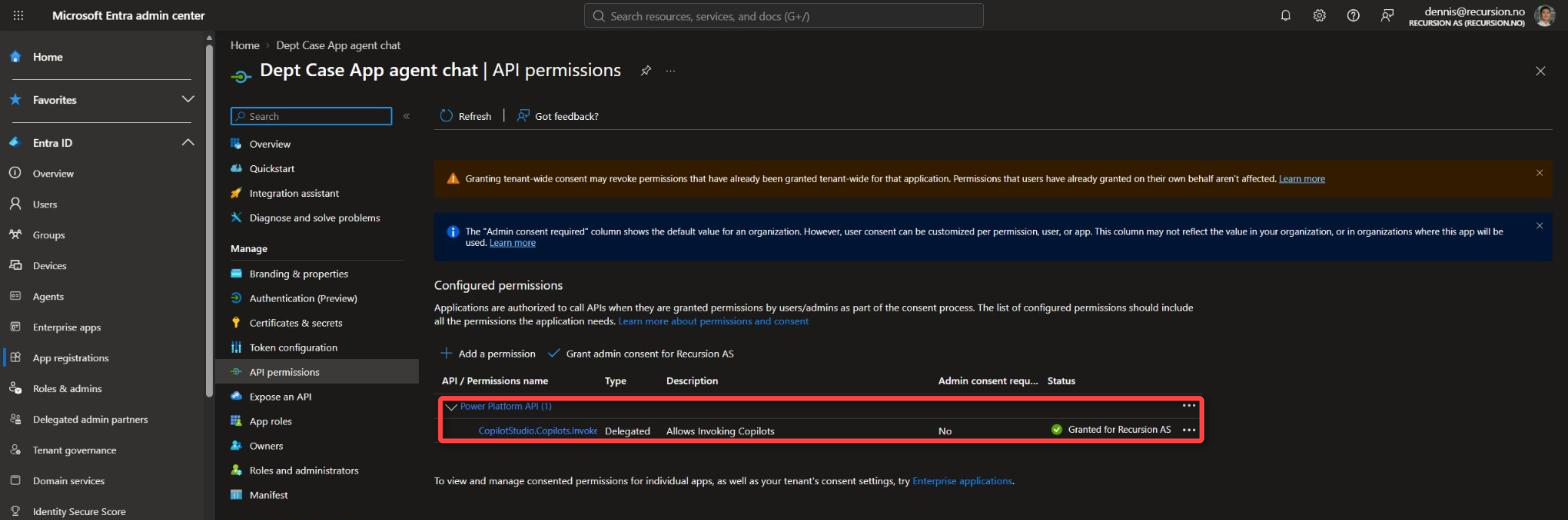
The first time I signed in from the panel, the sign-in window asked me to accept the permission. As an administrator I accepted it for the whole organization (Consent on behalf of your organization), so the permission is granted for every user in the tenant.
Step 4. Install the packages
The code app project needs three packages: the Copilot Studio client library and the activity types from the Agents SDK, and the Microsoft Authentication Library (MSAL) for the sign-in. Run this in the code app project:
npm install @microsoft/[email protected] @microsoft/[email protected] @azure/[email protected]
Stay on version 4 of @azure/msal-browser, the version Microsoft’s web client sample also uses. Version 5 sends the sign-in result back in a way that does not reach a frame like a code app. I read that in its source code and did not run version 5.
Step 5. Add the code
The code is two files in src/agent/ of the code app project. agentClient.ts signs the user in and returns a client for the agent. It starts with the IDs from steps 1 and 3 and sets up MSAL with the origin as the address to come back to:
import { PublicClientApplication } from '@azure/msal-browser'
import { ConnectionSettings, CopilotStudioClient, ScopeHelper } from '@microsoft/agents-copilotstudio-client'

// None of these values are secrets: a single-page app registration has no client secret.
const tenantId = '<tenant-id>' // Directory (tenant) ID of the app registration
const appClientId = '<app-client-id>' // Application (client) ID of the app registration
const environmentId = '<environment-id>' // Copilot Studio > agent > Settings > Advanced > Metadata
const schemaName = 'dept_DeptCaseHelper' // same place

const settings = new ConnectionSettings({ environmentId, schemaName })
const scopes = [ScopeHelper.getScopeFromSettings(settings)]

const msal = new PublicClientApplication({
  auth: {
    clientId: appClientId,
    authority: `https://login.microsoftonline.com/${tenantId}`,
    // The address the sign-in window returns to. The app's own origin is registered on the
    // app registration and stays the same after every pa app push.
    redirectUri: window.location.origin,
  },
})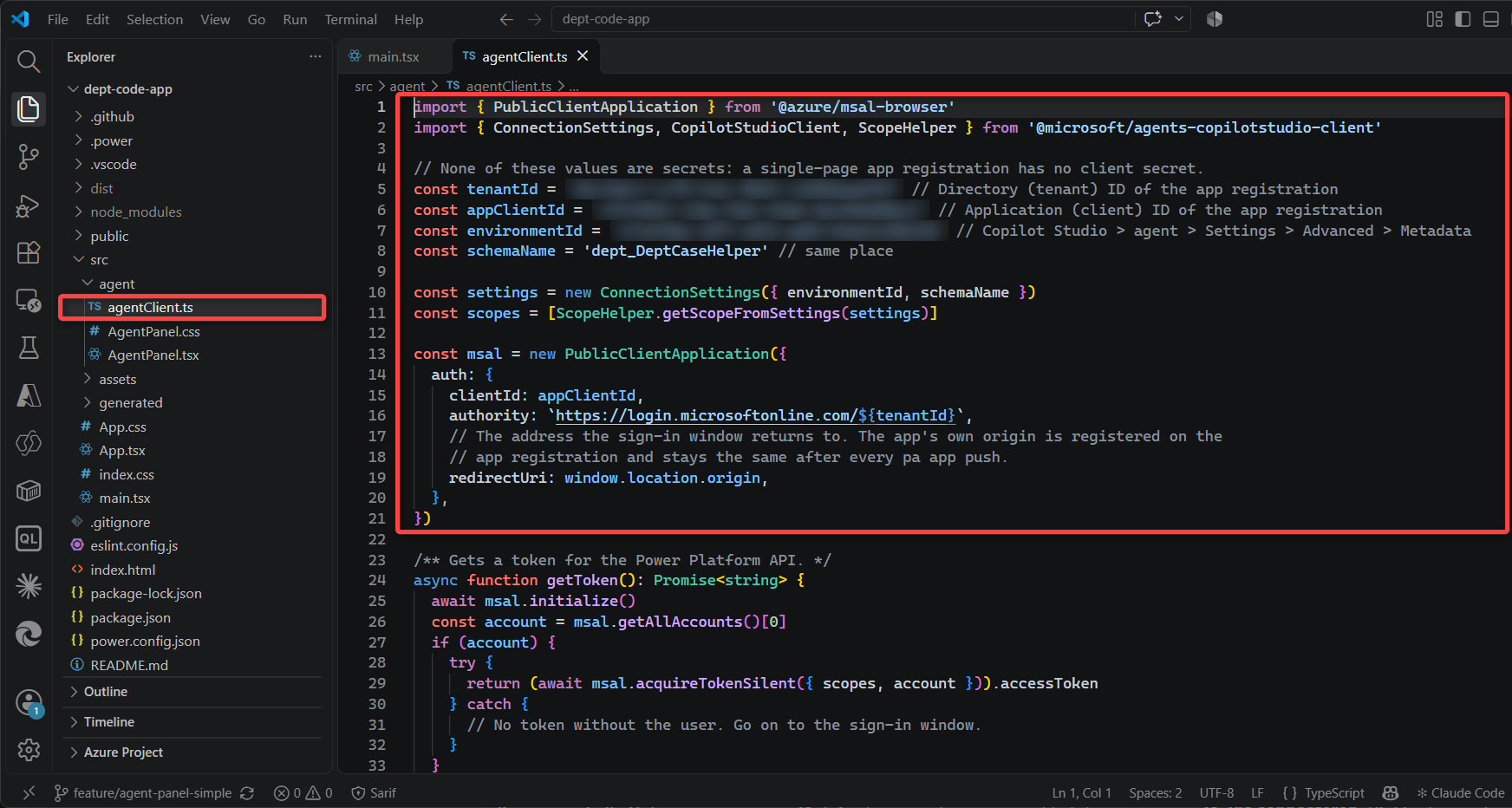
src/agent/agentClient.ts is marked in the Explorer, and the first half of the file, with the IDs blurred, in the editor.The rest of the file asks for a token. It tries without a window first and opens the sign-in window if that fails:
/** Gets a token for the Power Platform API. */
async function getToken(): Promise<string> {
  await msal.initialize()
  const account = msal.getAllAccounts()[0]
  if (account) {
    try {
      return (await msal.acquireTokenSilent({ scopes, account })).accessToken
    } catch {
      // No token without the user. Go on to the sign-in window.
    }
  }
  // A code app runs in a frame, so the sign-in has to open in its own window.
  return (await msal.loginPopup({ scopes })).accessToken
}

/** Signs the user in and returns a client that talks to the agent. */
export async function connectToAgent(): Promise<CopilotStudioClient> {
  return new CopilotStudioClient(settings, await getToken())
}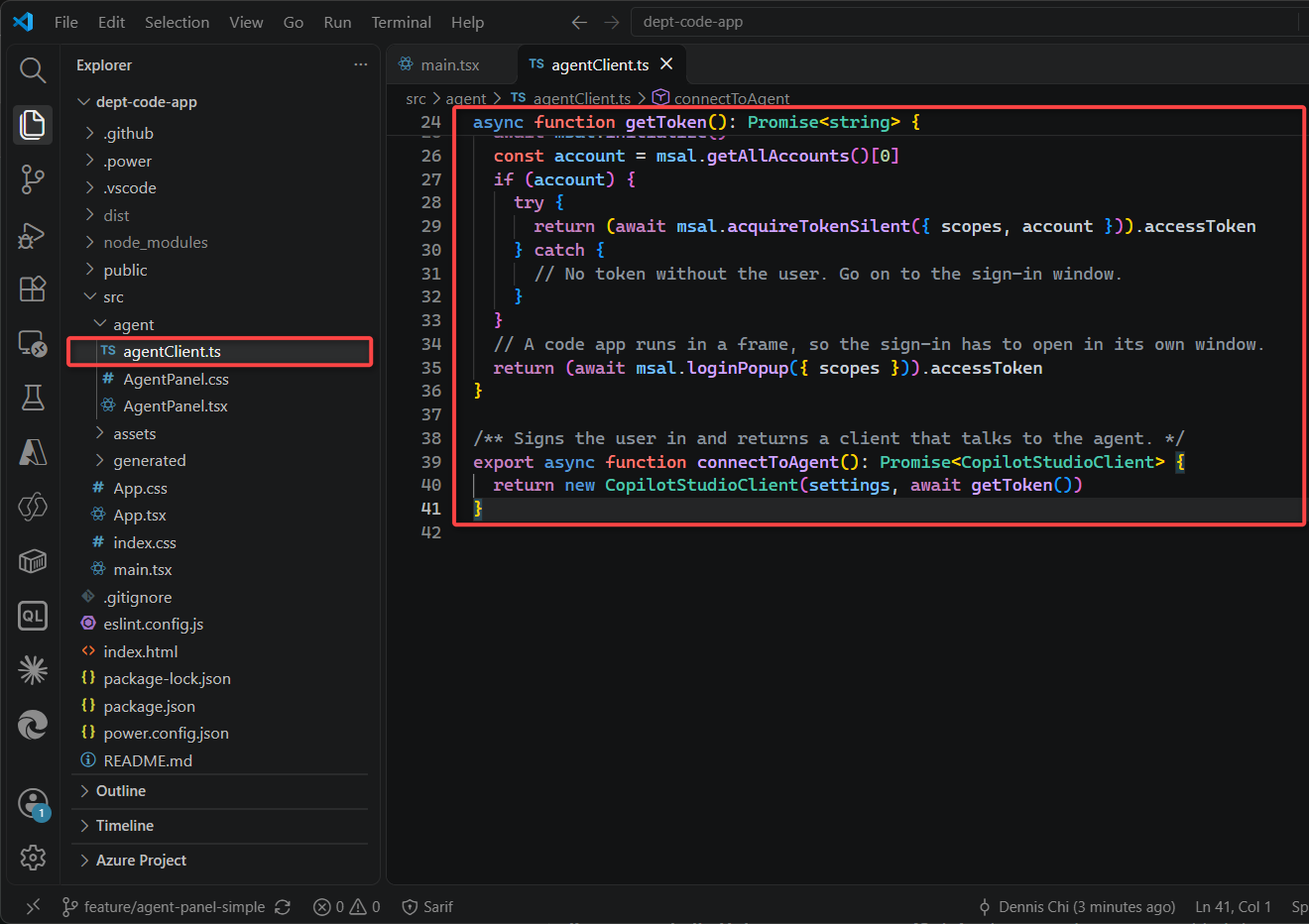
src/agent/agentClient.ts is marked in the Explorer, and the rest of the file in the editor.AgentPanel.tsx is the panel. It starts with the button that opens the panel and the values the panel keeps track of:
import { useState } from 'react'
import { Activity } from '@microsoft/agents-activity'
import type { CopilotStudioClient } from '@microsoft/agents-copilotstudio-client'
import { connectToAgent } from './agentClient'
import './AgentPanel.css'

type Message = { from: 'user' | 'agent'; text: string }

/** The button that opens the chat panel. Rendered next to the app in main.tsx. */
export function AgentLauncher() {
  const [open, setOpen] = useState(false)
  if (open) return <AgentPanel onClose={() => setOpen(false)} />
  return (
    <button type="button" className="agent-toggle" onClick={() => setOpen(true)}>
      Ask the helper
    </button>
  )
}

/** A chat panel beside the app. The conversation is with a Copilot Studio agent. */
function AgentPanel({ onClose }: { onClose: () => void }) {
  // The client exists once the user has signed in and the conversation has started.
  const [client, setClient] = useState<CopilotStudioClient | null>(null)
  const [messages, setMessages] = useState<Message[]>([])
  const [draft, setDraft] = useState('')
  const [busy, setBusy] = useState(false)
  const [error, setError] = useState('')

  /** Shows a message from the agent. Other activities (typing, events) are skipped. */
  function show(activity: Activity) {
    const text = activity.text
    if (activity.type === 'message' && text) setMessages((all) => [...all, { from: 'agent', text }])
  }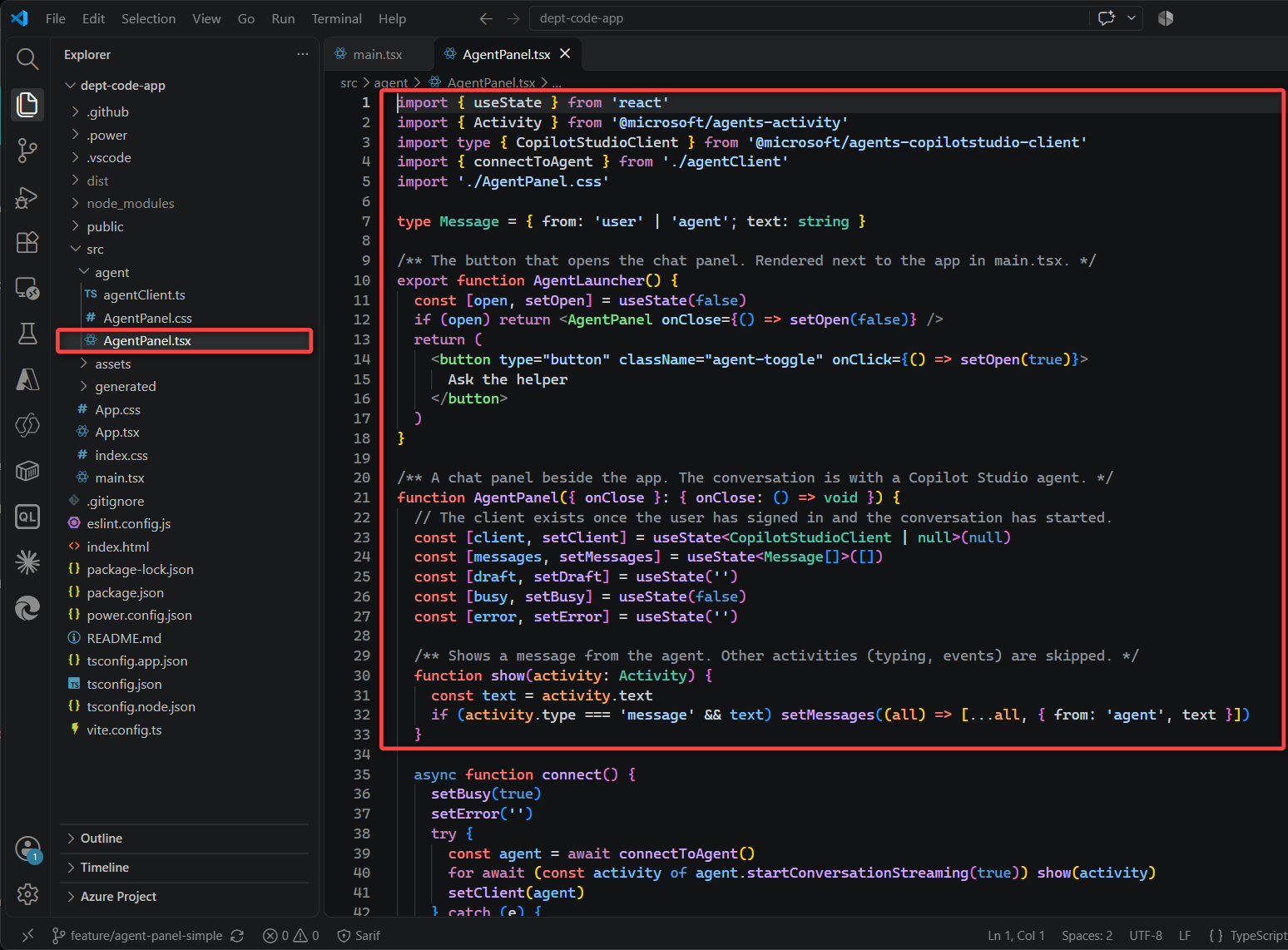
src/agent/AgentPanel.tsx is marked in the Explorer, and the start of the file in the editor.The button Sign in and start calls connect, which signs the user in and starts the conversation. The Send button calls send, which passes the user’s question to the agent and shows the answer:
  async function connect() {
    setBusy(true)
    setError('')
    try {
      const agent = await connectToAgent()
      for await (const activity of agent.startConversationStreaming(true)) show(activity)
      setClient(agent)
    } catch (e) {
      setError((e as Error).message)
    }
    setBusy(false)
  }

  async function send() {
    const text = draft.trim()
    if (!text || !client) return
    setDraft('')
    setMessages((all) => [...all, { from: 'user', text }])
    setBusy(true)
    setError('')
    try {
      const question = Activity.fromObject({ type: 'message', text })
      for await (const activity of client.sendActivityStreaming(question)) show(activity)
    } catch (e) {
      setError((e as Error).message)
    }
    setBusy(false)
  }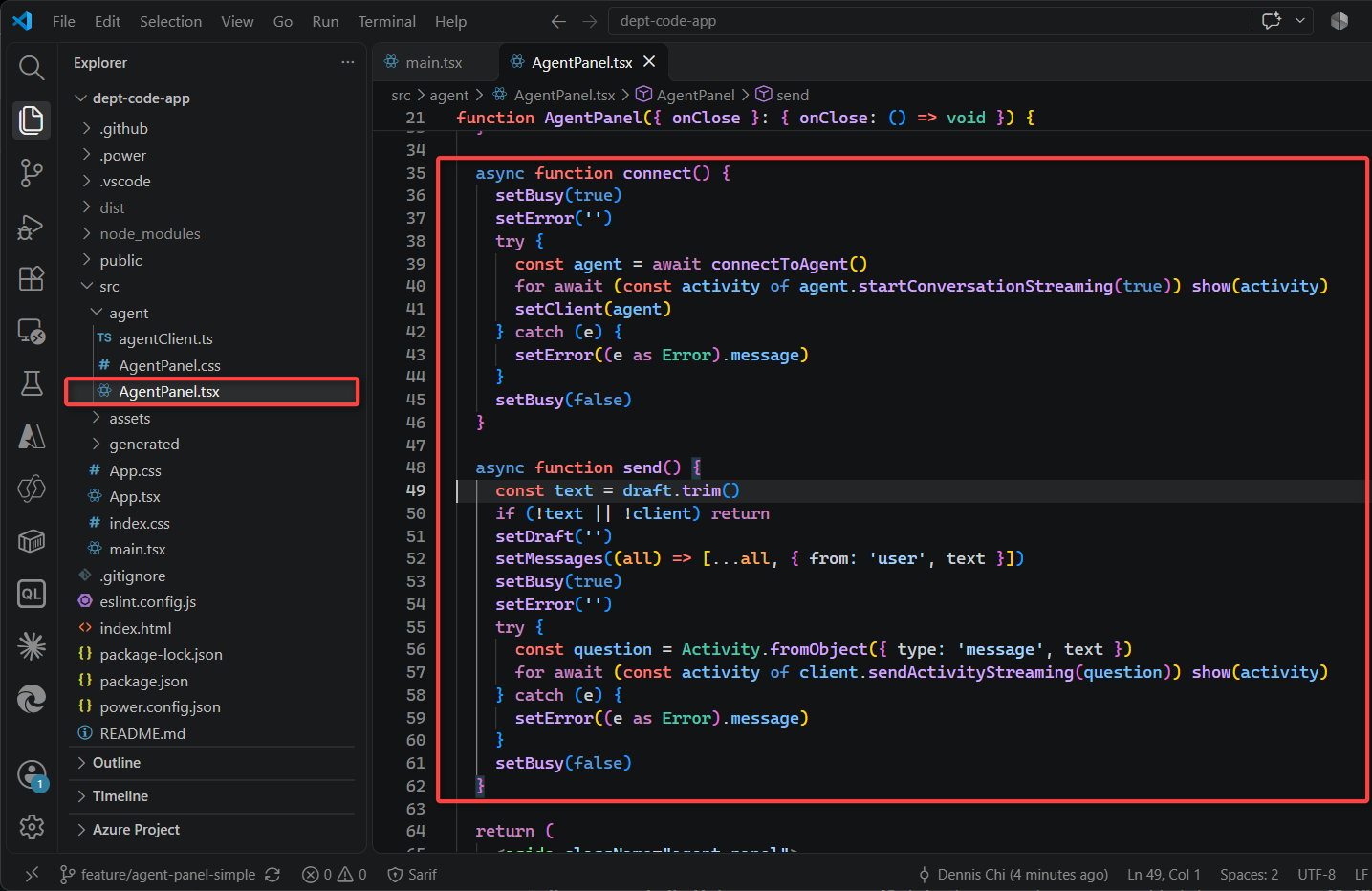
src/agent/AgentPanel.tsx is marked in the Explorer, and the functions connect and send in the editor.The last lines draw the panel. It shows the button Sign in and start until the conversation has started, and the message field after that:
  return (
    <aside className="agent-panel">
      <header>
        <strong>Dept Case Helper</strong>
        <button type="button" onClick={onClose}>
          Close
        </button>
      </header>

      <div className="agent-messages">
        {messages.map((m, i) => (
          <p key={i} className={m.from}>
            {m.text}
          </p>
        ))}
        {busy && <p>…</p>}
        {error && <p className="error">{error}</p>}
      </div>

      {client ? (
        <form
          onSubmit={(e) => {
            e.preventDefault()
            void send()
          }}
        >
          <input value={draft} onChange={(e) => setDraft(e.target.value)} placeholder="Ask about a case" />
          <button type="submit" disabled={busy}>
            Send
          </button>
        </form>
      ) : (
        <button type="button" disabled={busy} onClick={() => void connect()}>
          Sign in and start
        </button>
      )}
    </aside>
  )
}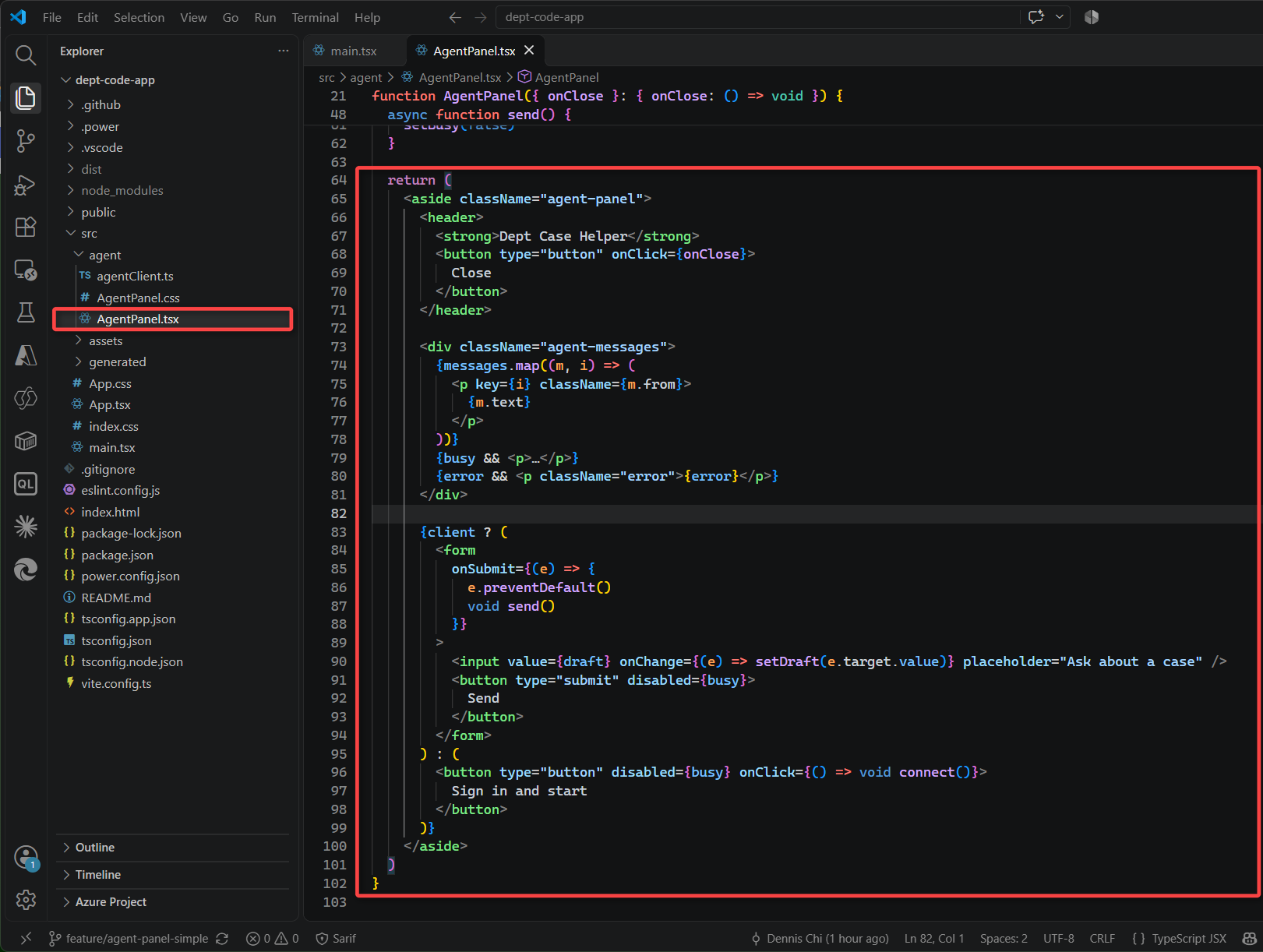
src/agent/AgentPanel.tsx is marked in the Explorer, and the lines that draw the panel in the editor.AgentPanel.css places the panel on the right side of the code app:
/* The player lays a notice bar over the top of the app in a Developer environment. */
.agent-toggle { position: fixed; top: 3rem; right: 1.5rem; }

.agent-panel {
  position: fixed;
  top: 0;
  right: 0;
  bottom: 0;
  width: 360px;
  box-sizing: border-box;
  display: flex;
  flex-direction: column;
  gap: 0.75rem;
  padding: 1rem;
  background: #fafafa;
  border-left: 1px solid #e0e0e0;
}
.agent-panel header, .agent-panel form { display: flex; gap: 0.5rem; justify-content: space-between; align-items: center; }
.agent-panel input { flex: 1; padding: 0.5rem 0.75rem; border: 1px solid #ccc; border-radius: 6px; }
.agent-panel button, .agent-toggle {
  padding: 0.5rem 1rem;
  border: 0;
  border-radius: 6px;
  background: #742774;
  color: #fff;
  cursor: pointer;
}

.agent-messages { flex: 1; overflow-y: auto; display: flex; flex-direction: column; gap: 0.5rem; }
.agent-messages p {
  margin: 0;
  padding: 0.5rem 0.75rem;
  border-radius: 10px;
  max-width: 85%;
  white-space: pre-wrap;
  overflow-wrap: anywhere;
}
.agent-messages .agent { align-self: flex-start; background: #fff; border: 1px solid #e0e0e0; }
.agent-messages .user { align-self: flex-end; background: #742774; color: #fff; }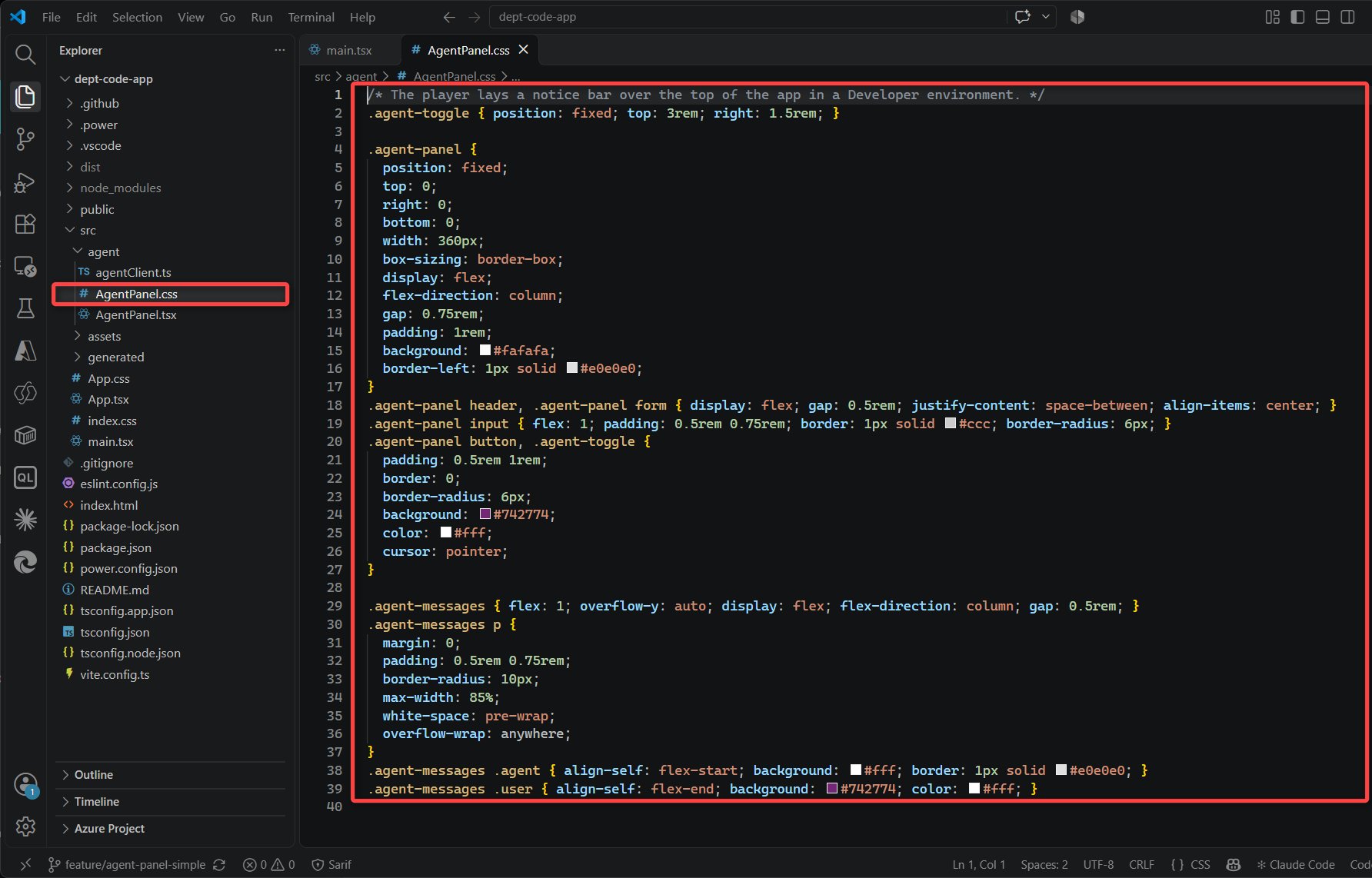
src/agent/AgentPanel.css is marked in the Explorer, and the whole file in the editor.src/main.tsx renders AgentLauncher (the button that opens the panel) next to the code app:
import { AgentLauncher } from './agent/AgentPanel.tsx'

createRoot(document.getElementById('root')!).render(
  <StrictMode>
    <App />
    <AgentLauncher />
  </StrictMode>,
)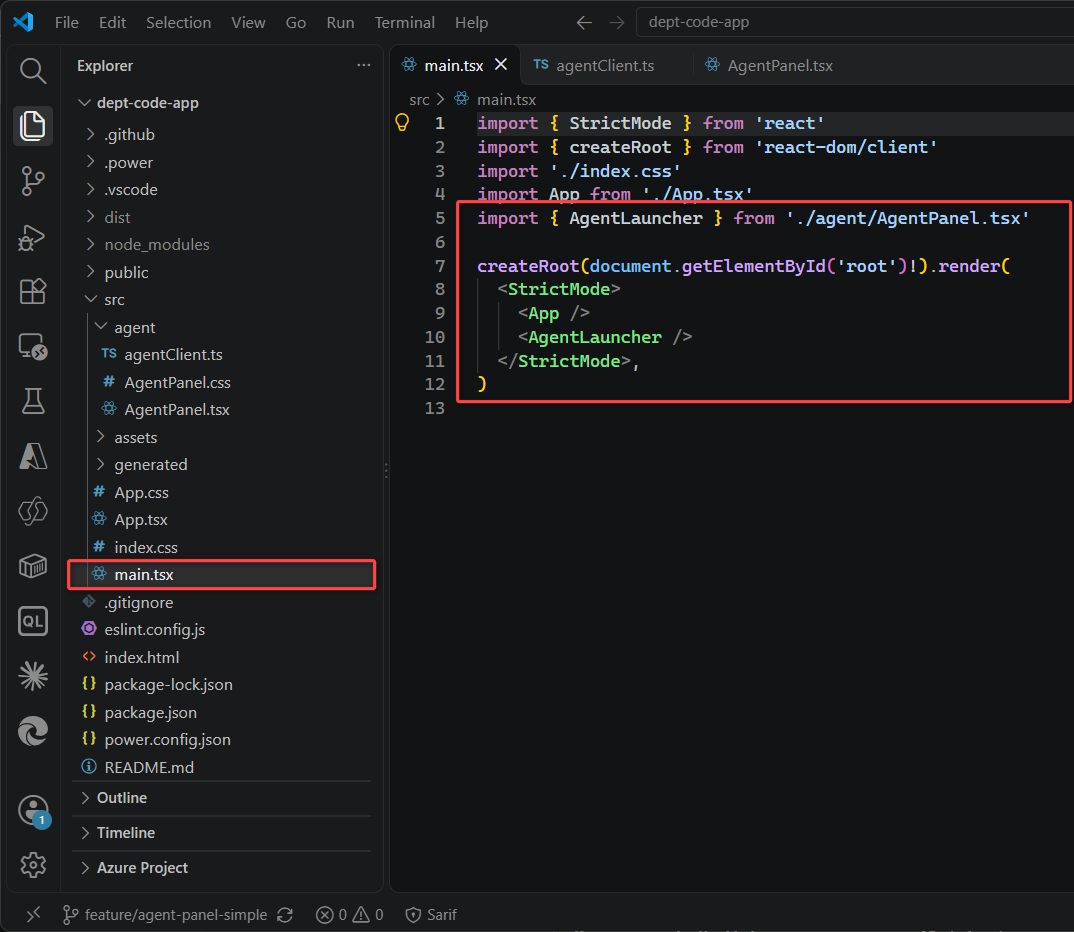
src/main.tsx is marked in the Explorer, and the import and the lines that render AgentLauncher in the editor.The code is in the branch feature/agent-panel-simple of my demo repository.
Step 6. Publish the code app and read the error
With the default settings the first sign-in fails, and the error message names the wrong cause. Build the code app and publish it with pa app push. Open it, select Ask the helper and then Sign in and start. The sign-in window opens, and the first time it asks you to accept the permission (see the note in step 3). Then it closes, and the panel shows this:
post_request_failed: Network request failed. If the browser threw a CORS error, check that the redirectUri is registered in the Azure App Portal as type 'SPA'
The message told me to check the address on the app registration, and I had already registered it as SPA.
The sign-in in the window went fine. After it, the code app has to contact Microsoft’s sign-in service itself to collect the token, and the browser stopped that request. A code app is not allowed to contact any address on the internet on its own. Normally it does not need to, because connectors fetch the data. The setting that enforces this is the Content Security Policy of the environment.
Step 7. Let the two addresses through the Content Security Policy
The panel has to contact two addresses on its own: the sign-in service, to collect the token, and the Power Platform API, where the agent is. An environment admin allows them in the Content Security Policy. Go to the Power Platform admin center > Manage > Environments, select the environment, then Settings > Product > Privacy + Security. Under Content security policy, select the tab App (code) and find Configure directives.
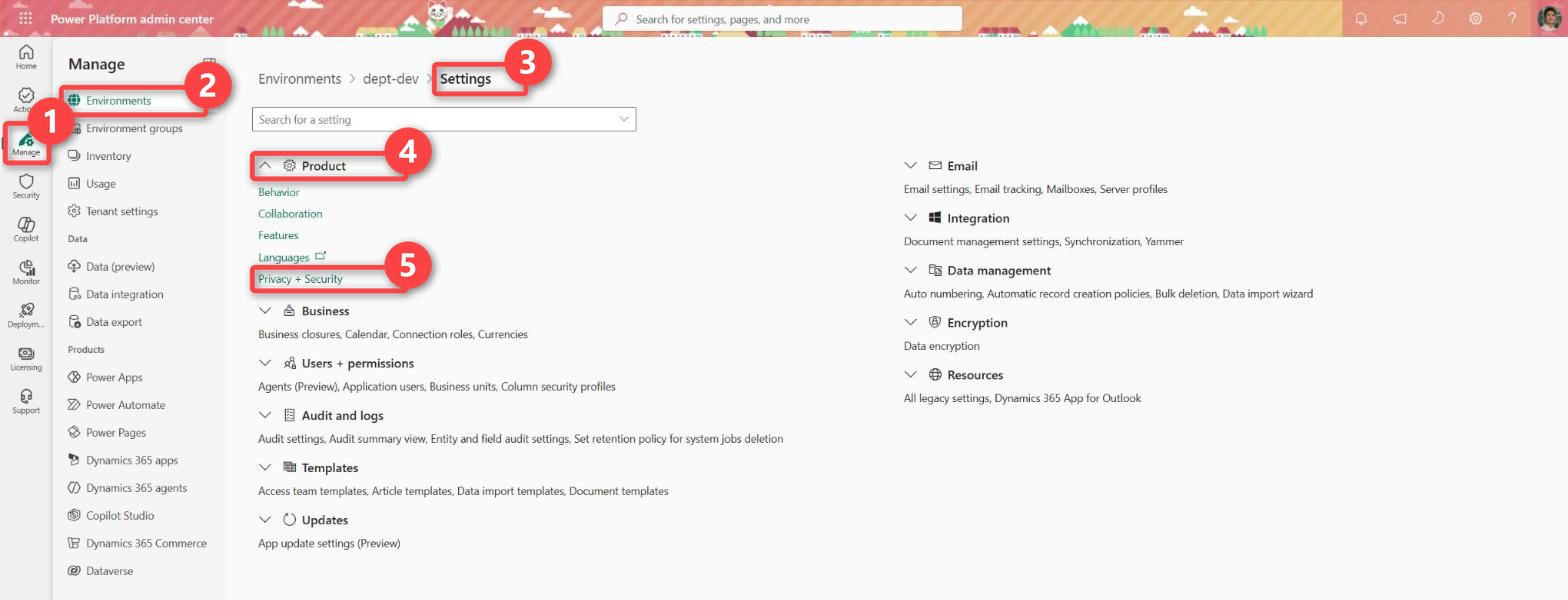
The directive for the addresses a code app may contact is called connect-src. Turn off Use default connect-src, add these two sources and select Save:
https://login.microsoftonline.com
https://*.environment.api.powerplatform.com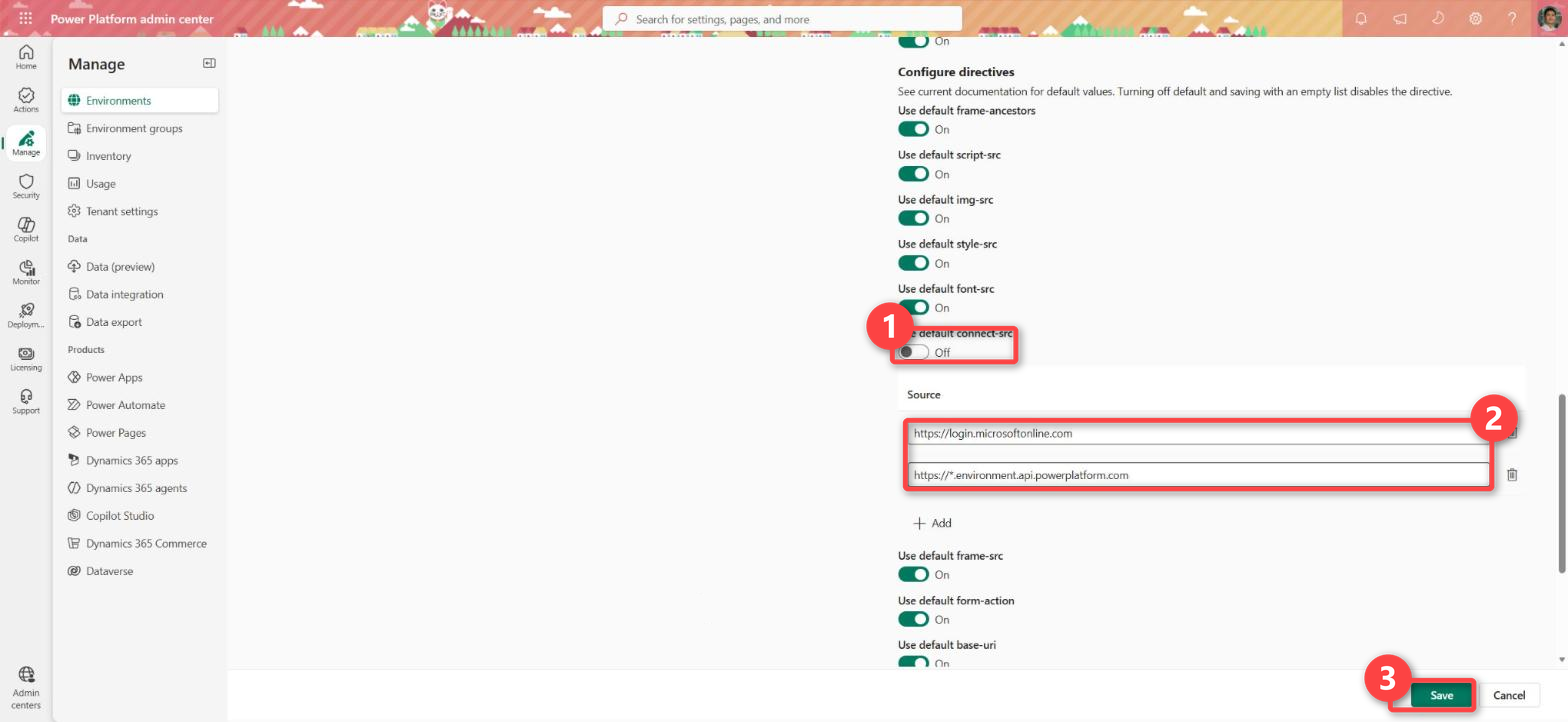
The setting applies to every code app in the environment, so any code app there can contact those two addresses.
Step 8. Sign in and ask a question
The code app gets the new policy some minutes after you select Save (about seven minutes in my tenant). Open the code app again after that and select Sign in and start. The agent’s greeting appears in the panel, and you can type a question.
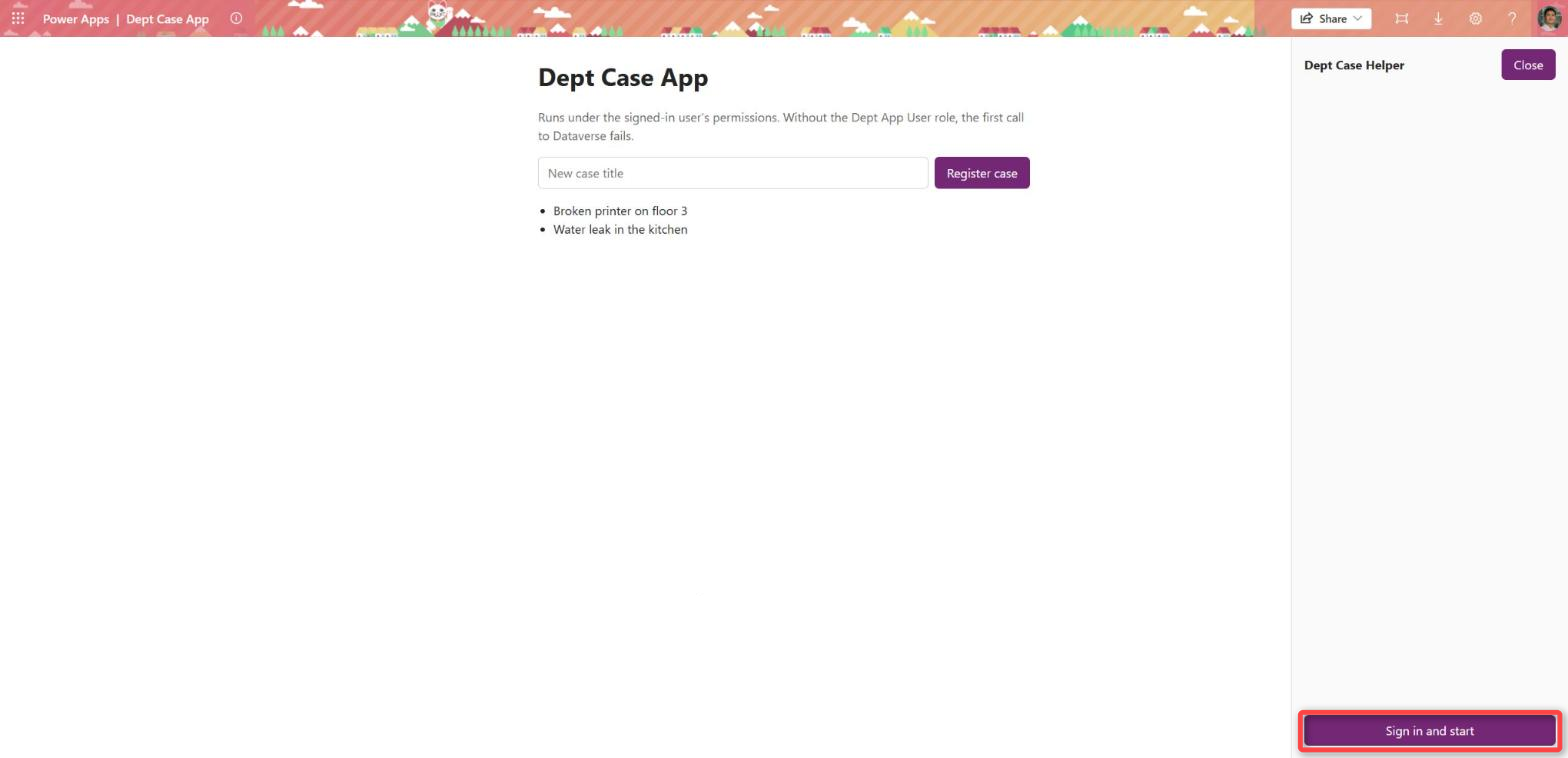
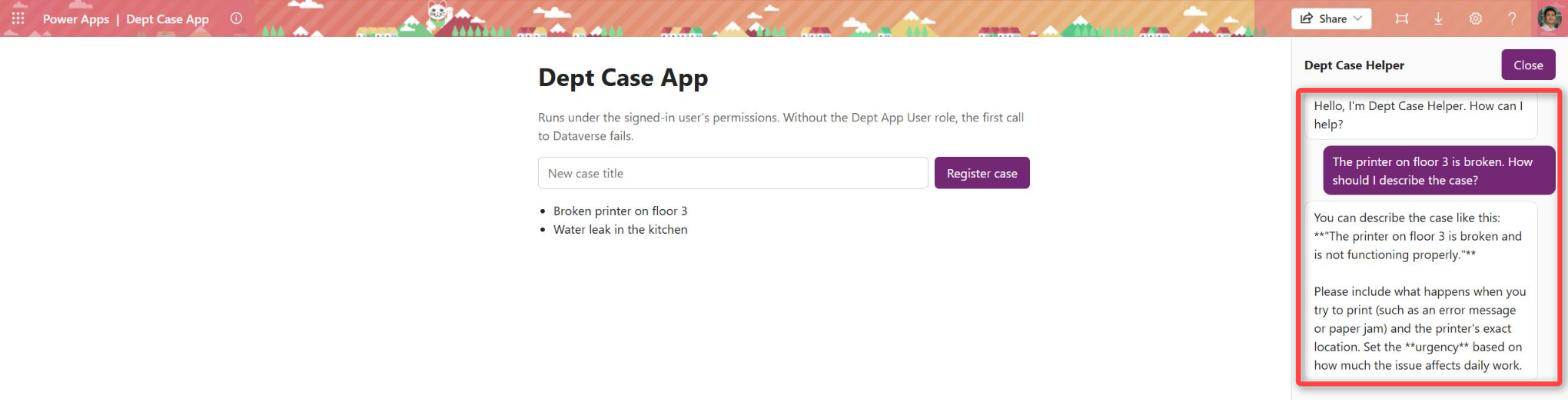
The sign-in window opened and closed by itself, because I was already signed in to Power Apps. The agent answered “Hello, I’m Dept Case Helper. How can I help?”. I asked “The printer on floor 3 is broken. How should I describe the case?” and got a suggestion for the wording back. The agent answers in Markdown and the panel shows the text as it is, so words the agent made bold have ** around them.
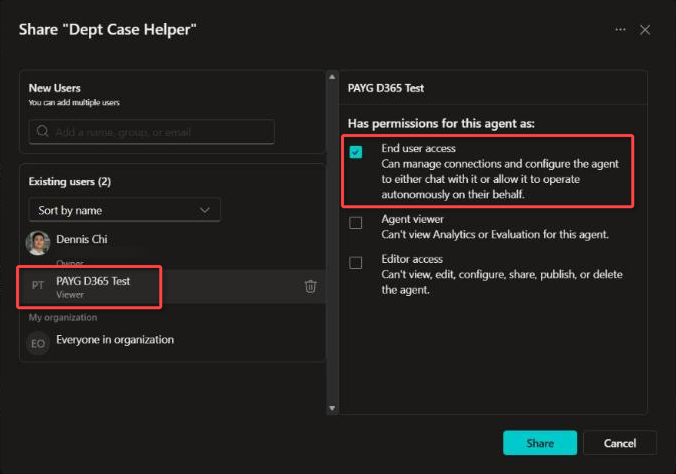
Step 9. Share the agent with the users of the code app
The code app and the agent have separate access. A user who can open the code app can only chat with the agent if the agent is shared with them. In Copilot Studio, open the agent, select the three dots (…) at the top and then Share. Add the users or a security group and keep End user access selected. Then select Share.
A user the agent is not shared with signs in without problems and then gets this message in the panel:
[-140032] - Copilot Studio request failed with status 404The message says the agent was not found, not that the user has no access, so check the sharing before you look for an error in the schema name or the environment ID.
I tested two users with the same security role and the same Power Apps license in the code app’s environment. The user the agent was shared with got the greeting, an answer, and an answer to a follow-up question that built on the first one. The other user got the message above.
Step 10. Start the chat without a sign-in window (optional)
Choose this if the users should not have to select Sign in and start. The panel then gets the token in a hidden frame from the Microsoft sign-in the user already has in the browser, and the conversation starts when the panel opens.
- Add
https://login.microsoftonline.comtoframe-srcin the Content Security Policy from step 7. Turn off Use default frame-src, add the source and select Save. The hidden frame opens the sign-in service, and the defaultframe-srconly lets a code app open frames from its own address.
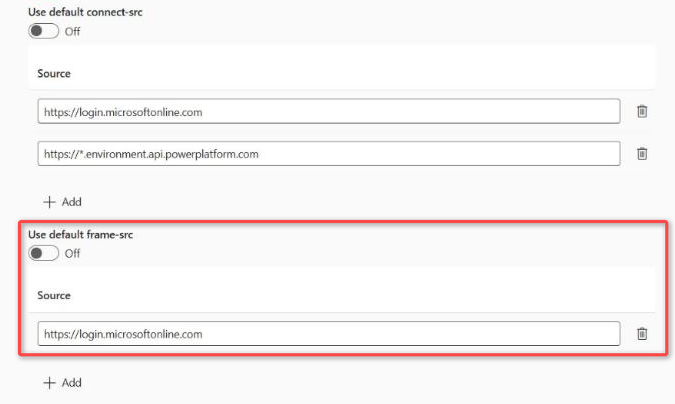
- Replace
getTokenandconnectToAgentinagentClient.tswith this version and add the import at the top of the file. Withsilentit gets the token in the hidden frame, and without it the sign-in window opens as before. The user’s sign-in name comes fromgetContextin the Power Apps client library, so the sign-in service picks the account without asking:
import { getContext } from '@microsoft/power-apps/app'

/** Signs the user in and returns a client that talks to the agent. */
export async function connectToAgent(silent: boolean): Promise<CopilotStudioClient> {
  await msal.initialize()
  const { user } = await getContext()
  const request = { scopes, loginHint: user.userPrincipalName }
  // silent: a hidden frame reuses the user's Microsoft sign-in from Power Apps, no window.
  // Otherwise a sign-in window, which the browser only opens after a click.
  const result = silent ? await msal.ssoSilent(request) : await msal.loginPopup(request)
  return new CopilotStudioClient(settings, result.accessToken)
}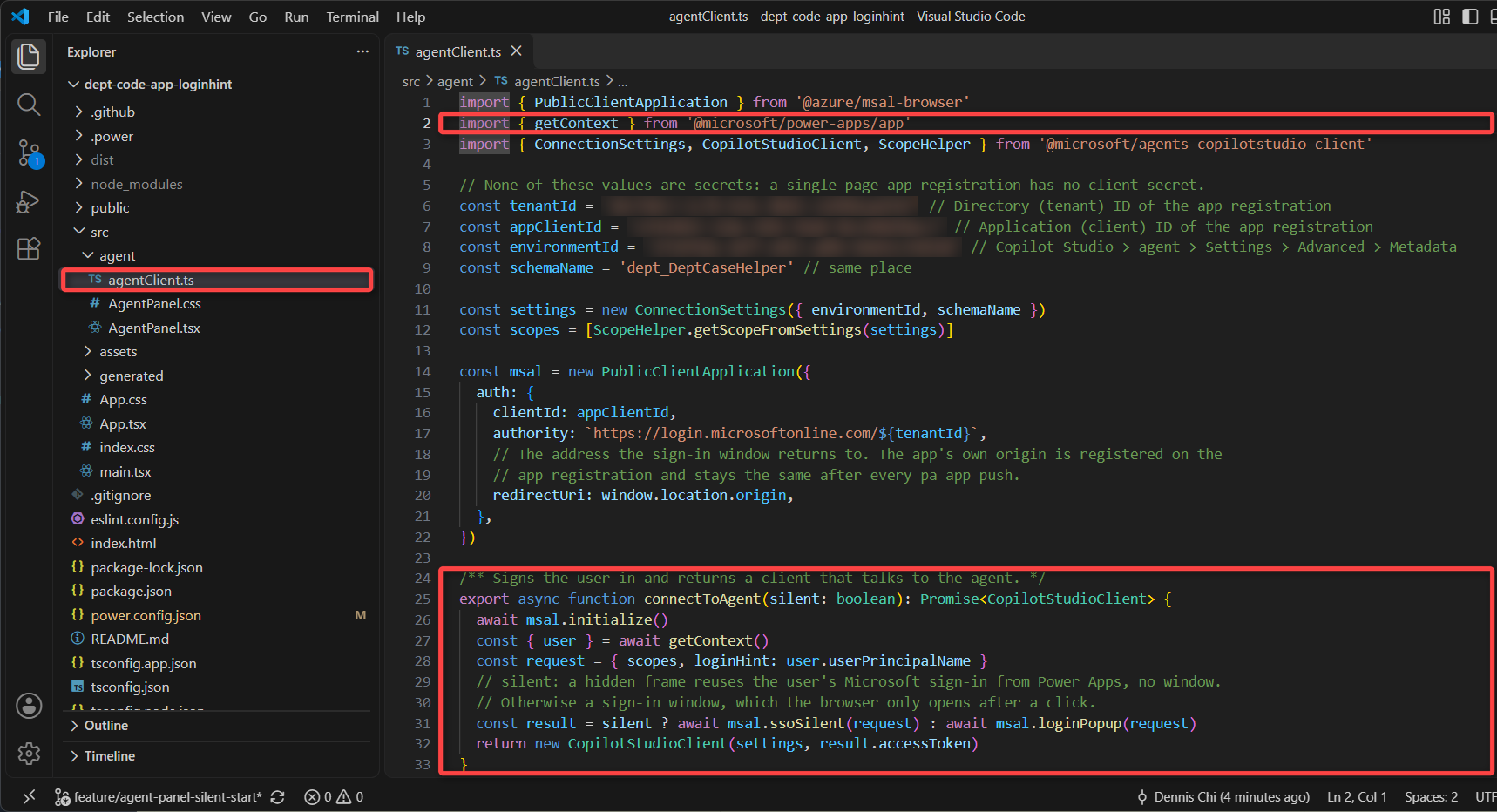
src/agent/agentClient.ts is marked in the Explorer, and the import and the new connectToAgent in the editor.- In
AgentPanel.tsx, giveconnectthe same flag and start it without a window when the panel opens:
import { useEffect, useRef, useState } from 'react' async function connect(silent: boolean) {
setBusy(true)
setError('')
try {
const agent = await connectToAgent(silent)
for await (const activity of agent.startConversationStreaming(true)) show(activity)
setClient(agent)
} catch (e) {
// A failed silent start leaves the button Sign in and start for the user.
if (!silent) setError((e as Error).message)
}
setBusy(false)
}
// Start the conversation without a window when the panel opens. The ref stops a second
// start when React runs the effect twice in development.
const started = useRef(false)
useEffect(() => {
if (started.current) return
started.current = true
void connect(true)
}, [])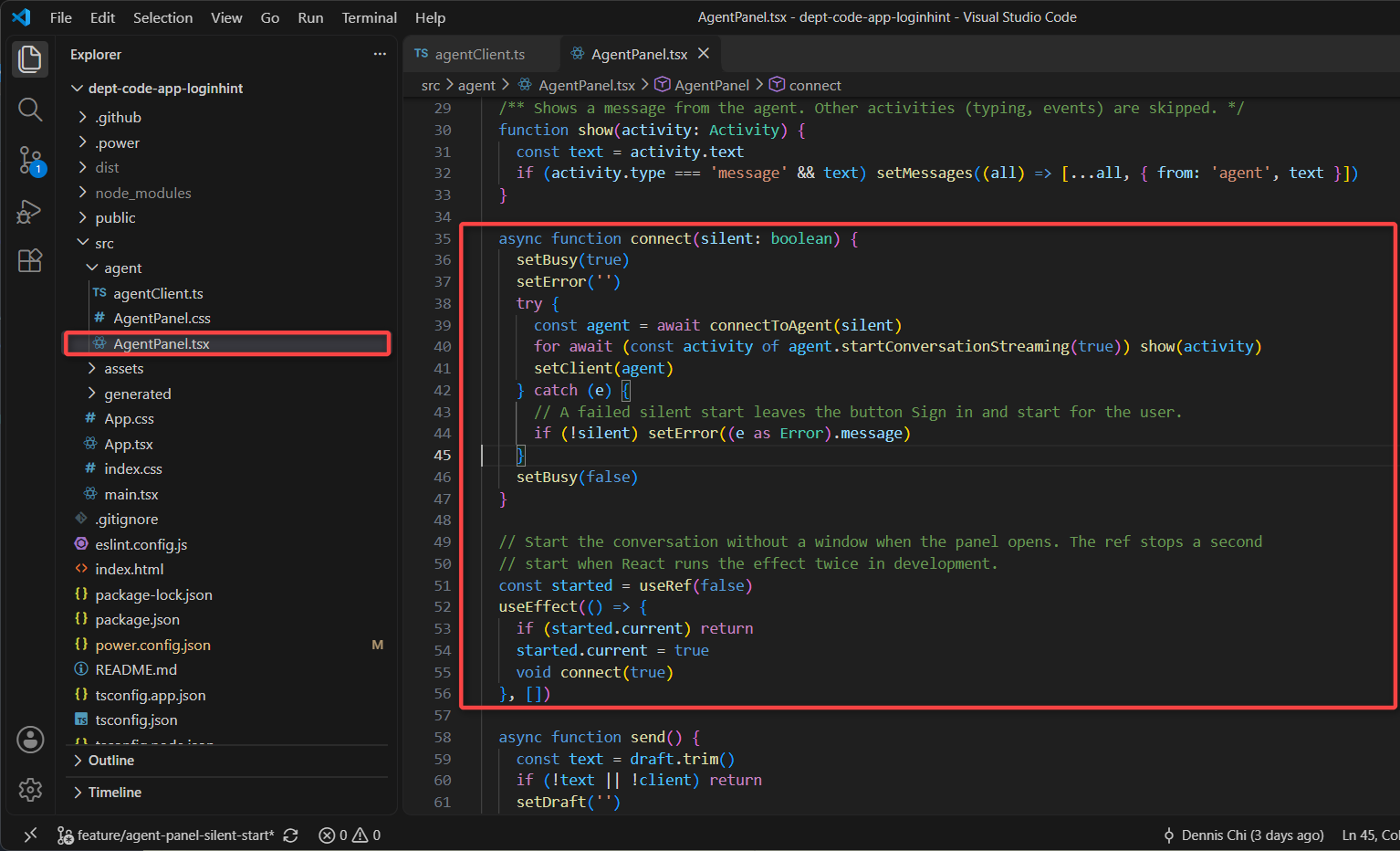
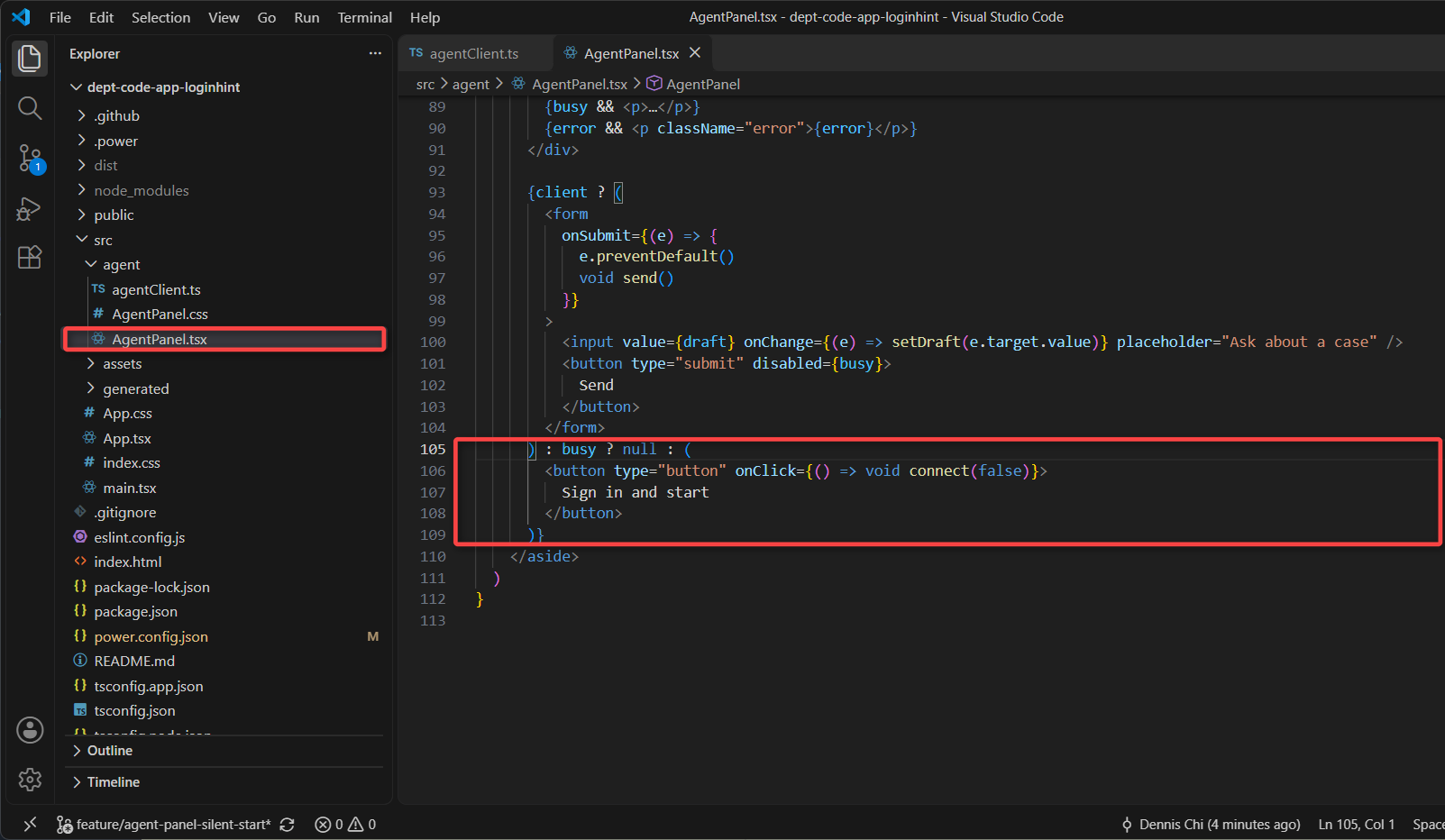
src/agent/AgentPanel.tsx is marked in the Explorer, and connect and the effect in the editor.- At the end of the same file, hide the button while the panel connects and let it open the sign-in window:
      ) : busy ? null : (
        <button type="button" onClick={() => void connect(false)}>
          Sign in and start
        </button>
      )}
src/agent/AgentPanel.tsx is marked in the Explorer, and the button at the end of the file in the editor.- Publish the code app with
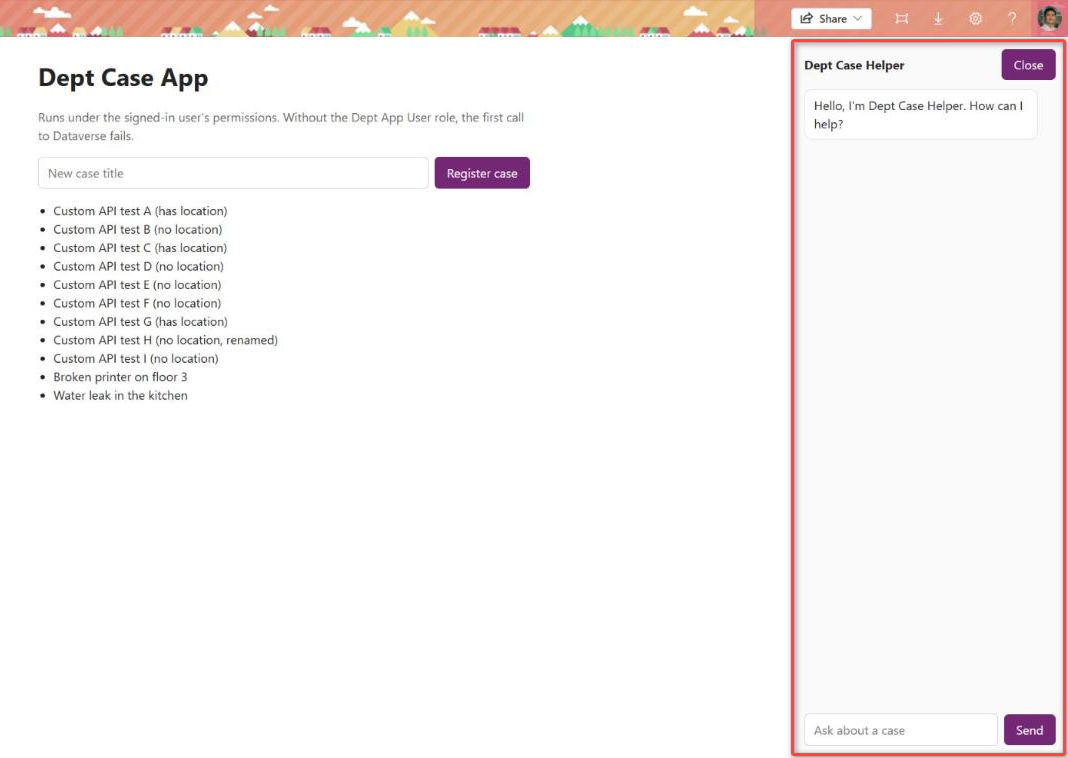
pa app pushand wait until the new policy has reached it (about seven minutes in my tenant). Open the code app and select Ask the helper. The panel shows three dots for a few seconds and then the agent’s greeting. No sign-in window opens.
What to watch out for:
- The Microsoft documentation says the hidden frame does not work in browsers that block third-party cookies, such as Safari. The panel then shows Sign in and start as before.
- With
pa app runthe silent start stopped after ten seconds withmonitor_window_timeout. The panel then showed Sign in and start, so test the silent start in the published code app. - The
frame-srcsetting applies to every code app in the environment, likeconnect-srcin step 7.
Costs and limits
- Not officially confirmed as supported. Microsoft is working on a Copilot side pane for code apps and has not officially confirmed the Agents SDK in a code app as supported.
- A network call that DLP policies do not apply to. The panel uses no connector, so data loss prevention policies and Advanced Connector Policies do not apply to the traffic. The Content Security Policy is the control that stops such a call, and in step 7 I opened it on purpose.
- The Content Security Policy is per environment. You cannot open
connect-srcfor one code app only. Use an environment of its own if other code apps must stay closed. - A second sign-in. The user is already signed in to Power Apps, but the panel needs its own token. A browser that blocks pop-up windows stops the sign-in until the user allows them. With step 10 the panel gets the token without a window in browsers that allow it.
- The address of the code app may change. The product team informed that code app files will be served behind sign-in. Test the sign-in again when that reaches your environment, because the sign-in depends on the origin from step 2.
What to check
- In Copilot Studio, open the agent’s Settings > Advanced > Metadata. Check that Schema name and Environment ID are the values at the top of
agentClient.ts, and that the agent is published. - In the Entra admin center, open the app registration > Authentication. Check that the origin of the code app is listed under Single-page application, character for character.
- Open API permissions on the same app registration. Check that
CopilotStudio.Copilots.Invokeon Power Platform API is listed as a delegated permission. - Open the published code app with the browser’s developer tools on the Network tab and select
index.html. Check that thecontent-security-policyresponse header has both addresses afterconnect-src, andhttps://login.microsoftonline.comafterframe-srcif you did step 10. - Select Sign in and start in the panel. Check that the sign-in window closes and the agent’s greeting appears.
- Sign in to the code app as a user the agent is shared with. Check that the greeting appears for that user too.
- With step 10, open the code app and select Ask the helper. Check that the greeting appears without a sign-in window.
What I have not tested
- The sign-in window for a user in a tenant where no administrator has accepted the permission.
- The token after it expires.
- The Power Apps mobile app and Teams.
- The other agent types in Copilot Studio (Agent and Customer conversation agent), and an agent on the GitHub Copilot harness.
- Licensing and Copilot Credits.
- Step 10 in browsers other than Chrome, and for a user the agent is not shared with.
Leave a Reply