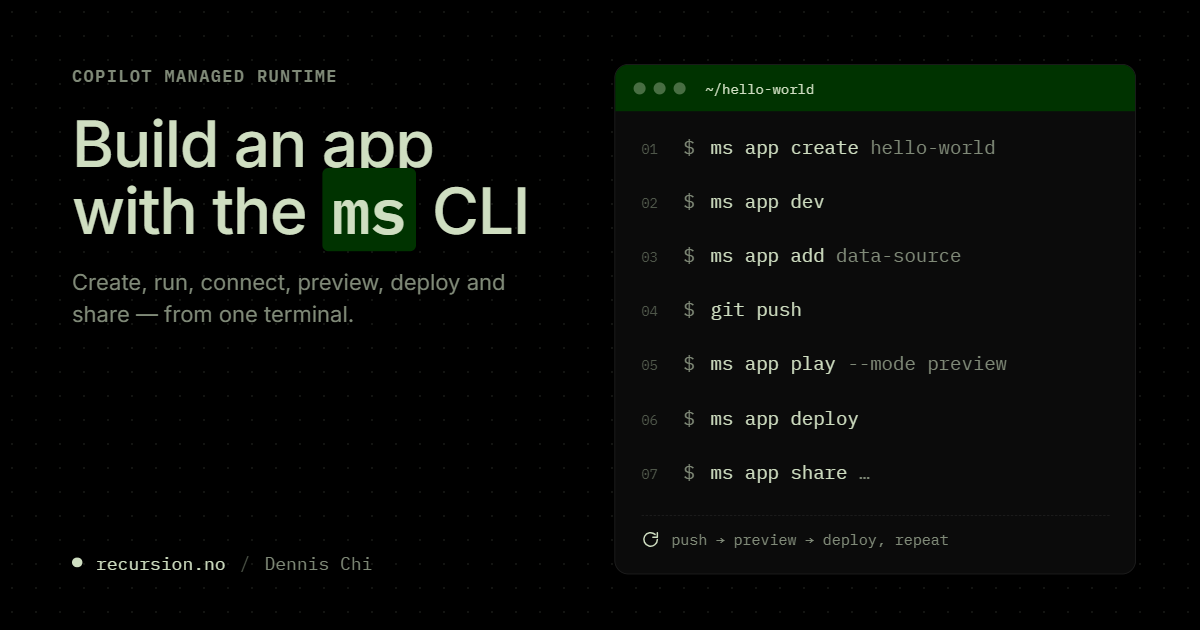
In the last post I explained why Copilot Managed Runtime exists and what it adds to the Code Apps feature. This post will be the technical guide to setup and publish an app. You install the Copilot Managed Runtime CLI, create an app, run it on your machine, connect it to a SharePoint list or Dataverse tables, push the code, preview the build, deploy it and share it. Copilot Managed Runtime is also called Managed Apps, and the npm packages are still named managed-apps.
Copilot Managed Runtime is in public preview which also means that Microsoft is adding new features over the next months to the SDK as it’s still under development, so have a quick glance at the Microsoft documentation just to verify the updates.
What you are building
From a birds-eye view; you basically write a single-page app in TypeScript or JavaScript with any framework; the scaffold is Vite. You never handle tokens or raw HTTP in your code to communicate to external services, because the SDK @microsoft/managed-apps generates typed services that call the connectors through Microsoft’s host. The host does the Entra sign-in and applies the tenant policy at runtime, so DLP, Advanced Connector Policies, Conditional Access and sharing limits apply to your app without involving lines of code on your side. It is after all; supposed to be a secure business application.
Compared with the previous Code Apps SDK, git push replaces pa app push and the platform builds from the commit. Every app you create gets a Git repository, platform-managed or your own configured GitHub repo. Every app has a preview URL for the latest successful build and a live URL for the last deployment. And the app is created in a personal developer environment once an admin has enabled the CLI creation path.
The Copilot Managed Runtime CLI (@microsoft/managed-apps-cli) owns/relies on information from the ms.config.json (app id, environment, registered connectors) and the generated/ folder (typed models and services). Best practice is that you change them with the ms commands from the @microsoft/managed-apps-cli package, and not to change it manually.
Before you start (access)
On your machine you need Node.js LTS 24.11 or newer, Git 2.27 or newer and Git Credential Manager. Check with node --version and git --version. A coding agent (Claude Code or the GitHub Copilot CLI) is optional and only needed for the plugin route below.
Ask your admin about the tenant configuration:
- CLI app creation is off by default. A Global Admin or Power Platform Admin enables it in the Microsoft 365 admin center under Apps > Overview > Set up app creation spaces, plus the environment group rule.
- Your app lives in your own personal developer environment, and Power Platform creates that environment for you, unless you already have one. It does so through environment routing, an admin setting built from rules like “members of this security group get a developer environment”. If your tenant already has routing rules and none of them include you, no environment gets created and ms app create fails. Ask your admin to add you to one of those groups, or to add an Everyone rule at the bottom of the list.
- The connectors you need must be on the allow list (Apps > Settings > Environment groups > Connectors and MCP servers). The default list has 18 Microsoft connectors that sign in with Entra ID only, such as SharePoint, OneDrive, Teams, Outlook, Office 365 Users, Dataverse and Azure DevOps. Third-party and custom connectors are off until an admin adds them. Some actions stay blocked even on allowed connectors, for example “Send an HTTP request” on SharePoint and “Perform an unbound action” on Dataverse.
- Your own GitHub repo is optional. The org owner installs the Microsoft Managed Apps GitHub app on the org and the repo. Public repos are off by default.
Licensing and app usage
Licensing is enforced when the app runs, and ms app dev on your own machine counts as running it. Building with the CLI is not licensed. An app user needs Power Apps Premium, which covers all app operations without Copilot Credits, or Copilot Credits through a “Managed applications” spending policy at 0.1 credit per API call plus a charge per launch. A user with neither gets a warning and then a block after 20 operations or five minutes:

Verify this the first time you run ms app dev: a banner about billing or credits at the top of the page means you are not covered. Ask for the license or the spending policy before the workshop.
For a clean easy to understand overview of how the licensing works, check out this section from my previous blog
Install the Copilot Managed Runtime CLI and sign in
Install the CLI globally. The same command updates it later.
npm install -g @microsoft/managed-apps-cli
The Copilot Managed Runtime CLI answers ms --version with a version number. Then sign in with your Entra identity; a browser window opens.
ms auth login
The terminal prints the signed-in identity, and ms auth status lists that account as active. With two identities on the machine, switch with ms auth switch. Never let a coding agent poke at the token caches on disk.
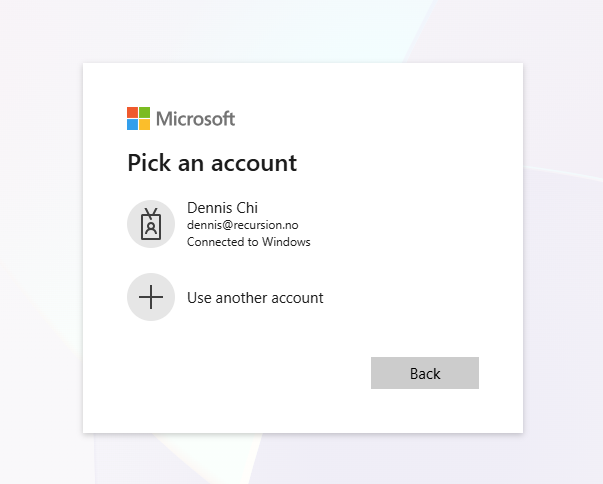

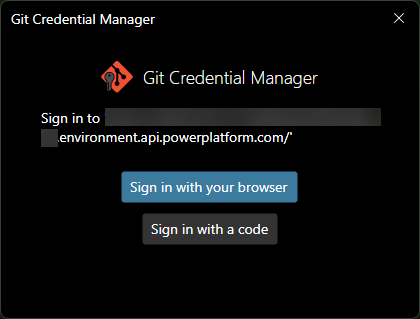
It will also initially prepare a git repo in which you sign in again for:
Create the app
Pick one of three routes. All of them end with an app record, a Git repository, a scaffolded project on disk and a personal developer environment provisioned for you on first create.
Introduction: the Copilot Managed Runtime CLI
Create the app. This creates the app record, provisions a platform-managed Git repository and scaffolds the project into a new folder.
ms app create hello-world --display-name "Hello World"
cd hello-world
npm install
The folder contains ms.config.json, package.json and a .git directory whose remote points at the platform repository; git remote -v shows it. After npm install, node_modules/@microsoft/managed-apps exists. That is the SDK, already a dependency in the scaffold. If this is the first app in your tenant, the create step also initializes the default governance group.
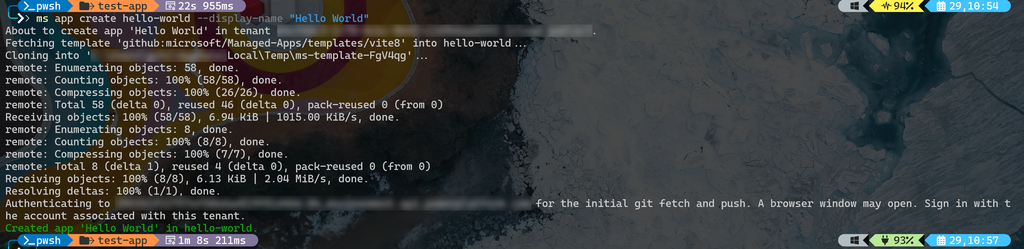
Useful flags on ms app create: --environment-id targets a specific environment instead of your developer environment, and --build-path, --build-command and --build-entry-point cover a framework that does not build to ./dist with npm run build. A --template github:owner/repo/subdir flag gives you a different scaffold (verify against ms app create --help).
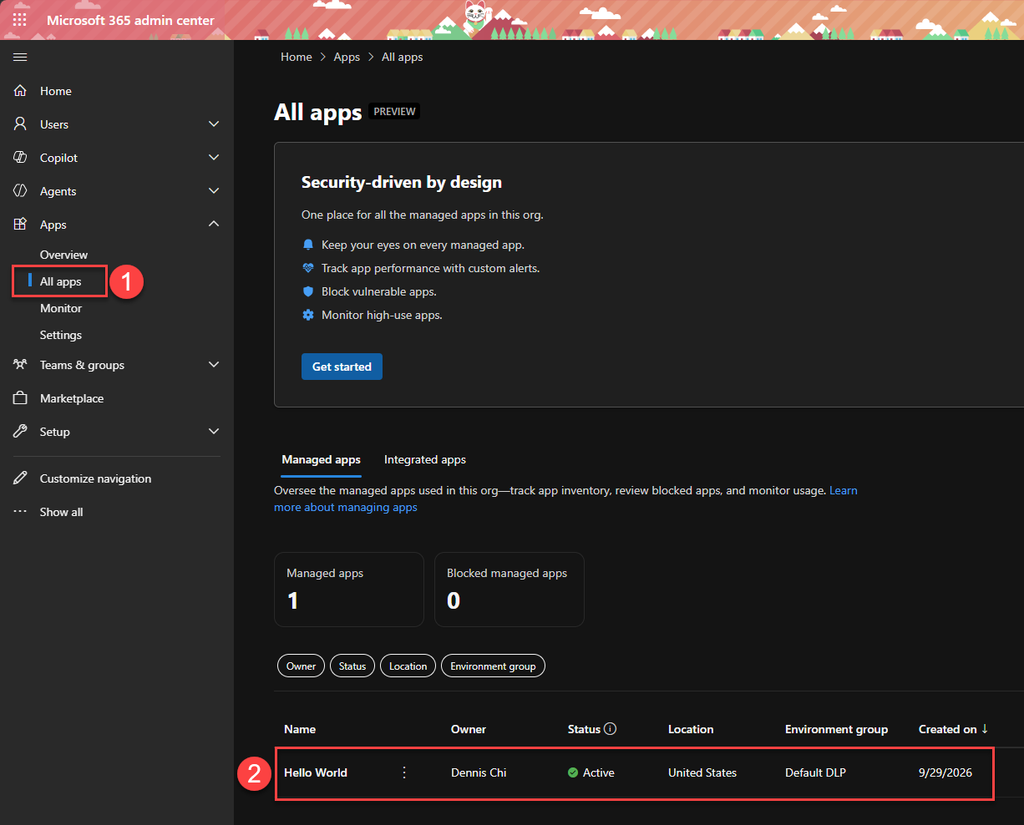
It should now show up on https://admin.cloud.microsoft/:
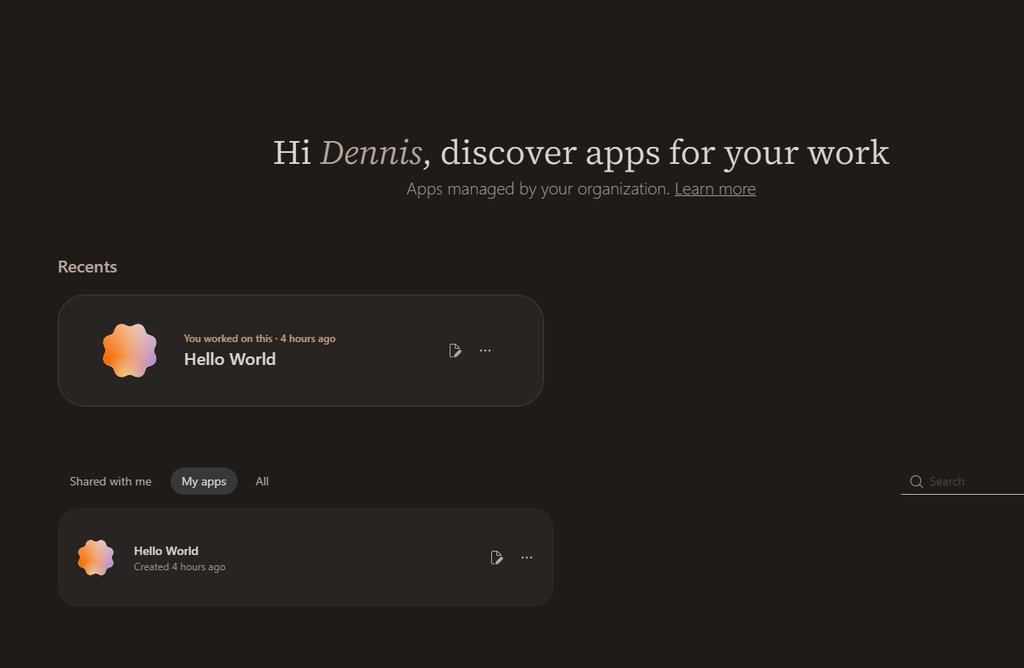
and on https://managedapps.cloud.microsoft/:
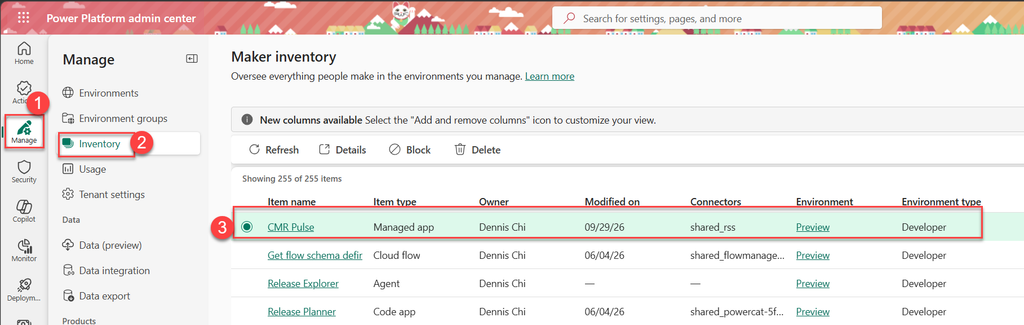
and on https://admin.powerplatform.microsoft.com/:
Give it the roids: a coding agent with the plugin
The same plugin works in the GitHub Copilot CLI and in Claude Code through Open Plugins. Same skills, same ms commands underneath, and the plugin installs the Copilot Managed Runtime CLI for you. Start your agent (Github Copilot or Claude Code) and install the plugin.
/plugin marketplace add microsoft/Managed-Apps
/plugin install microsoft-managed-apps@Managed-Apps
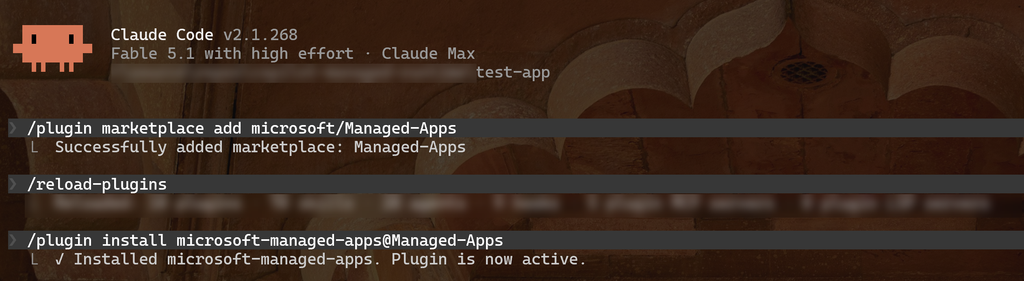
Close and reopen the agent if necessary, and /microsoft-managed-apps:create-app is offered as a command. Run it and describe the app in plain language. Name the data sources you want (a SharePoint list, Office 365 Users, a Dataverse table) so the plan includes them.
The agent shows a plan before it runs anything: the prerequisites it checked, the data sources and the screens. Read it. Approve only what you understand, because the agent will run ms app create, npm install and ms app dev on your behalf. After the local run looks right, say “push and preview”, then “deploy app”, then “share the app with [email protected]“. Each step ends with a URL or a confirmation from the CLI, and the live URL is the one you share.

Register an existing web project
From inside the project folder, register it as an app instead of scaffolding.
ms app init --display-name "My App"
ms.config.json appears. If the folder already had a GitHub remote the Copilot Managed Runtime CLI keeps it; otherwise it provisions a platform-managed repository. The command fails if the folder is already an app.
Bring your own GitHub repository
Pass a full https:// URL to an empty repository on GitHub.com or GitHub Enterprise Cloud. GitHub Enterprise Server and Azure DevOps are not supported, and the repository choice is fixed for the lifespan of the app, clone a new one if you need to switch.
ms app create hello-world --display-name "Hello World" --repo https://github.com/contoso/hello-world
The CLI clones the repo, overlays the template, and git remote -v shows GitHub. Your branch policies and pull request reviews now apply to the app. If the CLI asks for a device-code sign-in, that is the Entra-to-GitHub mapping, and ms git auth refresh --repo <url> re-establishes it later.
Run it on your machine
Start the local dev loop with ms app dev instead of npm run dev. The Copilot Managed Runtime CLI reads ms.config.json, so it works for any framework.
ms app dev
The terminal prints a Local Play URL. Open it in the same browser profile as your tenant, and (in our example) the Hello World template renders. If the browser shows a Local Network Access prompt, allow it. Since December 2025 Chrome and Edge block requests from public origins to localhost by default, and the host page runs on a public origin while your code runs on localhost.
Edit a text in src/, save, and the page updates without a restart. Local mode makes no platform calls, no build and no deploy, so iterate here until the app behaves.
Connect the app to data
Your app never talks to SharePoint or Dataverse directly. Every read and write goes through a connector, the same connectors that Canvas apps and Power Automate flows use. First, the CLI can look at your environment and tell you up front which connectors you are allowed to use. Second, the rules your admin has set in the Power Platform admin center follow the app all the way from your laptop to production. A connector that is blocked by policy is blocked when you generate code, blocked when you deploy and blocked when a user opens the app. The CLI should not find its way around that, and neither should your code.
Two kinds of policy show up in this part. A data loss prevention policy, DLP for short, decides which connectors may be used at all and which ones may be combined in the same app. Advanced Connector Policies, or ACP, go one level deeper and can block individual operations on a connector, for example allowing you to read user profiles but not update them.
The commands in this part is – by the way, ran from the app folder.
Find out what you are allowed to use
Start by asking the CLI which connectors exist in your environment. The search flag filters the list by name, so you do not have to scroll through hundreds of entries.
ms connector list --search sharepoint
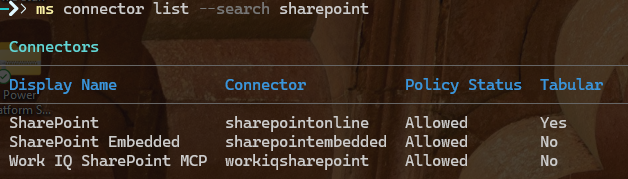
The result is a table with one row per connector. The id column is the name you pass to later commands, and for SharePoint it is shared_sharepointonline. The tabular column tells you how the connector exposes data. SharePoint lists and Dataverse tables are tabular, so you get rows you can list, filter and update. Office 365 Users is not tabular. It gives you a set of actions you call one by one, such as fetching your own profile. The last two columns show whether DLP and ACP allow the connector in this environment.
f a connector is blocked in this table, it will be blocked everywhere else too. Talk to your admin if it’s blocked in your org/tenant, or pick a different connector.
Action-style connectors need one more check, because policy can block single operations on a connector that is otherwise allowed. List the operations and their status like this:
ms connector list-actions --connector shared_office365users
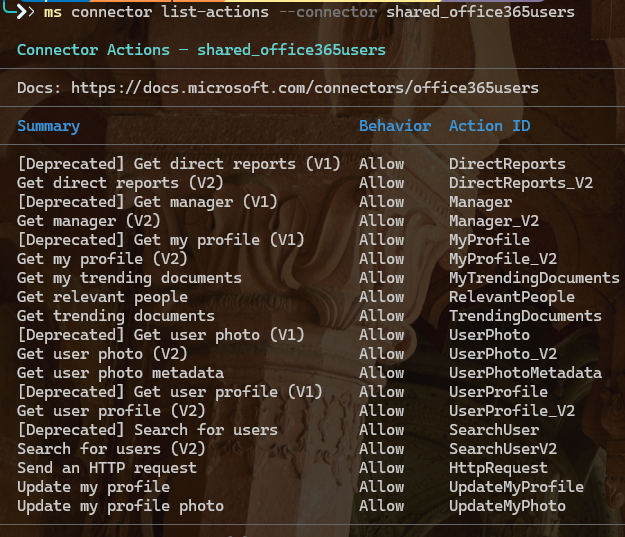
Blocked operations are marked in the output, and you do not have to filter them out yourself. When you add the connector later, the code generator skips the blocked operations and tells you how many it left out, so the generated code only contains calls that will actually work.
Add a table or an action
Add a SharePoint list as a table. The Copilot Managed Runtime CLI walks you through the connection, the dataset (the site) and the table (the list).
ms app add data-source --connector shared_sharepointonline --as table
For Dataverse, pass the table logical name:
ms app add data-source --connector shared_commondataserviceforapps --as table --table account
New files appear under generated/, and generated/dataSources.ts gets a new top-level key. That key is the data source name you use for refresh and remove. ms.config.json now lists the data source, written by the CLI.
A non-tabular connector such as Office 365 Users is registered as actions automatically.
ms app add data-source --connector shared_office365users
The CLI reports the number of actions generated and, if policy blocked some, “Skipped N of M actions due to ACP policy”. If every action is blocked the command fails, and you need the admin before you write any code.
Call the data and keep the generated code in sync
In your code, import the generated service and model from generated/ and call it like any typed API. The exact file and method names come from your own generated/ folder, so open it and let autocompletion guide you. The shape is:
import { Office365UsersService } from "./generated/services/Office365UsersService";

const me = await Office365UsersService.MyProfile();
console.log(me.displayName);
A table source exposes the usual list, get, create, update and delete operations. To check a call, run ms app dev and open the Network tab in the browser developer tools. Each connector call appears as a request through the host. A 403 means DLP or ACP blocked the operation. A 4xx with a connector message means a malformed request. An auth failure means the connection expired; re-add it with ms app add data-source and pick “create a new connection”.
When a list or table gets a new column, run ms app refresh data-source --name <dataSourceName>, or ms app refresh data-source for everything. ms app remove data-source --name <dataSourceName> unbinds the source and deletes its generated files; it changes nothing in SharePoint or Dataverse.
The first time a user opens an app that uses connectors they see a connection consent dialog listing the data sources, what each can and cannot do, and a manual sign-in if single sign-on fails. Sharing an app never grants access to the underlying data. Users still need their own permissions on the list, site or table.
Push, build and preview
The platform application builds from commits. A push alone builds nothing; opening the preview does.
git add .
git commit -m "first pass"
git push
ms app play --mode preview
Below is a glossary for beginners:
| Steps | What it do |
git add . | Stages your changes for commits (for all files) |
git commit | Records them as a commit on your local device |
git push | Sends that commit to the app’s repository, platform-managed or your own GitHub repo. |
ms app play --mode preview | Asks the platform to build the latest pushed commit on main and opens the preview page in your browser. The page shows one of three banners: Build in progress, Build complete with a Refresh button, or Build failed. The preview URL always serves the latest successful build, so a failed build leaves the previous one in place. |
ms app build is the same request without the browser. It queues the build for the commit and waits in the terminal until it finishes. Use it when you want to warm the build before you show the preview to someone, or in a script. ms app play --mode preview after that opens a preview that is already built. Neither command deploys anything; the live URL is untouched until the next section.
After the push, git log origin/main -1 shows your commit on the remote and nothing else has happened yet. ms app play --mode preview queues a platform build for the latest pushed commit and opens the preview page, which shows one of three banners: Build in progress, Build complete with a Refresh button, or Build failed. On failure, get the reason:
On a failed build, get the reason with the full commit SHA (git rev-parse HEAD; a short SHA returns an HTTP 400):
ms app build-status --commit <sha>
Fix the code, push again and reopen the preview. There is no retry command; the next push is the retry, and the preview keeps serving the last successful build in the meantime. ms app build starts a platform build without opening a browser, which is useful to warm the build before you show the preview to someone.
Preview access is scoped to people with write access to the repository. Users get the live URL after you deploy and share.
Deploy and roll back
Promote the latest successful build on main to the live app.
ms app deploy
The Copilot Managed Runtime CLI prints the live URL. Open it: the app runs under the host with Entra sign-in, and it shows up in the Microsoft 365 admin center under Apps > All apps.
If the latest build failed, deploy falls back to the most recent successful build and warns you. If a build is still running, deploy tells you to check ms app build-status rather than wait. ms app deploy --commit <sha> pins an earlier build without touching Git history, which is your rollback. The live URL is a snapshot that only changes on the next ms app deploy, while the preview URL always follows the latest successful build. Two URLs, two audiences. The CLI refuses to deploy with uncommitted changes in the working tree; in scripts pass --force (product team, CLI 0.25; verify with ms app deploy --help).
This is what users will get when opening the app for the first time. Two notes:
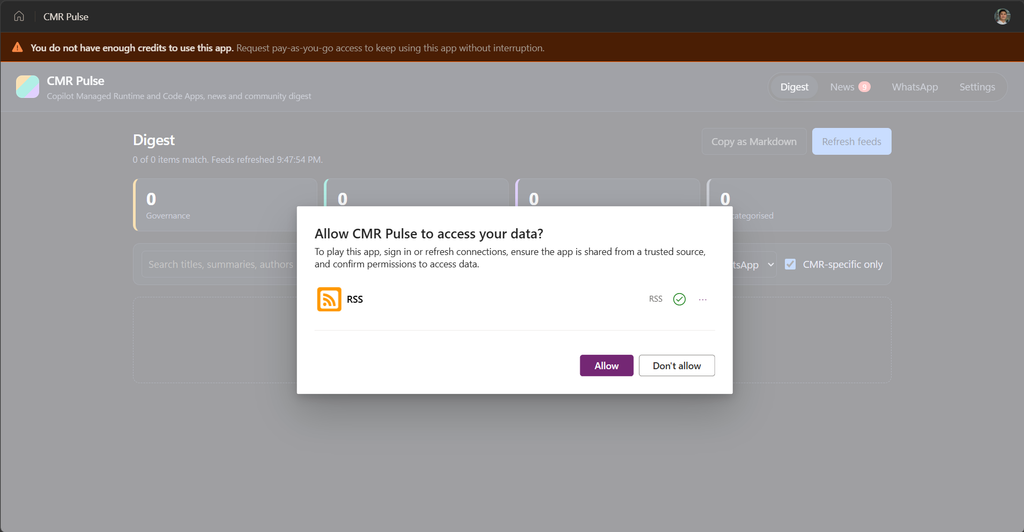
- Consent Bypass does not work. Managed app is a separate App type, that does not work with the cmdlet
Set-AdminPowerAppApisToBypassConsent -EnvironmentName -AppName from the Power Apps Administration PowerShell-module. - The Consent is prompted only once for user, unless the developer introduces another connector in a future release, then the consent pop-up will appear again.
Share the app
An app is private to its owners until shared. Play access is the default.
ms app share [email protected],[email protected]

ms app share list --access play lists them. The user finds the app at https://managedapps.cloud.microsoft/ and launches it. If they cannot, check the licensing above and whether the environment group’s sharing rule allows sharing with everyone in the organization.

Edit access is repository access:
ms app share [email protected] --access edit

The collaborator runs ms app list --permission edit and sees the app. Play and edit are independent, so revoking one leaves the other (ms app unshare ... --access edit).

For a Teams channel, create a “People in your organization” link with ms app share link create. The Copilot Managed Runtime CLI returns a link id and URL. ms app share link list shows it, and ms app share link revoke --link-id <id> cuts everyone who redeemed it in one go. Guests cannot use the link.
Continue an existing app
Apps built in Copilot Cowork or Copilot Studio are Git-backed too, so a developer can continue them in an IDE once the owner grants edit access. List the apps you can edit and copy the app id.
ms app list --permission edit
If your app is missing you are signed in with the wrong account, or the owner shared with play access only. Look up the repository and clone it:
ms app info --app <app-id>
git clone <repo-url>
cd <folder>
npm install
ms app dev
The newer ms app clone does the lookup, clone and Git auth in one command; check ms app clone --help for the current syntax. The local app runs, git remote -v points at the platform repository, and a push from here builds in preview like any other app.
An app changed through the CLI shows “This app isn’t available to edit right now” back in Copilot Studio (product team). The round trip Copilot Studio to IDE works. IDE back to Copilot Studio is planned without a date, so decide who owns the app before initiating the first clone.
Troubleshooting experiences
Most of these are MAC/PPAC configs, not bugs.
| Symptom | Cause | Fix |
|---|---|---|
ms app create fails with a policy or enablement error | CLI creation is off by default | Admin enables it in the Microsoft 365 admin center and the environment group rule |
| No environment gets provisioned | No routing rule matches you | Admin adds you to a rule or adds an “Everyone” catch-all |
| Dataverse works in the CLI but Copilot Studio complains about region | The personal developer environment has no Dataverse yet (product team) | Admin adds Dataverse to the environment; open Power Apps once in it |
| A CDN script or font is blocked in preview and live | Default Content Security Policy is 'self' for scripts, fonts and connections | Admin adds the exact origin in the environment group; never a wildcard |
| The app will not load inside SharePoint or Teams | frame-ancestors defaults to 'self' plus the platform | Admin adds the embedding origin; local play also needs allow="local-network-access" on the iframe |
| External telemetry sends nothing | connect-src 'self' | Admin opens connect-src for that endpoint |
| Connector allowed in the admin center, calls return 403 | An ACP plus classic DLP both apply; the strictest wins | Admin reviews the ACP and data policies in Power Platform admin center |
| Git push asks for a device code again | Entra-to-GitHub mapping expired or wrong identity | ms git auth refresh --repo <url>; do not let an agent clear token caches |
| Build failed but the CLI showed nothing | Push does not build; the failure appears on first preview | ms app build-status --commit <sha> |
ms app deploy --artifact errors out | External artifact deployment is off by default | Admin enables “External artifacts” for the environment or group |
--repo https://github.com/... rejected | Public repos are off by default, or the URL is not a full https:// URL to an empty repo | Use a private repo with the full URL; the admin can allow public repos |
| Non-Premium tester blocked after a few minutes | 20 operations or five minutes of grace | Premium license or a “Managed applications” spending policy with credits |
| Developer environment vanished (product team) | Personal developer environments expire after 90 days of inactivity | Keep the repo cloned; contact the product team for the environment |
What I would do differently
I have been in the private preview since July, and most of the gotchas above are admin defaults rather than code. If I were you, I’d get the governance work done a week before the first app creation ms app create: the CLI creation switch, a routing rule that matches every participant, the connector allow list, Dataverse in the personal developer environment, and a Premium license or a spending policy for every tester. A tester who is blocked after 20 operations halfway through a demo is not a bug you can fix on the spot.
I’d run ms connector list and ms connector list-actions in the Copilot Managed Runtime CLI before designing a single screen. The policy status you see at design time is the policy the host applies at runtime, so a blocked action is a blocked feature and not something a workaround in the code will get past.
I’d warm the build with ms app build before showing anyone the preview, because the first preview after a push is where a build failure surfaces. And I’d decide who owns an app before a developer clones it from Copilot Studio, since the round trip back to Copilot Studio is not there yet.
On repositories, I’d start with the platform-managed repo and only bring my own GitHub repo when I need branch policies and pull request reviews. The choice is fixed for the lifetime of the app.
Features not rolled out yet to public preview
- Managed Functions (server-side TypeScript deployed with the app).
- Managed Apps Data (a built-in document store).
- Stage-based ALM (
ms app add config,ms app deploy --deployment prod|testbehindMS_CLI_ALM=true) only in the CLI 0.25 README. - Deploying with GitHub Actions (
--repo noneand themicrosoft/Managed-Appsactionsinstall-ms-cli,ms-app-packandms-app-deploywith service-principal auth), but the “External artifacts” admin switch must be on first. - Easier out-of-the-box migration experience for existing Code Apps to Copilot Managed Runtime CLI. For the moment we need to do this manually or with a coding agent as a workaround.
- GitLab, Azure DevOps and GitHub Enterprise Server as repository providers are seen as Roadmap for the moment, but not committed.
Drop a comment if you run into bugs or other challenges with the Copilot Managed Runtime CLI.
Where to go next
Start with the Copilot Managed Runtime CLI and SDK quickstart on Microsoft Learn: https://learn.microsoft.com/microsoft-365/managed-apps/developer/quickstart-managed-apps-cli .
The inner loop (build, preview, deploy) is at https://learn.microsoft.com/microsoft-365/managed-apps/developer/dev-inner-loop
connecting to data at https://learn.microsoft.com/microsoft-365/managed-apps/developer/connect-to-data
and the full command reference at https://learn.microsoft.com/microsoft-365/managed-apps/developer/ms-cli-command-reference .
The admin defaults behind most of the gotchas are at https://learn.microsoft.com/microsoft-365/admin/manage/apps/governance .
Leave a Reply