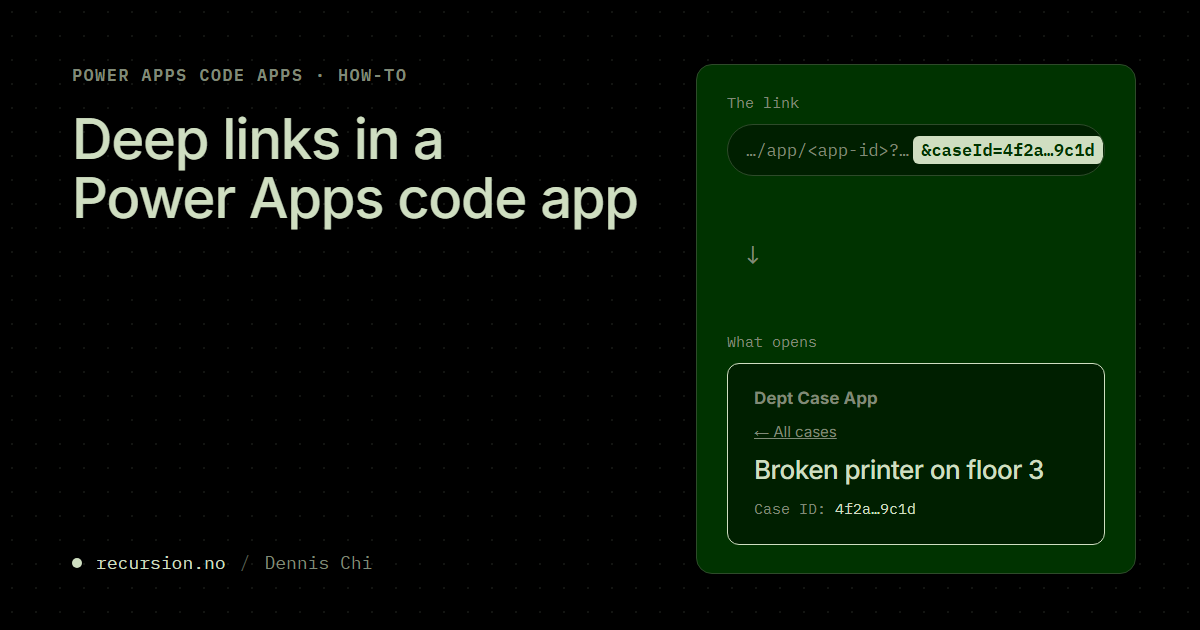
In this blog I made a Power Apps code app open one case from a link. The example today is a code app with a list of cases from a Dataverse table (dept_deptcase). A colleague gets sent a link in a chat or an email, and the link opens one specific case instead of the list.
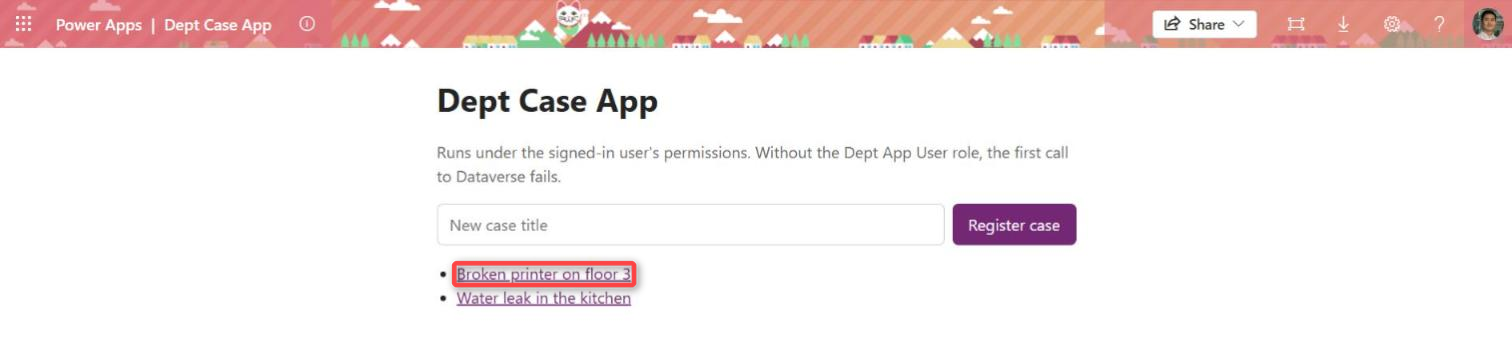
A code app can read a query parameter from the link. The Microsoft documentation for getContext() says queryParams contains “The query parameters added to the URL”.
The app itself is basically a standard React app built with Vite.
The link, the player and the app
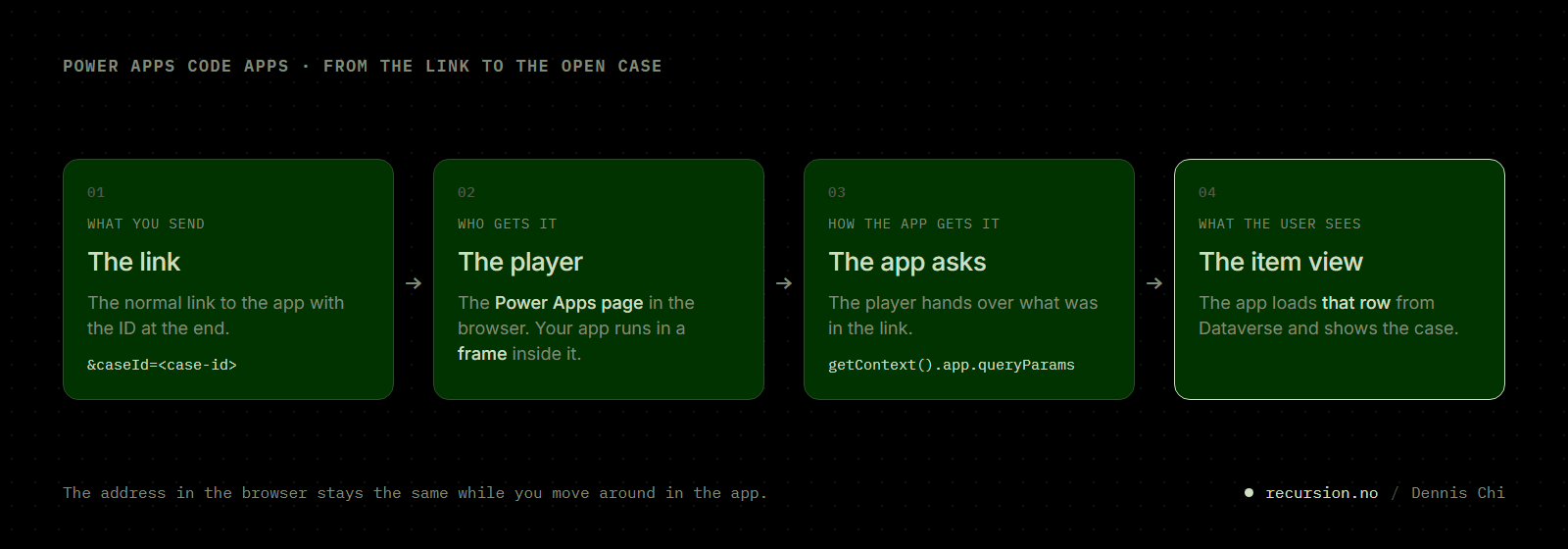
When you open a code app, the page in the browser is a Power Apps page on apps.powerapps.com, the one with the app name in the bar at the top. Your app runs in a frame inside that page. Microsoft calls the page the player. This explains the steps a link goes through:
- The link carries the ID. It is the normal link to the app with
&caseId=<case-id>at the end. - The player gets the link. The app in the frame has an address of its own, so the app cannot find
caseIdin its address. - The app asks the player.
getContext()gives the app what was in the link, and the app loads that row from Dataverse. A link withoutcaseIdopens the list.
It also explains the things you will notice when you use the app:
- The link opens nothing new for anyone. The row loads with the Dataverse permissions of the person who opens the link.
- The address in the browser stays the same when you go from the list to a case. To send a colleague a case, you add its ID to the link to the app.
A link to one case looks like this:
https://apps.powerapps.com/play/e/<environment-id>/app/<app-id>?tenantId=<tenant-id>&caseId=<case-id>Setting it up
You need a code app that already shows a list from a Dataverse table through a generated service (in my app Dept_deptcasesService). The change is one new file and a few lines in src/App.tsx.
Step 1. Create the item view
The item view is what a link opens: one case, loaded by its record ID. Create a new file called src/CaseView.tsx:
import { useEffect, useState } from 'react'
import { Dept_deptcasesService, Dept_deptcasesModel } from './generated'

type DeptCase = Dept_deptcasesModel.Dept_deptcases

/** Shows one case, loaded by its ID. */
export function CaseView({ caseId, onBack }: { caseId: string; onBack: () => void }) {
  const [item, setItem] = useState<DeptCase | null>(null)
  const [error, setError] = useState('')

  useEffect(() => {
    void Dept_deptcasesService.get(caseId).then((result) => {
      if (result.success && result.data) setItem(result.data)
      else setError(result.error?.message ?? 'Case not found.')
    })
  }, [caseId])

  return (
    <section>
      <button type="button" className="link" onClick={onBack}>
        ← All cases
      </button>
      {error && <p className="error">Could not open the case: {error}</p>}
      {!error && !item && <p>Loading case…</p>}
      {item && (
        <>
          <h2>{item.dept_name ?? '(untitled)'}</h2>
          <p>Case ID: {item.dept_deptcaseid}</p>
        </>
      )}
    </section>
  )
}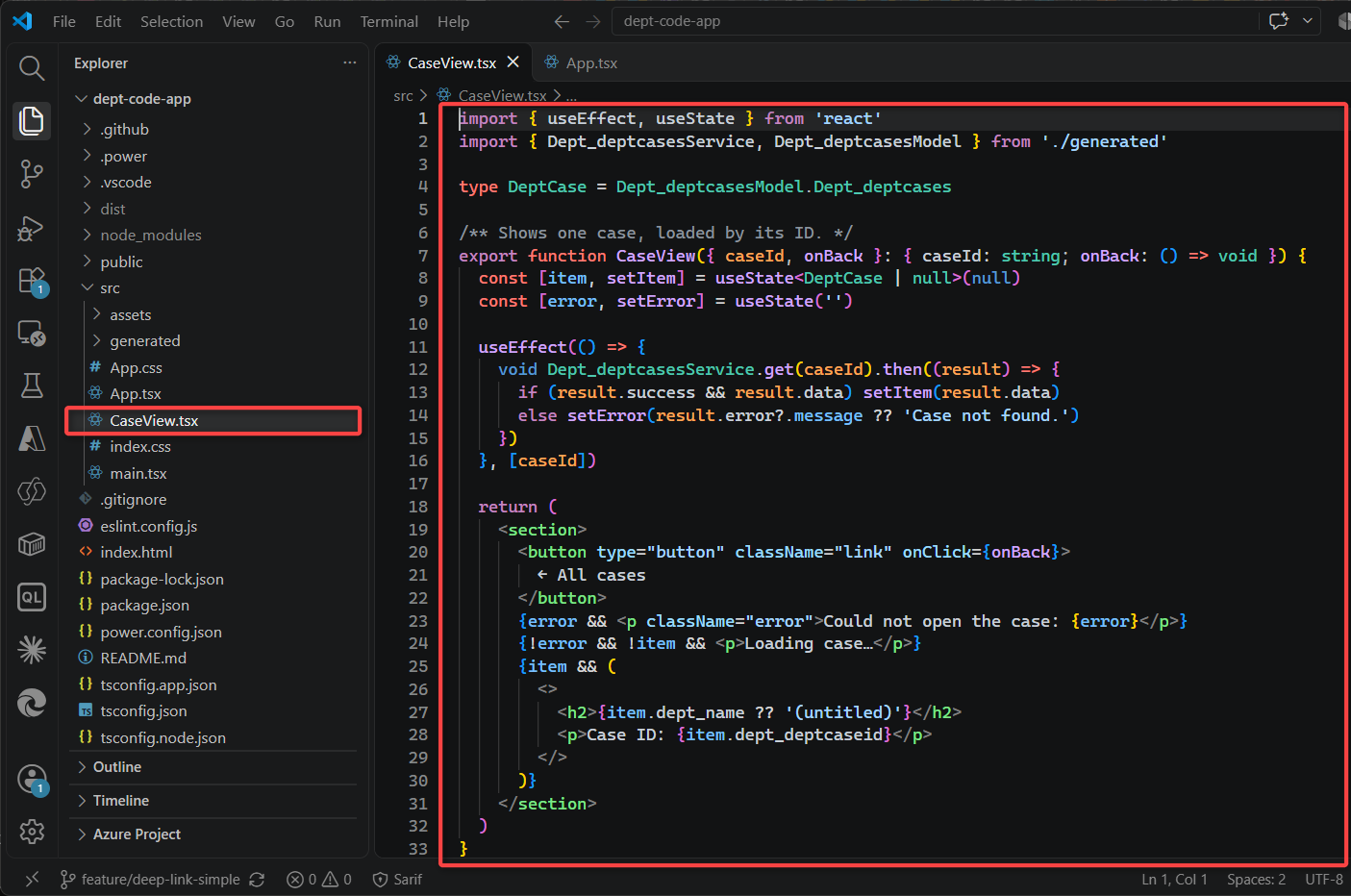
src/CaseView.tsx, and the whole code component in the file.The component loads the row with get from the generated service. An ID that no row has gives an error, and the component shows the answer from Dataverse as it is.
Step 2. Read caseId from the link
You give src/App.tsx a state that holds the ID of the open case. The app shows the list while the state is empty and the item view while it holds an ID. The app fills the state from the link as it starts, and in step 3 a click on a title fills it too.
Open src/App.tsx and add two imports. getContext gives the app what was in the link, and CaseView is the item view from step 1:
import { getContext } from '@microsoft/power-apps/app'
import { CaseView } from './CaseView'
Add a state for the open case:
// The case that is open. Empty means the list is shown.
const [openCaseId, setOpenCaseId] = useState('')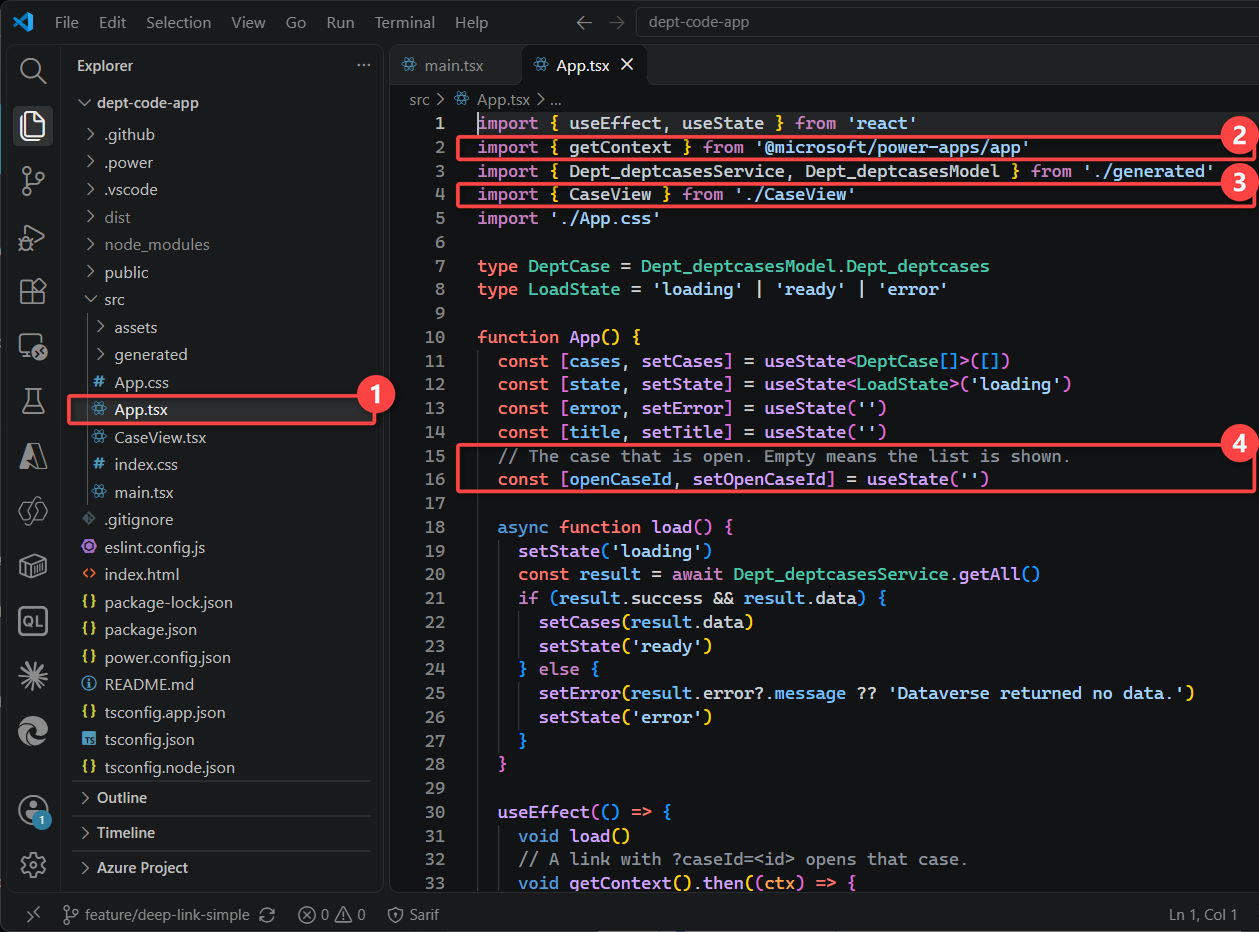
src/App.tsx. 2 and 3: the two imports. 4: the state for the open case.The app asks the player with getContext(), as in the figure. Put the call in the effect that loads the list, because that effect runs once as the app opens:
useEffect(() => {
  void load()
  // A link with ?caseId=<id> opens that case.
  void getContext().then((ctx) => {
    const caseId = ctx.app.queryParams.caseId
    if (caseId) setOpenCaseId(caseId)
  })
}, [])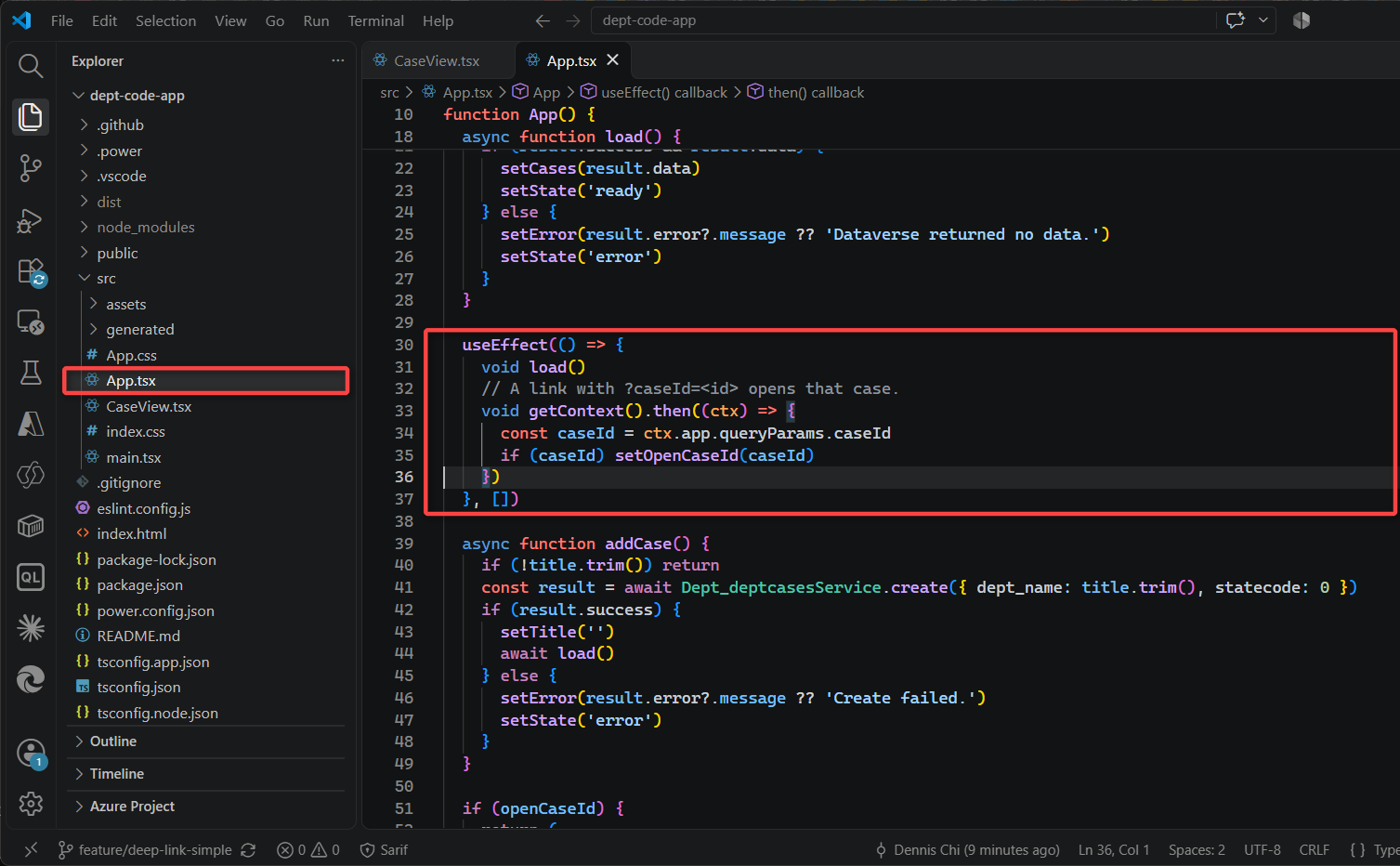
src/App.tsx is marked in the Explorer, and the effect in the editor.Write the name as caseId in the link: the player passes the name on as it is written, and the code looks for that spelling.
Step 3. Show the item view
The app shows the item view as long as a case is open. Add this above the return that shows the list:
if (openCaseId) {
  return (
    <main className="app">
      <h1>Dept Case App</h1>
      <CaseView key={openCaseId} caseId={openCaseId} onBack={() => setOpenCaseId('')} />
    </main>
  )
}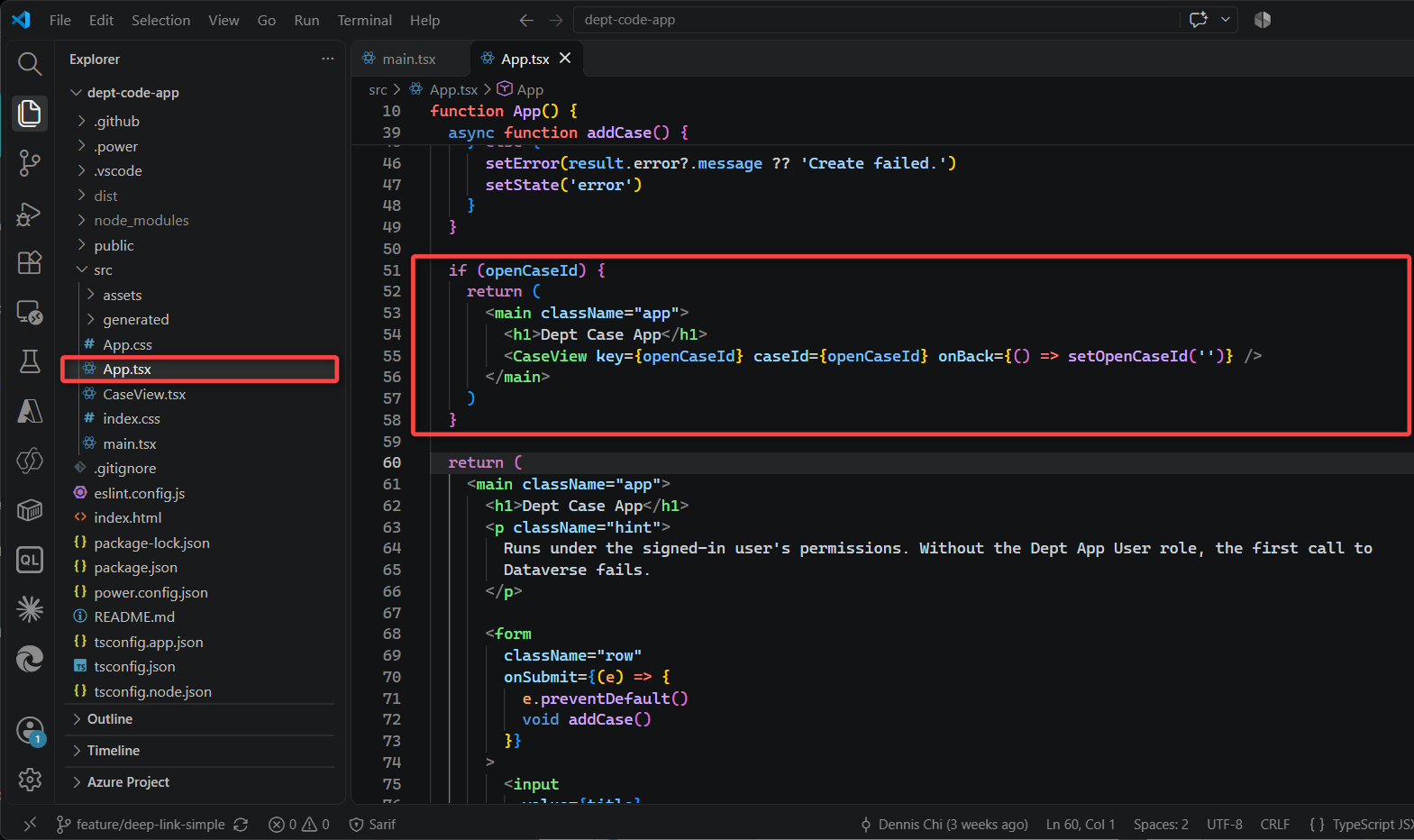
src/App.tsx is marked in the Explorer, and the block that shows the item view in the editor.All cases in the item view empties the state, and the list comes back. Each title in the list becomes a button that opens the same view:
<li key={c.dept_deptcaseid}>
  <button type="button" className="link" onClick={() => setOpenCaseId(c.dept_deptcaseid)}>
    {c.dept_name ?? '(untitled)'}
  </button>
</li>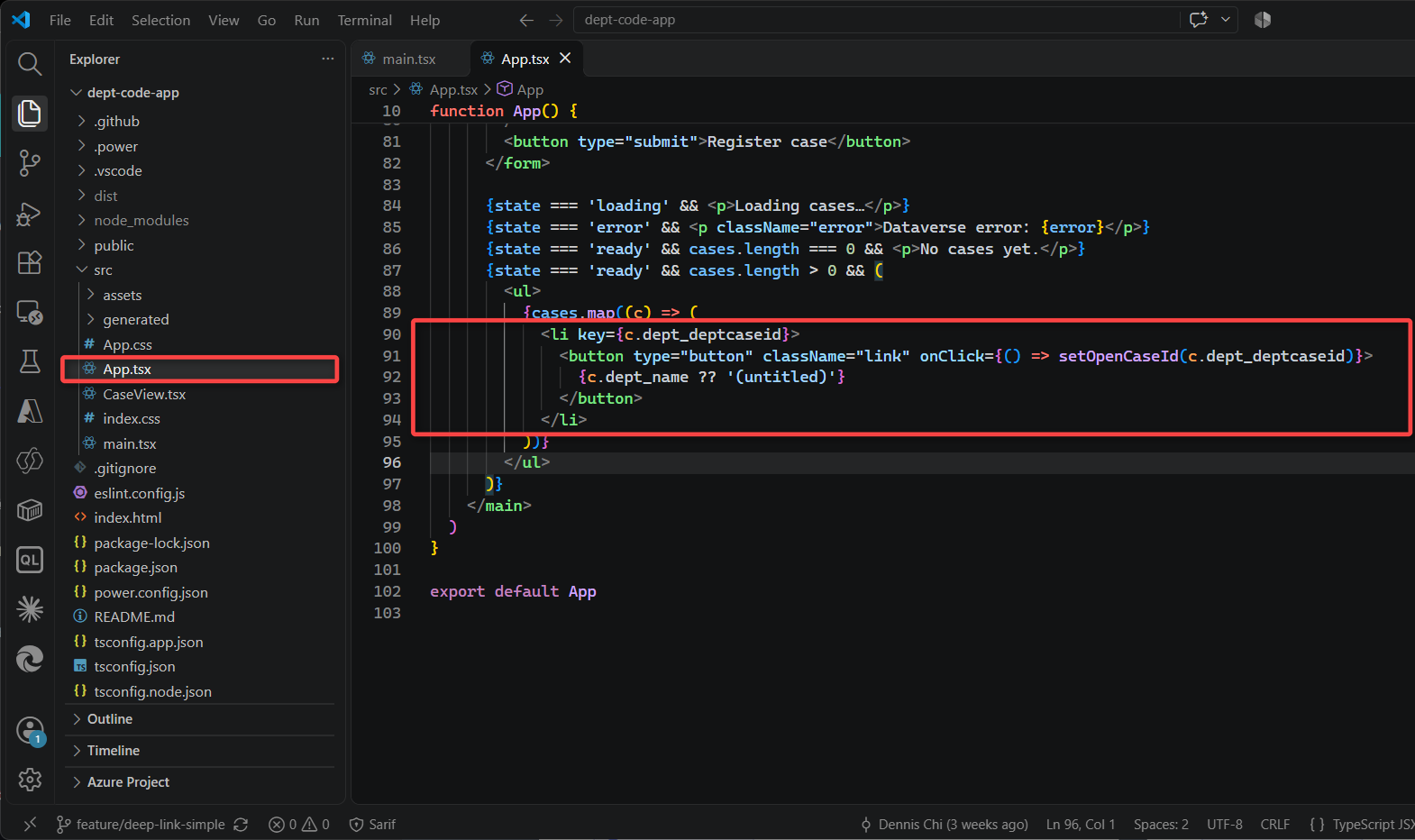
src/App.tsx is marked in the Explorer, and the button around the case title in the editor.Step 4. Try the link on your own machine
You can try the link before you publish. Run pa app run in the project folder. The command prints a link called Local Play:
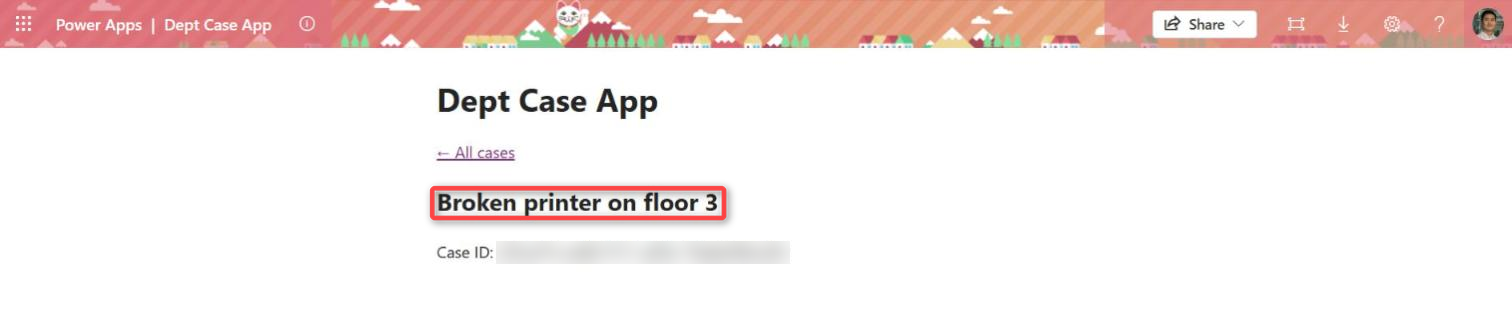
https://apps.powerapps.com/play/e/<environment-id>/a/local?_localAppUrl=http://localhost:<port>/&_localConnectionUrl=http://localhost:<port>/__vite_powerapps_plugin__/power.config.jsonOpen the link, and the app shows the list. Add &caseId= and the ID of a case at the end and open the link again. The app opens that case. The ID of a case is in the item view, after Case ID.
Step 5. Publish the app
Your colleagues need the published app. npm run build compiles the app, and pa app push uploads it and prints the play URL:
npm run build
pa app push
In my tenant the player showed the previous version of the app on the first load after the push, with the banner “You’re using an old version of this app. Refresh to use the latest version.” I refreshed the page and got the new version.
What to check
- Run
pa app runand open the Local Play link. Check that the app shows the list of cases. - Add
&caseId=<case-id>to the link and open it. Check that the item view for that case opens. - Select All cases. Check that the list comes back.
- Select a title in the list. Check that the item view for that case opens.
- Replace the ID in the link with one that no row has. Check that the app shows “Could not open the case” and the answer from Dataverse.
- Publish the app and open a link to a case built from the play URL. Check that the same case opens.
- Send the link to a colleague you have shared the app with. Check that the case opens for them.
What the feature doesn’t solve quite yet
The app can read the link it was opened with, but it doesn’t change the address in the browser afterwards. The Microsoft product team for Code Apps informed that the SDK does not allow writing yet, and said they expect to work on deep linking support in January 2027.
You notice it when you press F5. The browser reloads the address the app was opened with, whatever you did in the app after that:
- I opened a case from a link, selected All cases and pressed F5. The case opened again.
- I selected a case in the list and pressed F5. The app was back on the list.
Where to go next
- How to: Get context data (Microsoft Learn, code apps)
- The code for this guide (branch
feature/deep-link-simple)
Leave a Reply