A React code app is the official starting point for Power Apps code apps, and it ships ready to run. Microsoft maintains a React plus TypeScript template, so the Power Apps glue is already wired in. As a result, you do not add a plugin or write any setup code; you simply pull the template and go.
This guide is the baseline that every other framework guide compares against. Therefore it is the fastest way to see how a Power Apps code app fits together.
What the Power Apps code app already includes
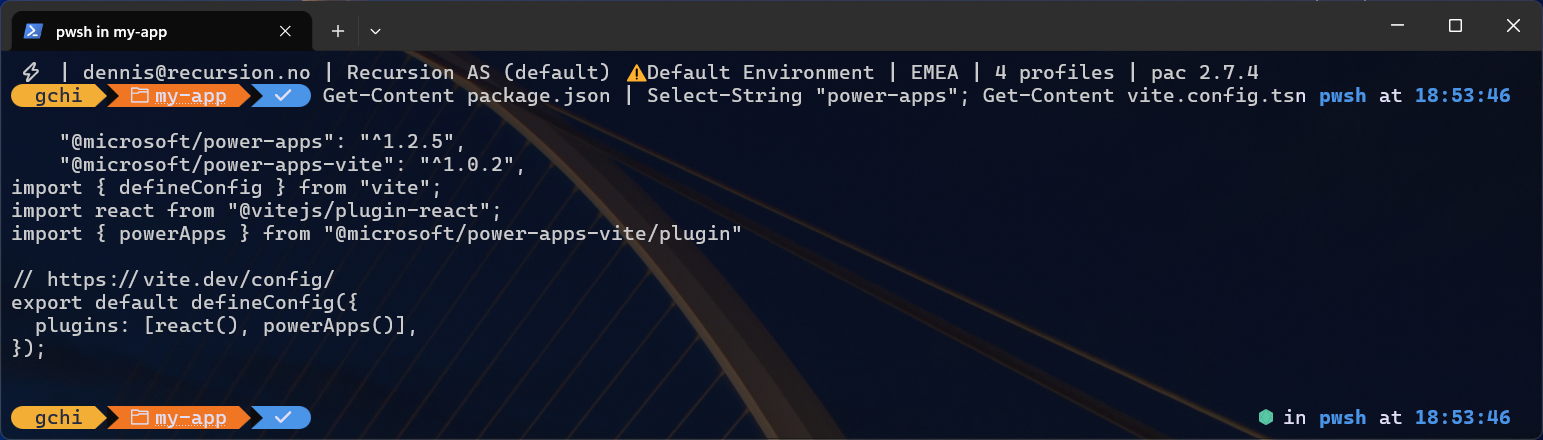
The template carries the three pieces that make any Vite app a code app. First, @microsoft/power-apps provides the SDK, and the separate @microsoft/power-apps-cli package provides the pa command-line tool. Second, @microsoft/power-apps-vite is already added to vite.config.ts as the powerApps() plugin. Third, power.config.json appears when you initialise the project.
Notably, the current template has no provider component and no init call. Instead, main.tsx is a plain createRoot(...).render(<App />). Because the plugin and SDK handle startup, your React code app stays refreshingly ordinary.
Build your React code app step by step
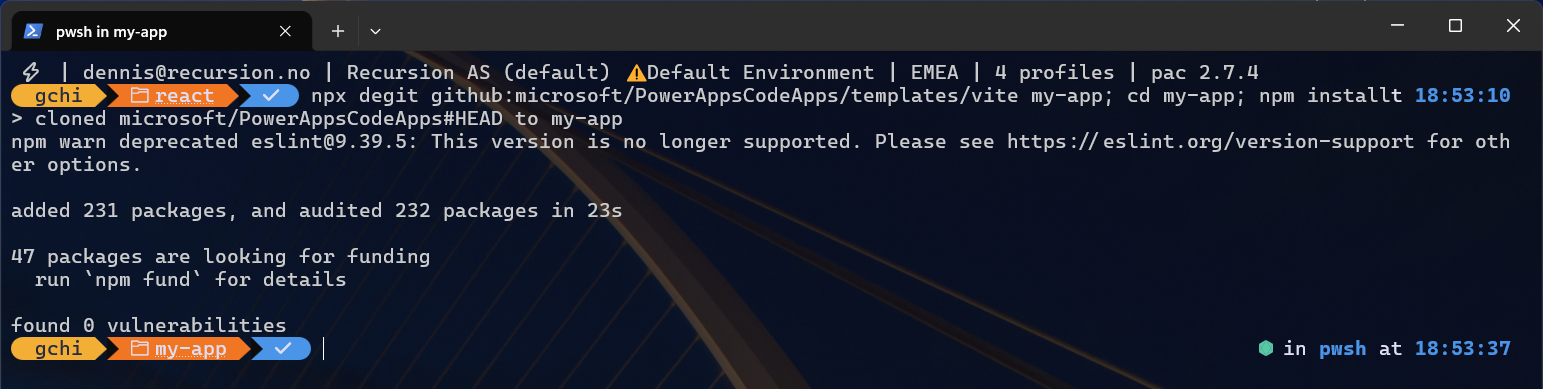
First, pull the template. Unlike the other stacks, you do not run npm create vite here, since this template is the starting point:
npx degit microsoft/PowerAppsCodeApps/templates/vite my-app
cd my-app
npm install
The commands are shown one per line on purpose: Windows PowerShell 5.1 rejects && between commands, while PowerShell 7, cmd and bash accept either form.
Next, confirm the wiring. Your package.json should already list @microsoft/power-apps and @microsoft/power-apps-vite.
Then install the Power Apps CLI once (it provides the pa command), then bind the app to your environment. The init command opens a browser sign-in if you are not signed in yet, adds the CLI to the project as a dev dependency, and writes power.config.json. Its output ends with a hint to run npm install again; that installs the project-local copy of the CLI and is optional, because the global pa command already works:
npm install --global @microsoft/power-apps-cli
pa app init -n "My React App" -e <environment-id>

Finally, develop and publish:
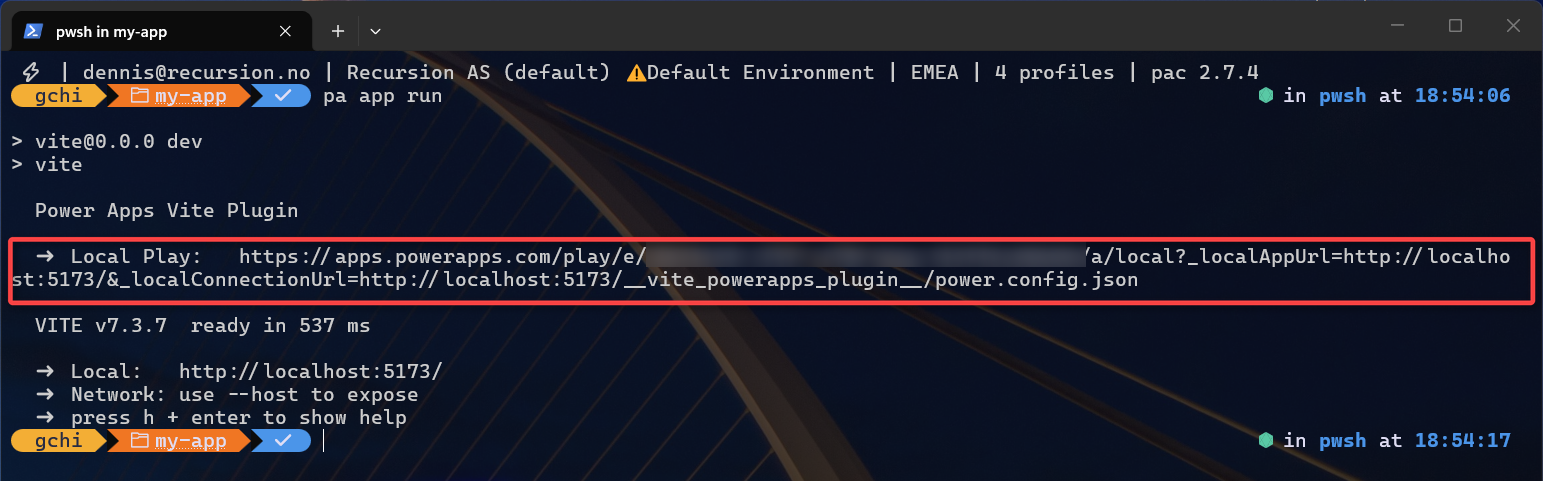
pa app run
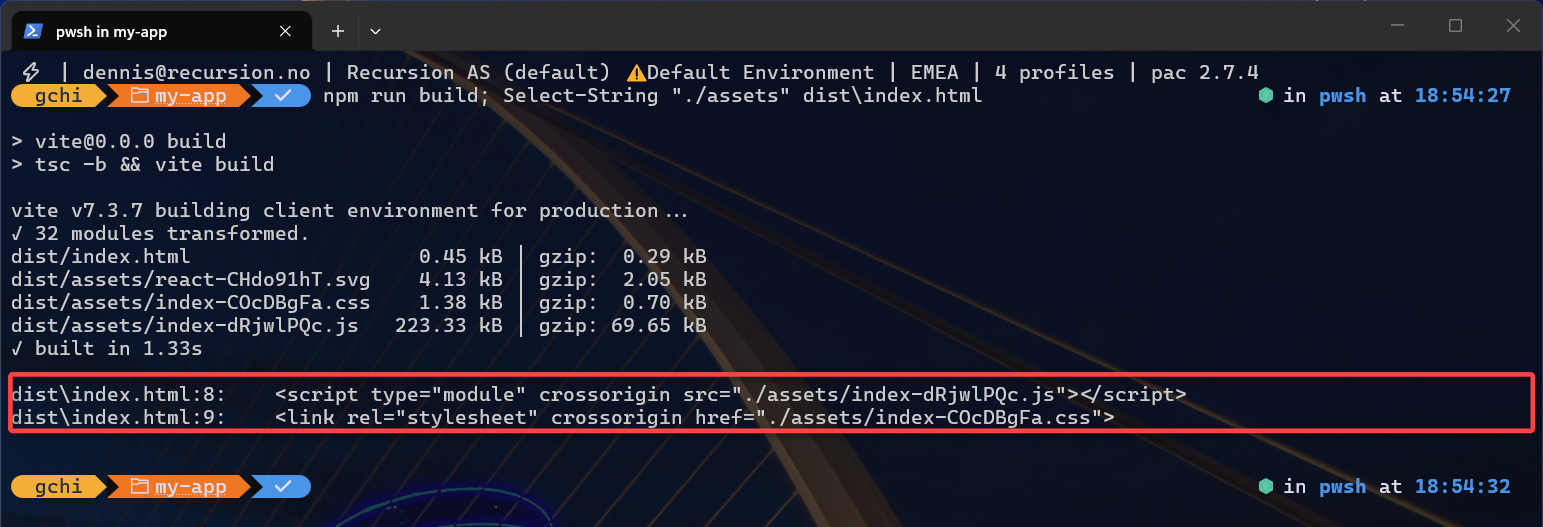
npm run build
pa app push
When pa app run starts the dev server, the plugin prints a Local Play URL. Open it in the same browser profile as your Power Platform tenant, and accept the browser’s Local Network Access prompt the first time: Chrome and Edge block calls from the player to localhost until you do. After the push, the CLI returns a live app URL.

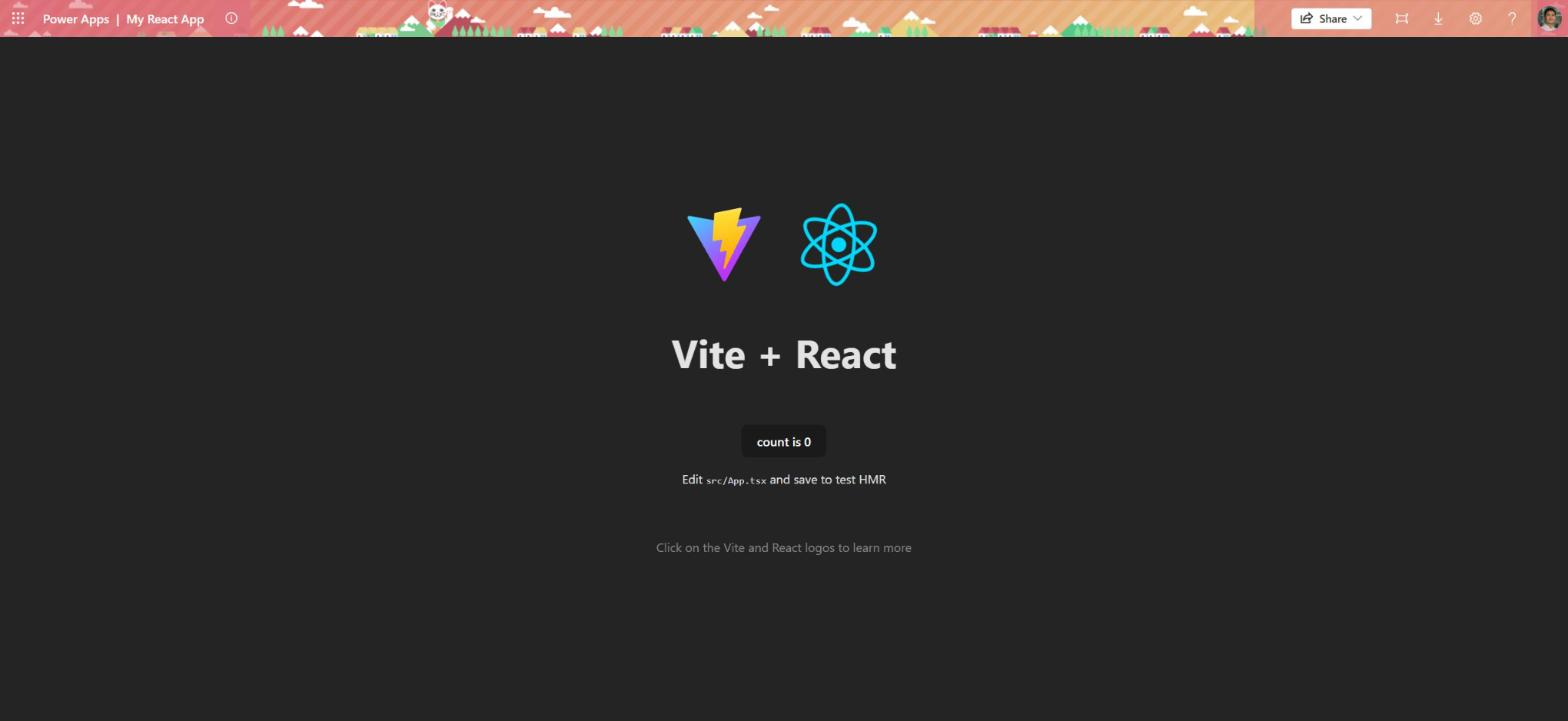
This is what you should see when you open the live app URL: the app running inside Power Apps after pa app push, with the name you gave pa app init in the header.
What to check as you go
Every step has a quick verification, so you never guess. For example, the build should produce a dist/index.html that references ./assets/... with relative paths. Indeed, that relative path proves the powerApps() plugin is active. Our React code app build passed this check at roughly a 223 KB bundle (measured again in October 2026 with React 19 and the Vite 7 release the template pins).
React-specific notes
Because this is the reference template, the other stacks simply reproduce this exact setup on a different framework plugin. To read context, import getContext from @microsoft/power-apps/app inside a useEffect. Data connectors, meanwhile, generate plain TypeScript services under src/generated/; you call XxxService.getAll() from your hooks.
Stress-test notes
We tested the five alternative stacks the way a real project runs them, and two findings apply to this React code app too. So treat them as defaults from day one, even if you are new to code.
Don’t make the app wait for Power Apps before it shows anything. The SDK call that reads the signed-in user (getContext()) only finishes when the app runs inside Power Apps. On your laptop it never finishes, so call it inside a useEffect (in the background) rather than before the first screen appears.
If you add navigation, pick the hash version. With React Router, use createHashRouter. In plain terms, that puts a # in the address bar, which keeps links and the refresh button working once the app is embedded in Power Apps. With those two habits, a React code app stays solid whether it runs on your laptop or inside Power Apps.
Where to go next
React is one stack among several. If your team prefers something else, start with the pillar guide on choosing any Vite framework for Power Apps code apps, then compare Vue, Svelte, Solid, Preact, and Angular.
For the authoritative platform reference, see the Power Apps code apps documentation on Microsoft Learn.
Leave a Reply